Open topic with navigation
Handling Failed IIEP Background Processes
You can reactivate a failed integration endpoint using Disable / Enable or Resume.
- If a background process fails and the processing of data is set to strict, you have to restart the endpoint before the endpoint is able to start another background process.
- If a background process fails and the processing of data is set to chain, the remaining background processes that belong to the chain will also fail. You have to correct the failed background process before the endpoint is able to start another background process that belong to the same chain. The endpoint will, however, continue to process data from other chained background processes.
For more information about the strict and chain settings, see Inbound Integration Endpoint Transactional Settings documentation here.
Disable and Enable a Background Process
Setting an integration endpoint to Disable and then Enable does clear the log file.
- Right-click the endpoint and select Disable Integration Endpoint.
- Right-click the endpoint again, and select Enable Integration Endpoint.
Resume a Background Process
Resuming an integration endpoint does not clear the log file
Note: Whenever the STEP system is patched or restarted, the main background process is automatically restarted. The integration endpoint log still exists, and continues to show an overview of the started background processes.
- Right-click the endpoint, and select Resume Integration Endpoint.
Resolving a Failed Background Process
- In System Setup select the relevant integration endpoint, and then click the Error Log Excerpts tab to display a list of failed background processes and the description of the failure.
You can also see if a process has been suspended because it is dependent on a failed process.
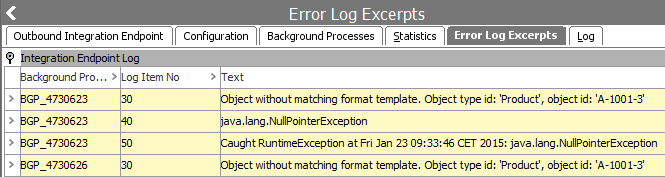
- In the Background Process column, click the link for the background process to correct.
- In the Background Process editor Execution Report, view the progress of the background process, and where it failed.
- In the Properties area > Value column, click the Save
 button near the failed status, and save the file locally.
- Open the file in a relevant editor and make the required changes.
- After completing the changes, upload the file back to the same background process. In the Background Process editor > Properties area > Value column, click the Upload
 button near the failed status.
- Restart the same process in the Properties area > Value column, click the Restart
 button near to the failed status. The background process is restarted.
- If the background process is part of a batch of chained processes, you also have to restart the other processes that are part of the chain.
2017, Stibo Systems