In addition to the standard business rule operations, more complex functions can be carried out using JavaScript and the Scripting API.
You can write JavaScript for your business conditions using the Evaluate JavaScript operation and for your business actions using the Execute JavaScript operation. Both operations include many JavaScript Binds, which provide access to the STEP data being worked on. For more information, see JavaScript Binds here.
Important: Although the same JavaScript binds are available for both actions and conditions, changing STEP data via an Evaluate JavaScript business condition is not supported.
For more information about business rule actions, see Business Actions here.
For more information about business rule conditions, see Business Conditions here.
Documentation for the Scripting API is available on the STEP API Documentation page ([system]/sdk).
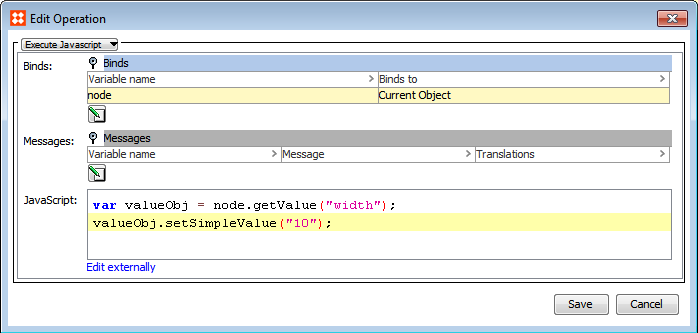
As a simple example, you could use the following JavaScript to set an attribute value.
var valueObj = node.getValue("Attribute ID");valueObj.setSimpleValue("Value for the attribute");
In the following example, "width" is the attribute ID and "10" is the value the attribute will receive.
With this script, the users gets the value object for the attribute via the getValue() method called on 'node'. This is a script shorthand for getting the object in the object-in-workflow relation. This value object is then stored in the script variable 'valueObj'. On the second line, the setSimpleValue() method is called on the value object, which sets the value.
For information on handling exceptions, see Handling JavaScript Exception Errors here.
2017, Stibo Systems