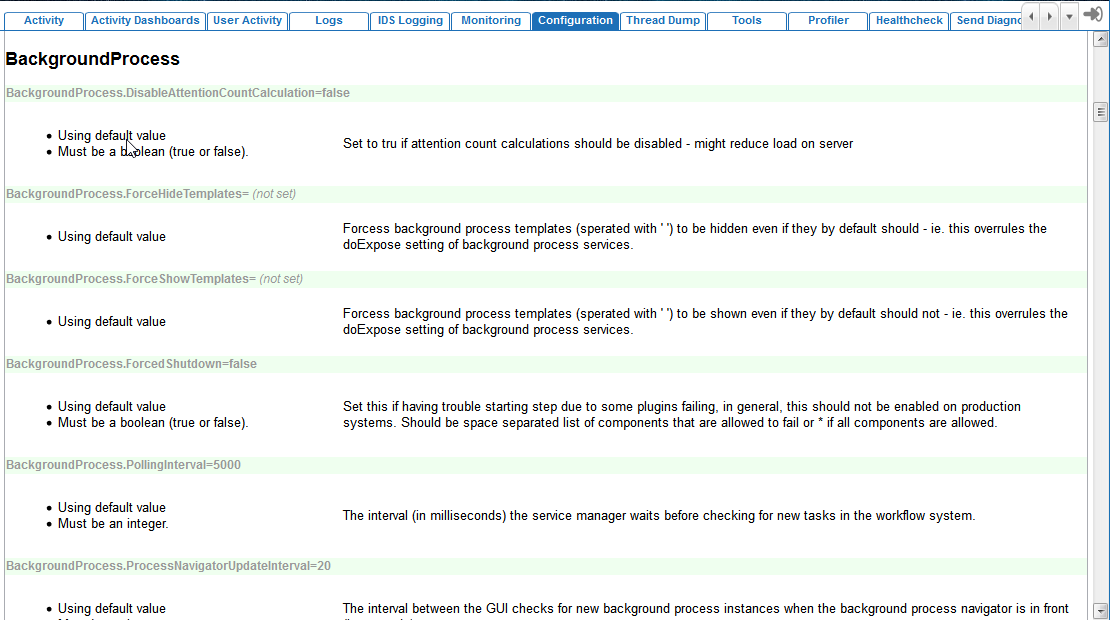
This section describes how to create new queues for background processes such as import and export processes, how to assign specific background processes to specific queues, and how to determine the number of processes that can be executed simultaneously on one queue.
In the default configuration, import processes have their own queue called IN. Export and web publisher processes share a queue called OUT. Scheduled processes have their own queue called SCHEDULE. All other background processes share a queue called MISC.
The IN, OUT and SCHEDULE queues are set up to execute one process at a time. The MISC queue is set up to execute two processes simultaneously.
Below is an example of the default configuration. The default configuration is an integrated part of the STEP code and therefore cannot be found in a separate file. However, most entries can be verified by accessing the admin portal. For more information on reviewing system information found in the admin portal, see the Accessing the Admin Portal documentation
BackgroundProcess.ProcessType.Exporter.Queue=OUT
BackgroundProcess.ProcessType.Importer.Queue=IN
BackgroundProcess.ProcessType.Schedule.Queue=SCHEDULE
BackgroundProcess.ProcessType.WebPublisher.Queue=OUT
BackgroundProcess.Queue.IN.Size=1
BackgroundProcess.Queue.MISC.Size=2
BackgroundProcess.Queue.OUT.Size=1
BackgroundProcess.Queue.SCHEDULE.Size=1
It is possible to change the default configuration.
Example: Below you can find a description of how to change the default configuration, so that export and web publisher processes can be run on separate queues. Furthermore, each queue will be set up to run two processes simultaneously.
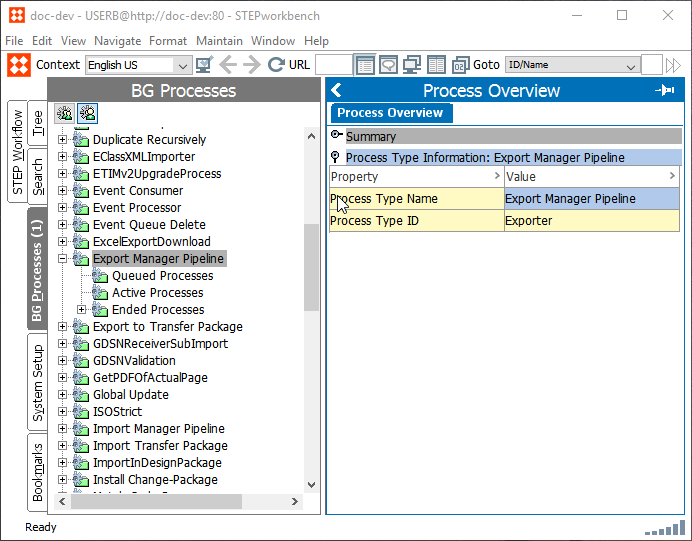
Click Export Manager Pipeline.
A Process Overview window appears.
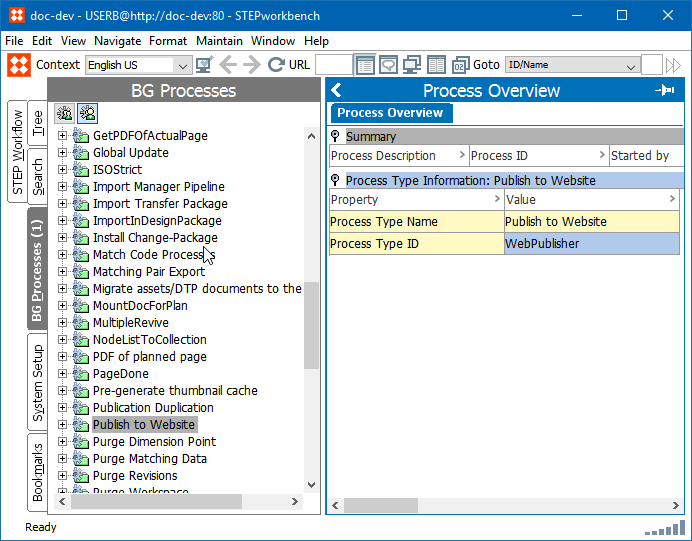
Click [Background Processes], then click Publish to Website.
A Process Overview window appears.
Open the configuration file on the application server. The name of the file is config.properties.
Note: If you run a clustered setup, you will typically have a configuration file that is shared between the application servers. Queue configurations for the entire cluster can be made in this shared properties file. Alternatively, the config.properties file on each individual application server can be changed.
Create two new queues and set the size of these queues, following this pattern:
BackgroundProcess.Queue.[Name].Size=[Size]
BackgroundProcess.Queue.EXPO.Size=2
BackgroundProcess.Queue.WEBP.Size=2
In this example, we have named the new Export process queue EXPO, and the new Web Publisher queue WEBP. Each queue can run two parallel processes.
In order to make the export and web publisher processes use these new queues, link the new queues to the relevant process types by adding two additional lines (shown in bold) following this pattern:
BackgroundProcess.ProcessType.[Process Type ID].Queue=[Queue]
BackgroundProcess.ProcessType.Exporter.Queue=EXPO
BackgroundProcess.ProcessType.WebPublisher.Queue=WEBP
The [Process Type ID] has been replaced by the values described in Background Process Queues
Note: If you run a clustered setup, and you have made the amendments in the shared file, the settings regarding the size will be applicable for each application server. Hence, if you have edited the shared configuration file as described in the example above on a cluster with two application servers, you would be able to run four exports and four web publisher processes simultaneously on the cluster, i.e. two exports and two web publisher processes on each application server.
2017, Stibo Systems