A Sustainability Data Card (SDC) may be changed for several reasons. As examples, a user may amend a data card to:
-
add new objects to the data card
-
add new assessments to the data card
-
remove existing assessments from the data card
The updates listed above trigger the data completeness and quality metrics recalculation.
There are other, more minor changes that can be made on a data card which do not require the re-evaluation (for example, name or description modification).
To begin a maintenance effort on a data card, users can locate the data card through one of two methods:
-
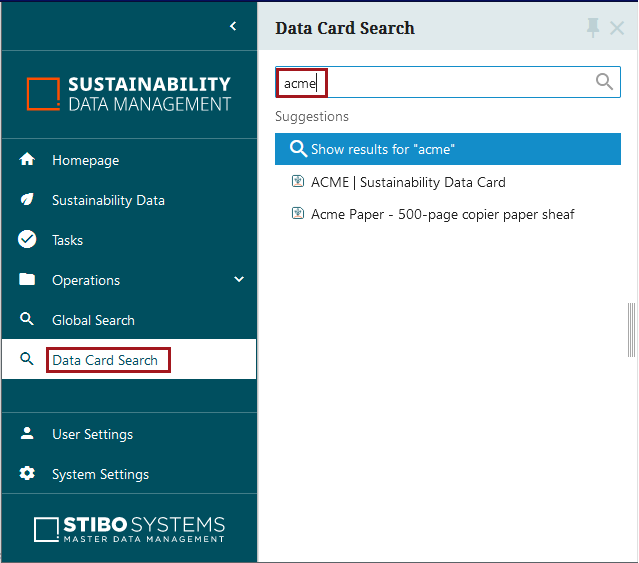
Search – Users can click ‘Data Card Search’ in the Global Navigation Panel, and then add a search term into the search field. As characters are added, the typeahead functionality displays results that conform to the typed search term.
-
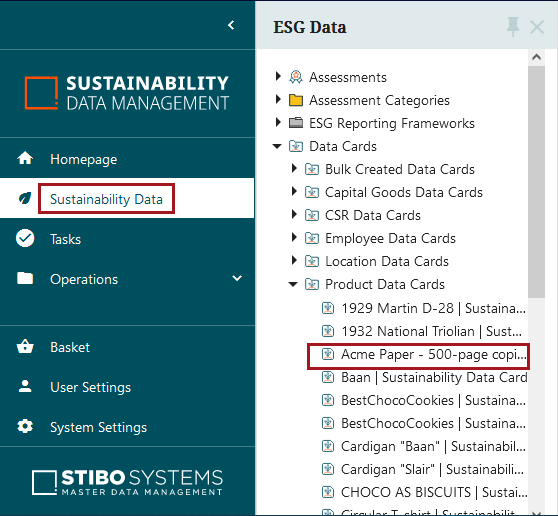
Navigate – Users can navigate to the data card in the hierarchy.
Once the data card has been located and accessed, click the ‘Start evaluation workflow’ button located at the bottom of the screen.
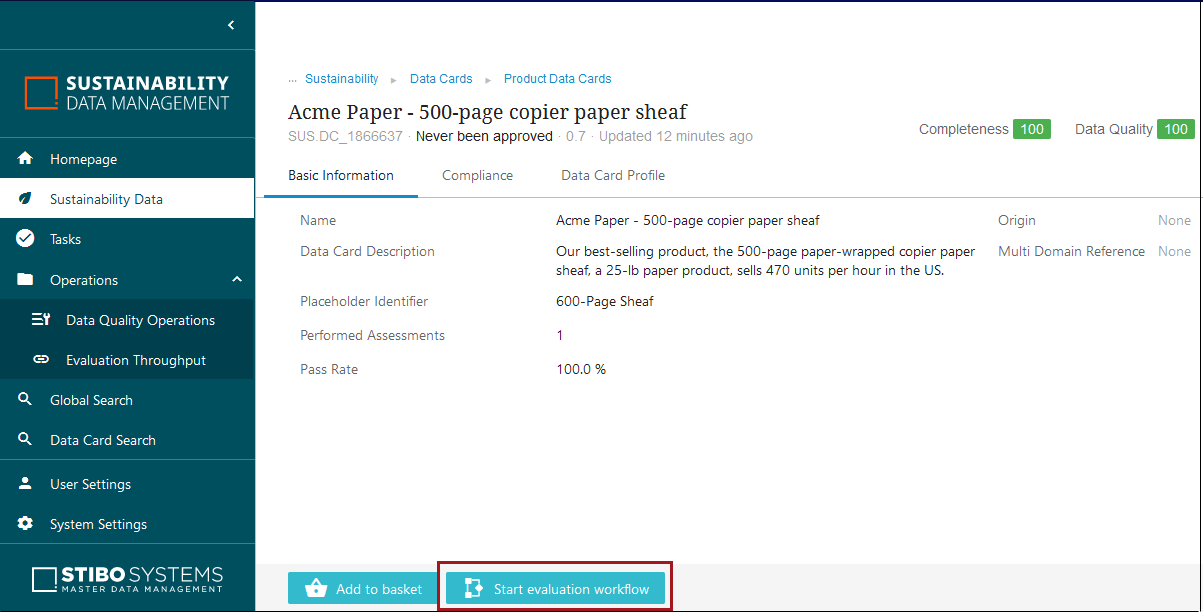
Clicking ‘Start evaluation workflow’ executes the following actions:
-
Enters the data card into the ‘Evaluation’ state of the ‘Data Card Evaluation’ workflow.
-
Stays on the ‘Basic Information’ tab of the data card screen and enables the user to edit the fields that were previously read-only.
Note: At this stage, any maintenance work done on the data card prior to being validated should be done by accessing the data card through the Status Selector widget on the homepage, or by clicking ‘Tasks’ in the Global Navigation Panel and then clicking the relevant workflow and workflow state. Accessing the data card through the homepage Status Selector widget is required so that the submit buttons—Done, Validated, Rework—used to transition the data card to the next workflow state are available to the user.
Data card maintenance options
When the data card is in the ‘Evaluation’ state of the ‘Data Card Evaluation’ workflow, users can take several actions, some of which are only available while the data card is in the workflow. Below is a description of those actions organized by the available tabs.
Basic information tab options
On this tab, users can amend and otherwise enrich the ‘Name,’ ‘Data Card Description,’ and ‘Placeholder Identifier’ fields, or set the country of origin for the data card or link additional data cards to the data card by clicking the ‘+’ for the ‘Multi Domain Reference’ parameter and selecting a data card from the node picker dialog that displays.
Compliance tab options
The ‘Compliance’ tab features two sub-tabs: 'Assessments' and 'Criteria.'
On the ‘Assessments’ sub-tab, the linked assessments are displayed.
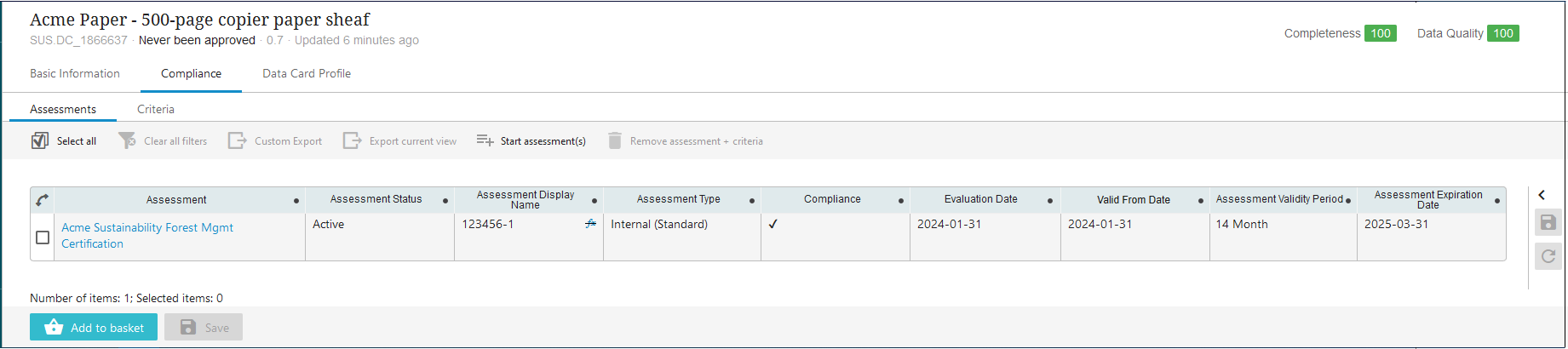
In the toolbar, several actions are displayed:
-
Clear all – Clears all selections in the table.
-
Clear all filters – Removes any applied filters to display all linked assessments.
-
Custom Export – Allows users to configure an export of the criteria to a spreadsheet. For more information on the Custom Export functionality, refer to the Custom Export Action topic in the Web User Interfaces documentation.
-
Export current view – Initiates an export of all selected records as they are currently being viewed in the table.
-
Start assessment(s) – Allows users to link one or more assessments to the data card.
-
Remove assessment + criteria – After selecting assessments to be removed, click this button to unlink the assessment and all its linked criteria from the data card. This also deletes all maintained values set for the ‘Actual Value’ header on the criteria.
In the 'Assessments' tab's table that displays all linked assessments, a series of columns display with relevant information. For information about these columns, refer to the Creating Assessments topic. These columns are listed and described below:
-
Assessment - Lists the name of the assessment.
-
Assessment Status - Displays the status of the assessment.
-
Assessment Display Name This value is a concatenation of the ‘Assessor Code’ and the ‘Assessment Code’ but can be overwritten if needed. This value is used as the key to identify which assessments the ‘Criteria’ tab’s criteria belong to.
-
Assessment Type - One of five settings (Internal (Standard), Internal (Or-Condition), External, Nested, or Nested (Or-Condition)) that control which business rules are used to verify the provided information for the criteria.
-
Compliance - Displays a checkmark if the assessment is compliant with predefined compliance metrics. An 'X' displays if the assessment is not in compliance with the pre-defined metrics.
-
Evaluation Date - The date at which the assessment was performed.
-
Valid From Date - The date at which the assessment was passed by the authority from whom the assessment originates. If no value is added, the value for 'Evaluation Date' will determine the assessment's expiration date.
-
Assessment Validity Period - Displays the length of time the assessment is valid for.
-
Assessment Expiration Date - Displays the date at which the assessment will expire and will cease to be valid. This date is determined by both the 'Assessment Validity Period' and the 'Valid From Date' values. If no value is set for 'Valid from Date', the 'Assessment Expiration Date' will be determined by the date value set for 'Evaluation Date.'
Note: To configure automatic assessment of data cards' expiration status, the 'Data Cards - Handling Expiring Assessments' bulk update configuration must be scheduled to run on the 'Data Cards Expired or Expiring within 30 days' collection. For more information on how to do this, refer to the 'Scheduling Bulk Updates for Expiring Data Cards' section of the Configuring Sustainability topic.
On the ‘Criteria’ sub-tab is where the Sustainability Compliance Officer or other relevant users can assign the appropriate value to the ‘Actual Value’ header for all linked criteria.
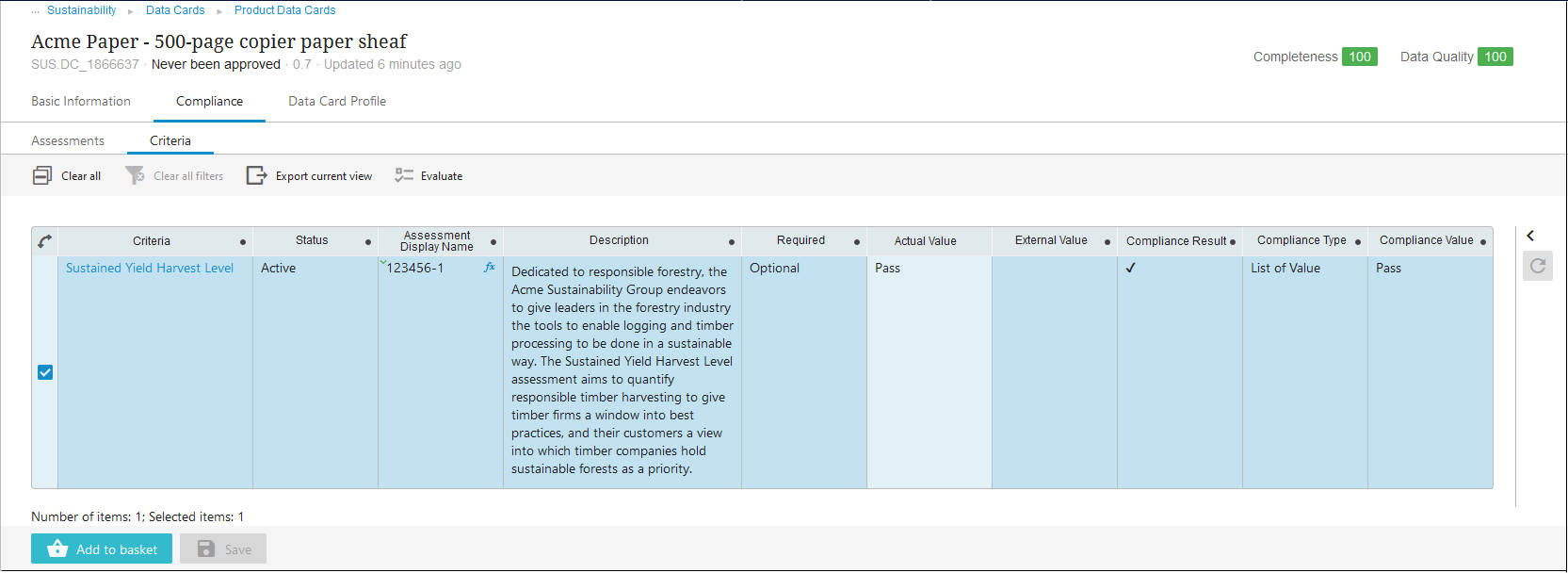
The actions available in the toolbar are:
-
Select all – Selects all listed criteria.
-
Clear all filters – Any filters applied to the table are cleared to show all linked criteria.
-
Export current view – Active when one or more criteria are selected, this action exports all displayed information in the table to a spreadsheet. For more information on exporting content in the Web UI, refer to the Export Current View Action topic in the Web User Interfaces documentation.
-
Evaluate – Initiates the evaluation process to validate the pass / fail status of the criterion.
The ‘Data Card Profile’ tab displays the relationships between the data card and various compliance objects like Sustainability data cards, assessments, criteria, geo-locations, suppliers, and products. These connections are displayed visually as a network with the various objects displayed as color-coded chips, each with a live link to the object listed within the chip. The links shown in this diagram are created in the following ways:
-
Assessment links – established by assigning an assessment
-
Criteria links – established through linking an assessment with the linked criteria
-
Data card links – established through the ‘Multi Domain Reference’
-
Geo-location links – established through ‘Origin’
-
Supplier / Product links – established by creating a data card with connections to suppliers and / or products
When all needed updates to the data card have been completed:
-
Click ‘Save’
-
Click ‘Done’
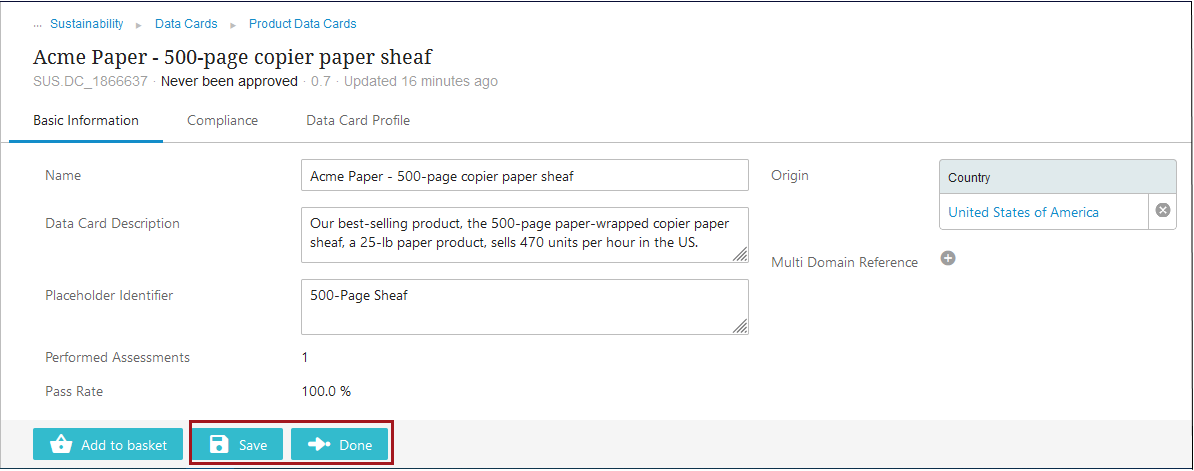
Clicking ‘Done’ sends the data card into the ‘Validation’ state of the ‘Data Card Evaluation’ workflow.
Data Card Validation
When the data card is sent into the ‘Validation’ state of the ‘Data Card Evaluation’ workflow, several automated validation steps are taken. In the 'Validation' state, the Sustainability Compliance Officer user can either approve the data card by marking it as validated or return the data card to the ‘Evaluation’ state to be reworked.
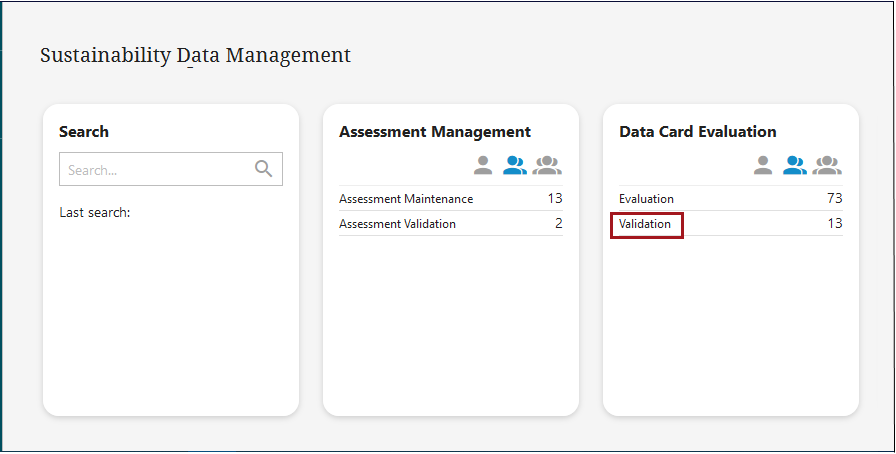
To access the data card, first navigate to the homepage, and then click on the ‘Validation’ state in the ‘Data Card Evaluation’ workflow status selector widget.
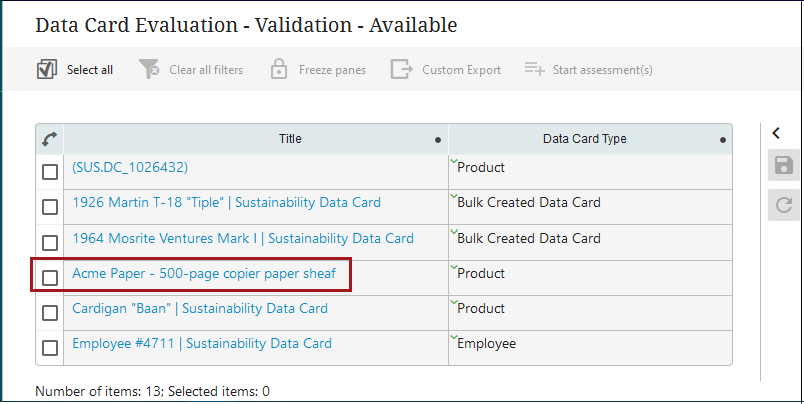
Click the title of the data card to be evaluated.
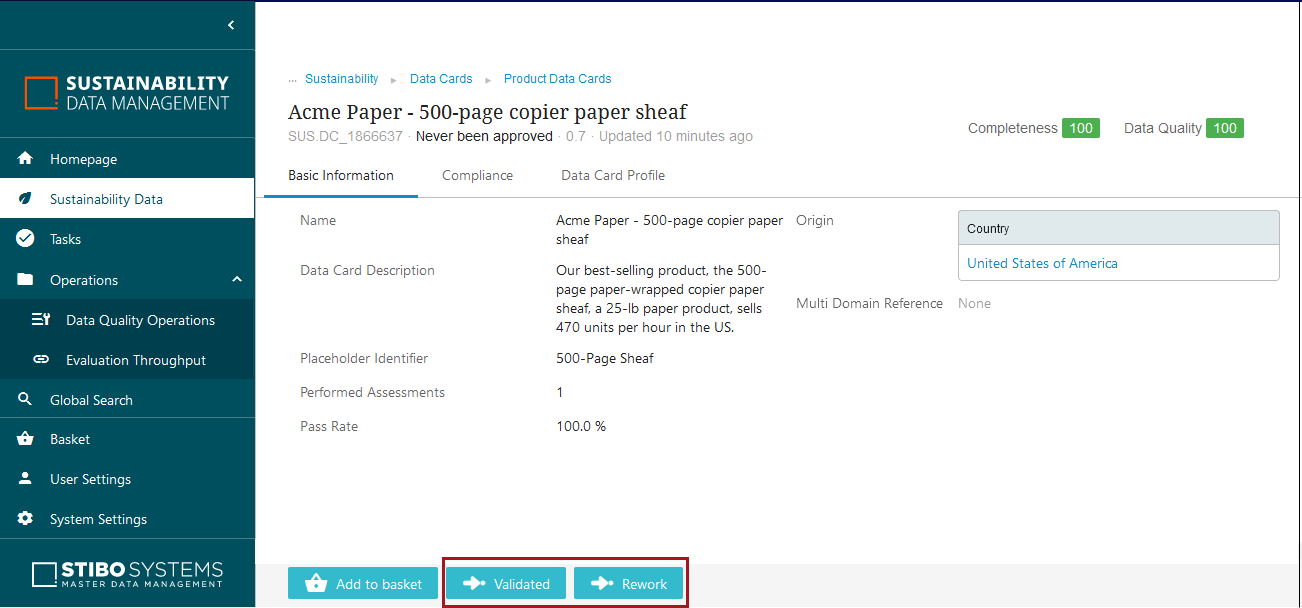
On the ‘Data Card’ screen, the Sustainability Compliance Officer reviews the data card following its updates and can click either the ‘Validated’ or ‘Rework’ buttons.
-
Validated – Clicking this button validates that the Sustainability Compliance Officer has reviewed the data card and has determined that the data card’s information and the assessments and data cards linked to it are accurate. This removes it from the workflow.
-
Rework – Clicking this button sends the data card back to the ‘Evaluation’ state of the ‘Data Card Evaluation’ workflow so additional changes can be made.
When the user clicks the ‘Validated’ button, the Sustainability Data Management solution enables the Sustainability Compliance Officer to set a time stamp on the data card as to when it was validated.
Removing the validation state from the Data Card Evaluation workflow
In some implementations, a single user maintains the Sustainability solution. This can render a second workflow state unnecessary. For this reason, the 'Data Card Validation' state of the 'Data Card Evaluation' workflow can be de-activated so data cards can flow into the 'Evaluation' state and also be validated in that state.
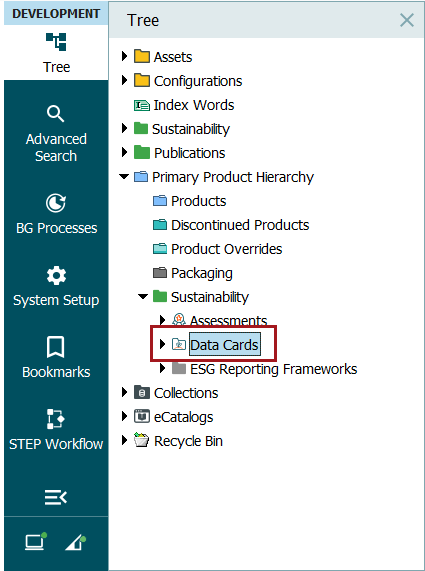
To deactivate the 'Data Card Validation' state, go to the STEP Workbench. In the Tree, click on the 'Data Cards' object, which is nested under the 'Primary Product Hierarchy' and the 'Sustainability' nodes.
On the 'Product' tab, at the end of the list of description attributes is the 'Skip Validation State in Assessment Management' setting. Double-click the field to display a 'Yes' / 'No' dropdown menu.
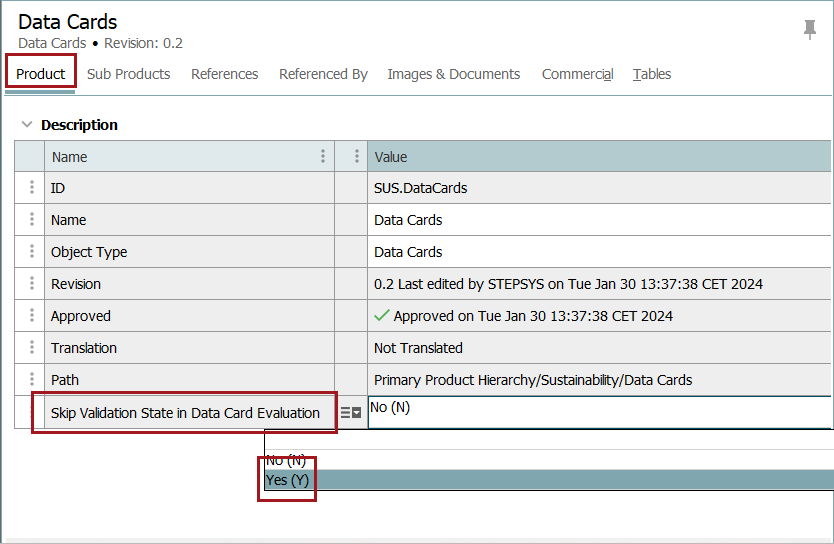
Select 'Yes' to skip the 'Validation' state.
As a result, users will be able to review and validate a data card in a single workflow state: 'Evaluation.'