The AutoPage Publication Planner is used to plan page content and view the status of paginated pages. It is also used to resequence publication sections and either resequence or remove the products, classifications, assets, and/or entities that are linked to them.
To view the AutoPage Publication Planner, select a publication, section, or subsection in the Tree, then click the AutoPage Publication Planner tab.
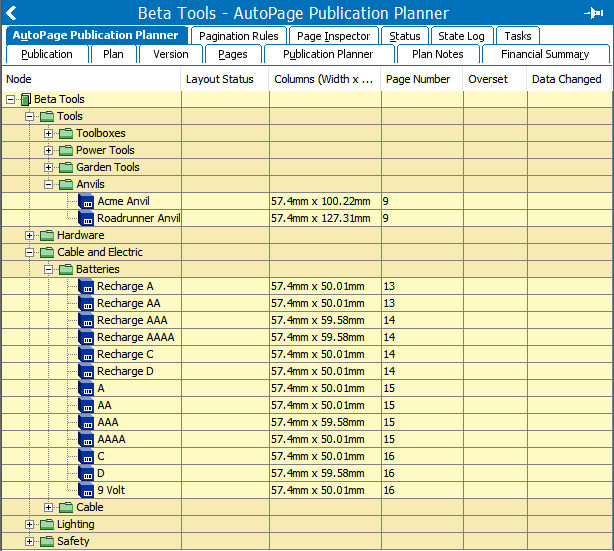
Columns in the AutoPage Publication Planner
The following table describes the columns contained in the AutoPage Publication Planner. Note that columns cannot be added to / removed from the planner.
| Column Name | Description |
|---|---|
|
Node |
Displays the publication, sections, subsections, and linked objects within the publication. |
|
Layout Status |
Displays 'Locked' if the object's layout has been locked in the Page Inspector. For more information about locking and unlocking layouts, refer to the Page Inspector topic. |
|
Columns (Width x Height) |
The width and height of the product presentation on the paginated page. An asterisk (*) next to the value means that the product presentation is split over more than one page. Note: The unit always displays in mm, even if a different unit is applied to the publication group that contains the publication. |
|
Page Number |
Page where the object is mounted. |
|
Overset |
Displays 'Overset' if there is at least one frame on the InDesign page where there is too much content to fit inside of the frame. For more information on oversets, refer to the Viewing Markers and Overset Text topic. |
|
Data Changed |
Displays 'Data changed' if content on the page has been changed in STEP since the page was mounted. Note: A 'check for update needed' operation must be performed on a section or subsection before the system will know if any data has changed on the page. For more information, refer to the Updating Documents in AutoPage topic. |
Available Right-click Actions in the Publication Planner
From the AutoPage Publication Planner you can perform the following actions by right-clicking either on the publication, a section, or a linked object.
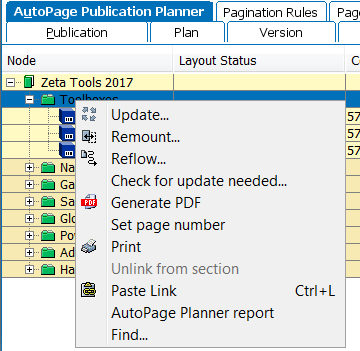
| Action | Description | Level Where Available | ||
|---|---|---|---|---|
| Publication | Section | Linked Object | ||
|
Update |
Updates the content on pages in the selected publication or section. You can either update all content or select a subset of information, such as attribute values, commercial terms, or image references. For more information, refer to Updating Documents in AutoPage. |
X |
X |
|
|
Remount |
Remounts one or more objects at a time. For more information, refer to Remounting and Reflowing Objects. |
|
X |
X |
|
Reflow |
Reflows objects from the selected object until the end of a page or the end of a section. For more information, refer to Remounting and Reflowing Objects. |
X |
X |
X |
|
Check for update needed |
Launches a background process that scans through all pages in the section and determines if data has changed on any of the mounted products in STEP since the pages were mounted. For more information, refer to Updating Documents in AutoPage. |
|
X |
|
|
Generate PDF |
Generates a PDF of the publication or selected section. (Pages must first be autopaginated.) Refer to the Generating PDFs in AutoPage topic. |
X |
X |
|
|
Set page number |
Remounts pages (either fully or partially) in the selected publication or section so that they start on a specified page. For more information, refer to Controlling Page Numbers. |
X |
X |
|
|
|
Prints the documents contained within the publication or selected section. For more information, refer to Printing Pages in AutoPage. |
X |
X |
|
|
Unlink from section |
Unlinks the product, asset, or classification object from the section. Refer to Linking and Unlinking Objects in AutoPage Publications for more information. |
|
|
X |
|
Paste Link |
This option is enabled when a product, asset, or classification object has been copied from the Tree. Selecting Paste Link will link the copied object into the section. Refer to Linking and Unlinking Objects in AutoPage Publications for more information. |
|
X |
|
|
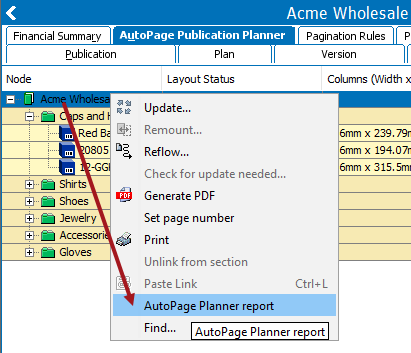
AutoPage Planner report |
Extracts a CSV file that pulls all available information from the AutoPage Publication Planner, including all node levels of the publication and what objects are linked to each section and subsection. For more information, refer to the 'Creating an AutoPage Planner Report' subsection below. |
X |
X |
|
|
Find |
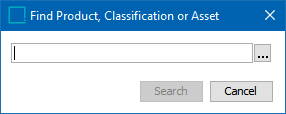
Launches a dialog that enables search for a product, classification, or asset within the publication or selected section.
|
X |
X |
|
Creating an AutoPage Planner Report
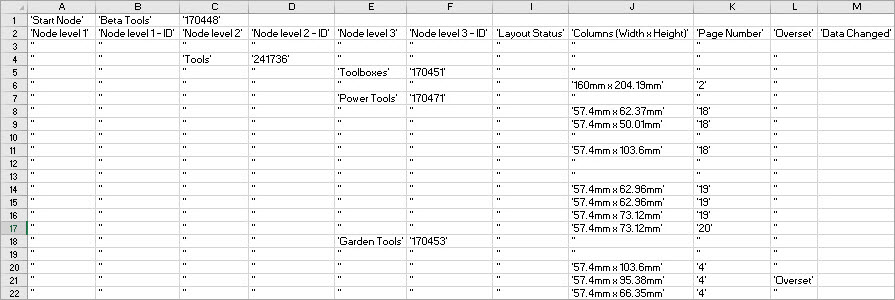
The AutoPage Planner Report is a comma-separated (CSV) file that contains the information displayed in the AutoPage Publication Planner. This report provides both the STEP ID and Name of the products linked into the publication and is helpful for users to view this information offline.
The following screenshot shows a portion of a sample AutoPage Planner Report, as viewed in Excel.
To generate an AutoPage Planner Report:
- In the Tree, select the relevant publication, section, or subsection, then go to the AutoPage Publication Planner tab.
- In the AutoPage Publication Planner, select the publication, section, or subsection from which you want to pull a report, then right-click and select AutoPage Planner report.
- In the 'Save' dialog, choose a 'Save in' destination, then enter a file name and click Save.
- The report is generated and saved in the selected file location.