Like data profile dashboards in STEP Workbench, profiled data can also be displayed using the KPI widgets in Web UI.
To add widgets to the homepage, add the widget 'KPI Widget' to an applicable page, specify a selection (what node to display profiled data from), and choose the desired child component. To add one to a node in the hierarchy add the desired widget as a child component.
Note: Widgets added to a node in the hierarchy will pull profiled data from its child nodes automatically. When adding a widget to the homepage, however, the user must specify where to pull profiled data from via the Selection field. In either case data will only display so long as a profile has been generated for the applicable dataset.
All available data profile widgets found in Web UI are detailed below.
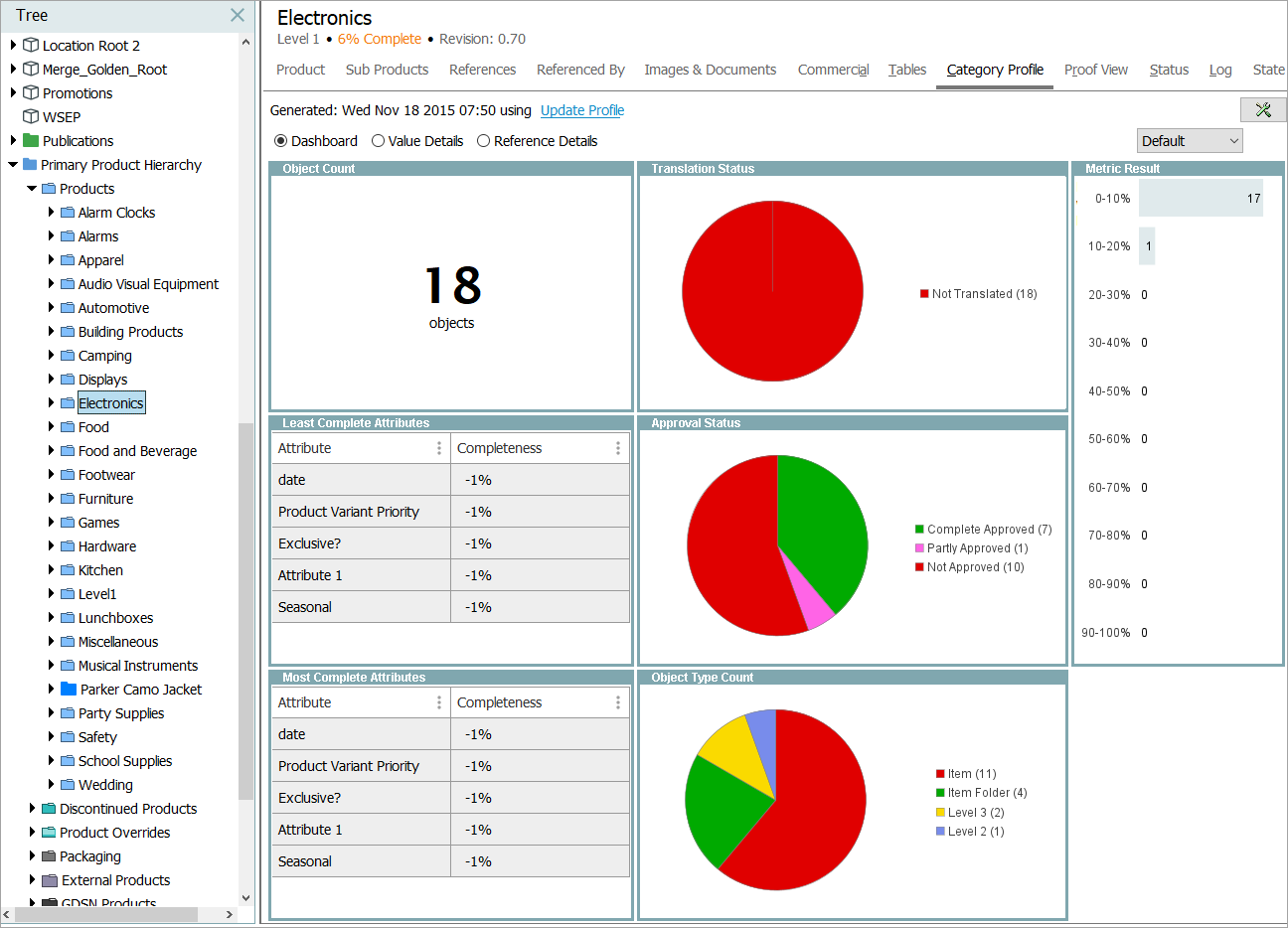
Important: The profile has to be Generated / Updated for the selected STEP object hierarchy configured in the Data Profile widgets for the graphical representation to be visible on the Data Profile widgets. At times all the configuration will be correct, if the ability to view anything in the widget is lacking, then the user has to Generate the Profile (if it’s for the first time), or update the profile if already generated. Refer to image below for reference.
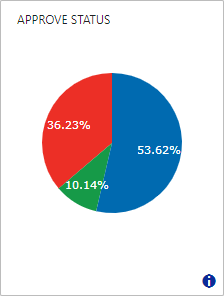
Approve Status
This widget displays the approval status of objects in the data profile.
Configuration options include:
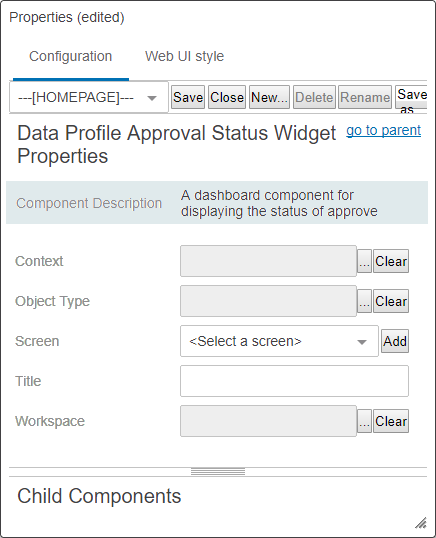
- Context - Pulls data from the specified context.
- Object Type - Filters data via object type.
- Screen - Links the graph to another screen in the Web UI. The selected screen must be a Generic Search screen.
- Title - Changes the name that appears on the widget's title bar.
- Workspace - Pulls data from the specified workspace.
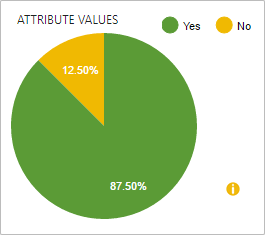
Attribute Values
This widget shows the distribution of values for the specified attribute across objects in the data profile.
Configuration options include:
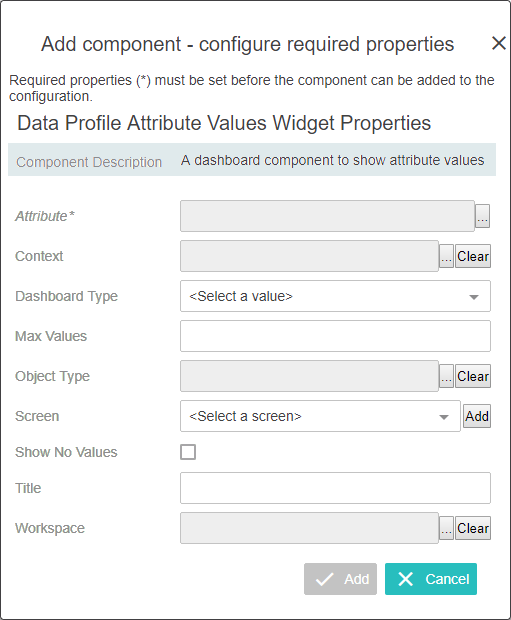
- Attribute - Specifies which attribute to pull values from. Defining this configuration is mandatory.
- Context - Pulls data from the specified context.
- Dashboard Type - Determines whether to display the data as a pie chart or bar chart.
- Max Values - Specifies the maximum number of distinct values to display. By default this field is set to -1, which means 'all values'. If the specified maximum is exceeded, the remaining (smaller) values will be placed in the "Other values" group.
- Object Type - Filters data via object type.
- Screen - Links the graph to another screen in the Web UI. The selected screen must be a Generic Search screen.
- Show No Values -Displays the number of objects that have no value for the specified attribute when the box is checked.
- Title - Changes the name that appears on the widget's title bar.
- Workspace - Pulls data from the specified workspace.
Important: Any attribute that is full text indexed, multi-valued, calculated, or has values with inline references is not compatible with this widget.
Average Metric Score
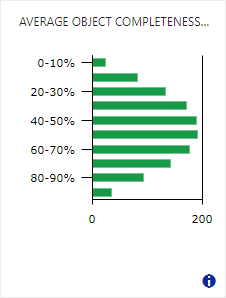
This widget displays the results of a specific metric applied to the data profile.
Configuration options include:
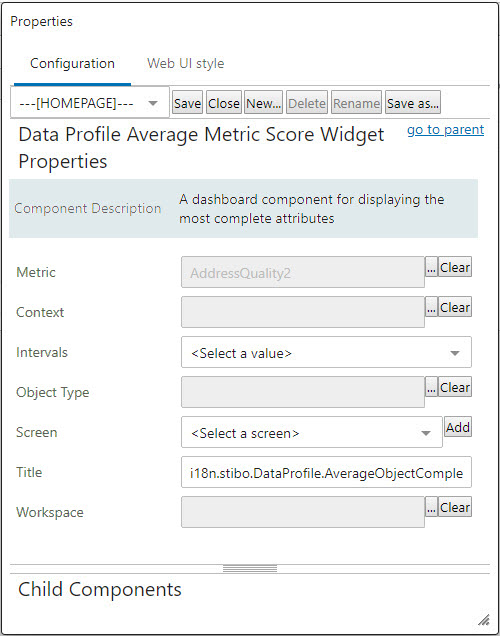
- Metric - Determines which metric to evaluate the data with. Note that the metric must be specified in the Profile Configuration and data must have been profiled using that configuration before the widget can show any data. For more information, refer to the Profile Configuration topic of the Data Profiling documentation.
- Context - Pulls data from the specified context.
- Intervals - Displays the bars of the graph in intervals of 2, 4, 5, 10, or 20.
- Object Type - Filters data via object type.
- Screen - Links the graph to another screen in the Web UI. The selected screen must be a Generic Search screen.
- Title - Changes the name that appears on the widget's title bar.
- Workspace - Pulls data from the specified workspace.
Condition Status
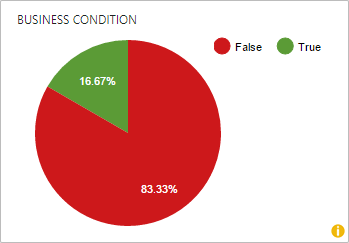
This widget displays the result of testing a business condition during profiling.
Note: If the test of the business condition results in an error, the test is reported as failed.
Configuration options include:
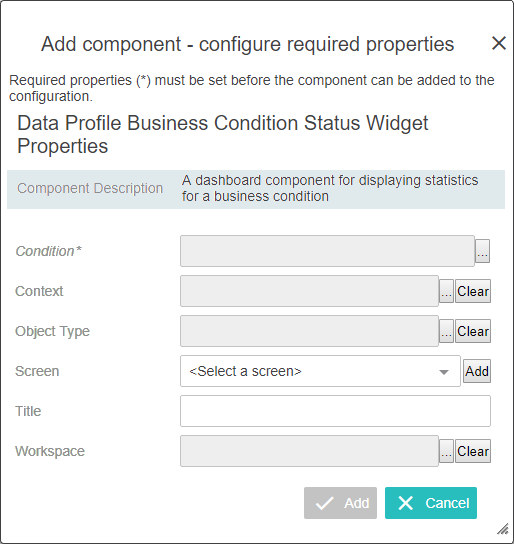
- Condition - Determines which business condition to test when profiling. Note that the condition must be specified in the Profile Configuration and data must have been profiled using that configuration before the widget can show any data. For more information, refer to the Profile Configuration topic of the Data Profiling documentation.
- Context - Pulls data from the specified context.
- Object Type - Filters data via object type.
- Screen - Links the graph to another screen in the Web UI. The selected screen must be a Generic Search screen.
- Title - Changes the name that appears on the widget's title bar.
- Workspace - Pulls data from the specified workspace.
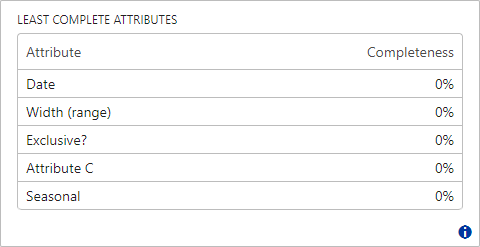
Least Complete Attributes
This widget displays the five least complete attributes in the data profile. Completeness is rounded to the nearest whole percentage and attributes with the same completeness are presented in the order in which they are retrieved from the database. Inherited values are included in the calculation.
Configuration options include:
- Context - Pulls data from the specified context.
- Object Type - Filters data via object type.
- Title - Changes the name that appears on the widget's title bar.
- Workspace - Pulls data from the specified workspace.
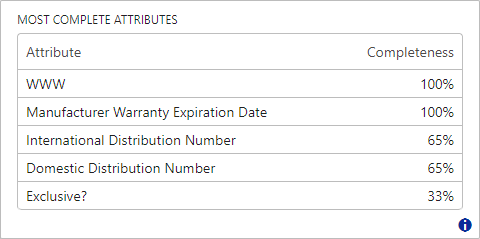
Most Complete Attributes
This widget lists the five most complete attributes in the data profile. Completeness is rounded to the nearest whole percentage and attributes with the same completeness are presented in the order in which they are retrieved from the database. Inherited values are included in the calculation.
Configuration options include:
- Context - Pulls data from the specified context.
- Object Type - Filters data via object type.
- Title - Changes the name that appears on the widget's title bar.
- Workspace - Pulls data from the specified workspace.
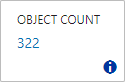
Object Count
This widget displays the number of objects in the data profile.
Note: If any objects being profiled are linked multiple times in the sub-tree, they are also counted multiple times. This only applies to sub-trees under classifications and entities, as products can only link to other products once in a parent / child relationship.
Configuration options include:
- Context - Pulls data from the specified context.
- Screen - Links the graph to another screen in the Web UI. The selected screen must be a Generic Search screen.
- Title - Changes the name that appears on the widget's title bar.
- Workspace - Pulls data from the specified workspace.
Object Type Count
This widget displays the distribution of object types in the data profile.
Note: Only the five most common types are displayed as separate entries. The remaining types are grouped in "Other object types".
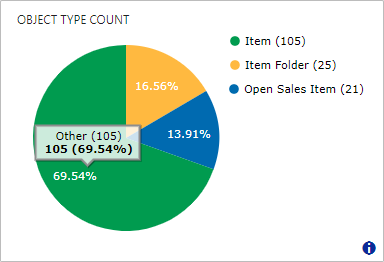
Configuration options include:
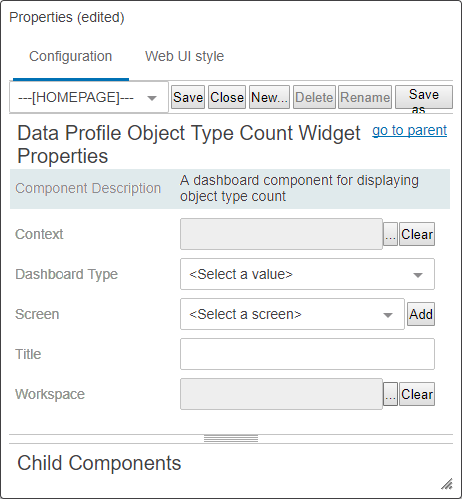
- Context - Pulls data from the specified context.
- Dashboard Type - Determines whether to display the data as a pie chart or bar chart.
- Screen - Links the graph to another screen in the Web UI. The selected screen must be a Generic Search screen.
- Title - Changes the name that appears on the widget's title bar.
- Workspace - Pulls data from the specified workspace.
Translation Status
This widget displays the translation status of the objects in the data profile.
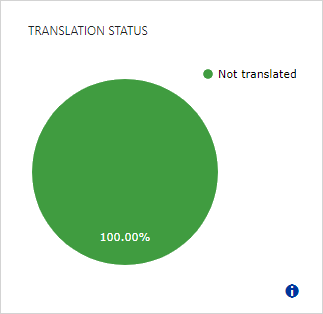
Configuration options include:
- Context - Pulls data from the specified context.
- Object Type - Filters data via object type.
- Screen - Links the graph to another screen in the Web UI. The selected screen must be a Generic Search screen.
- Title - Changes the name that appears on the widget's title bar.
- Workspace - Pulls data from the specified workspace.
Note: The KPI Table Widget has been deprecated.