The AutoCare PIES Exporter is used to export parts data in PIES (Product Information Exchange Standard) format. The exporter defaults to exporting data in the standard AutoCare data model, but configuration options are also available to export data from an Own model in PIES format.
This topic addresses using the exporter, as well as how to export Own part objects other than PIES Items.
Note: Exporting from a non-PIES data model requires that the alternate data model utilizes the PIES attributes and references from the standard model, and has Packaging and Hazmat objects as children to the PIES Items (if packaging and hazmat objects are to be included in the export).
Prerequisites
The PIES exporter runs using standard Export Manager functionality. Only information specific to the PIES exporter is covered within this guide. Additional information on general Export Manager functionality is covered in the Export Manager topic within the Data Exchange documentation.
Using PIES Exporter
Step 1. Start AutoCare PIES Exporter
The AutoCare PIES Exporter can be started via standard Export Manager methods, e.g., File > Export > Data, or by selecting an object in Tree, right-clicking, and selecting 'Export Data Below' from the menu. In the case of the right-click option, an object in the AutoCare PIES Product hierarchy, an object in an Own model hierarchy that uses PIES data, or a yellow classification where part objects are linked to must be selected.
Step 2. Select Objects
In the Select Objects dialog, the only parameter that is read by the exporter is the actual object selection. The additional parameters (shown within the red box in the screenshot below) are disregarded.
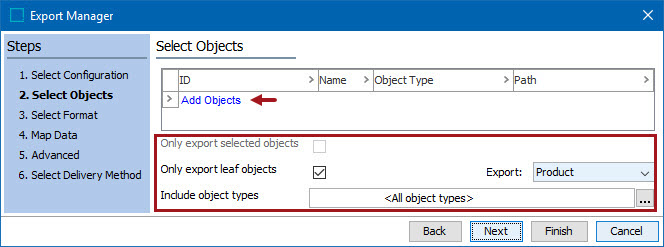
Click the Add Objects link to add one or more blue folders in the AutoCare PIES Products hierarchy, or one or more blue folders from an Own hierarchy, or one or more classification folders.
All PIES objects beneath the selection(s) (either as child objects or via links) will result in the export file.
Important: If the standard AutoCare model is used, no additional selection is required. If an Own model is used, a PIES object type selection must be made in the next step of the Export Manager wizard.
Step 3. Select Format
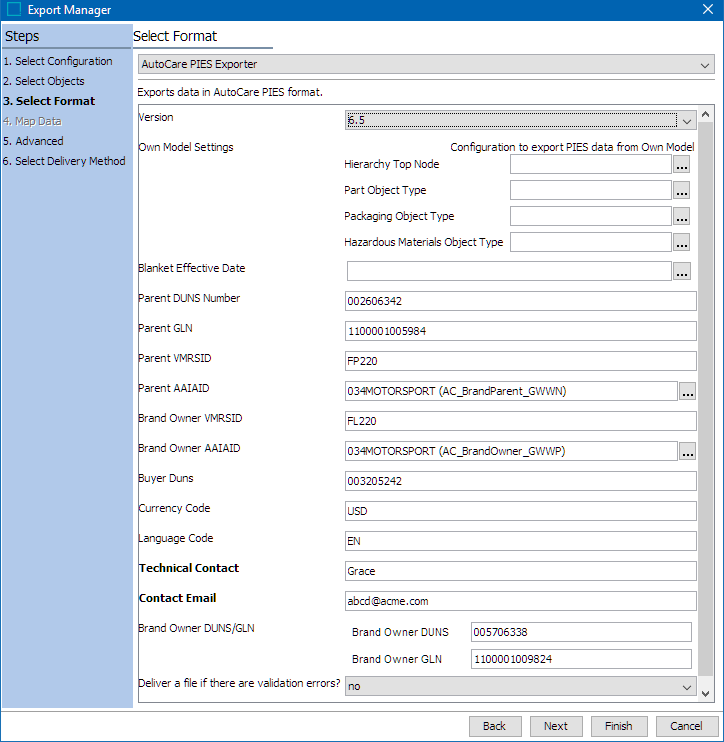
Select AutoCare PIES Exporter format to display options specific to the PIES exporter. The version will default to 7.2, but any one of the available PIES export versions can be selected from the dropdown list.
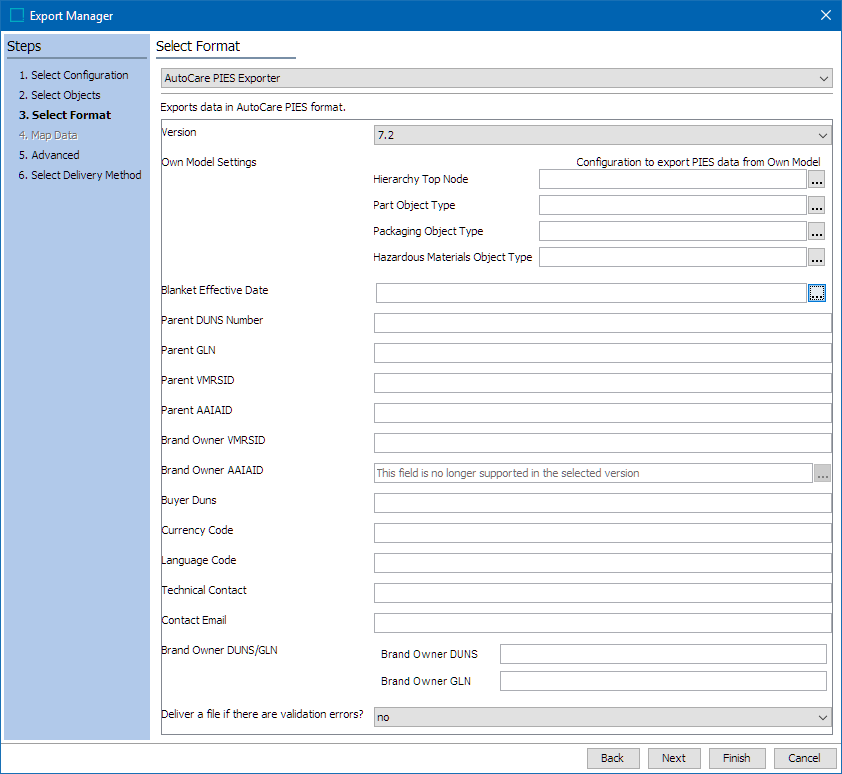
All the parameters that are available within this tab are described below. By default, all the parameter values are blank unless an existing configuration is selected.
Own Model Settings
If the standard AutoCare model is used, no selections should be made in the Own Model Settings section. If an Own model is used, the Own Model Settings must be populated as described below.
- Hierarchy Top Node: This is an optional parameter for selection of a product hierarchy top node (where Price Sheet data would be stored).
- If the PIES Pricing segment does not need to be included in the export, then this parameter can be left empty.
- If the PIES Pricing segment is to be included in the export, then the parental node where the price sheet information is stored needs to be specified in this parameter. The Data Container and its attributes used to store the price sheet information must use the AutoCare IDs which is prefixed with 'AC_PIES_PRCS_. '
PIES Importer creates price sheet Data Containers and price sheet attributes as they are needed, based on price sheet data in any import file. The data inherits to the product, but it is not maintainable there, and needs to be present on the parental node to be included in the export.
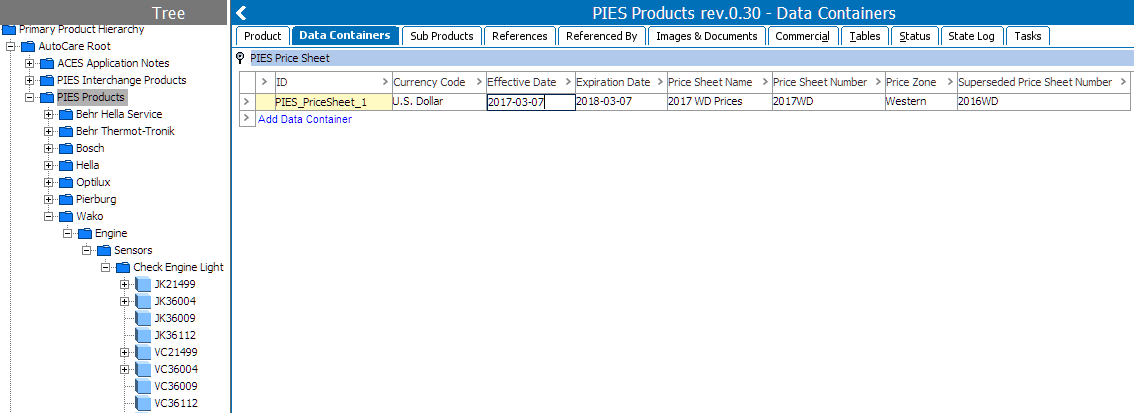
Important: If the export will include price data in PIES format, then a Data Container holding all Price Sheet attributes must be created and populated properly on the parental node from which they are exporting beneath.
For example, in the AutoCare PIES hierarchy, there is a PIES Products top node (ID=AC_PIESProducts) with Price Sheet attributes populated in a Data Container within the Data Containers tab:
- Part Object Type: This is a required parameter for selection of the Own model object type representing the PIES Item.
- The selected object must have all required PIES attributes and references (including the AC_ProductToPartTerminology reference) from the standard model made valid on the object and populated with data.
- If the required data is not provided, the file will fail XSD validation on downstream systems.
Note: The Part Object Type cannot be a direct child of the Hierarchy Top Node.
- Packaging Object Type: This is an optional parameter for selection of Packaging object type.
- If PIES Packaging segment is to be included in an export running outside of the AutoCare PIES hierarchy, the customer packaging object(s) must exist as child to the part object.
- If not selected, users cannot expect packaging data to export properly, and the export may fail if selections in the subsequent screen of the wizard (step 5. Advanced) try to include it.
- Hazmat Object Type: This is an optional parameter for selection of Hazmat object type.
- If PIES Hazmat segment is to be included in an export running outside of the AutoCare PIES hierarchy, the Hazmat object(s) must exist as child to the Packaging object.
- If not selected, users cannot expect hazmat data to export properly, and the export may fail if selections in the subsequent screen of the wizard (step 5. Advanced) try to include it.
- Version: By default, the '7.2' version is selected, but any one of the available PIES export versions can be selected from the dropdown list. Currently, PIES versions 6.5, 6.7, 7.0, 7.1 and 7.2 are supported. Within the PIES export, the version displays between the <PIESVersion> tags within the Header column (as shown below).
<PIESVersion>7.2</PIESVersion>
- Blanket Effective Date: Allows an effective date to be specified using the YYYY-MM-DD date format. Clicking within the field displays the Date Picker dialog (as shown below), which ensures the correct format is used when editing the value.
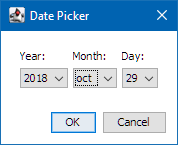
The Date Picker dialog defaults to the current date, regardless of what is displayed in the Blanket Effective Date field prior to selection. Any past or future date can be selected, and changes made are displayed in the Blanket Effective Date field and populated in the export as YYYY-MM-DD. Within the PIES export, the date value will display between the <BlanketEffectiveDate> tags. For example, if the value ‘2018-10-29’ is provided, then the exported PIES file will display as shown below.
<BlanketEffectiveDate>2018-10-29</BlanketEffectiveDate>
Note: When a saved configuration is used and the value is blank, then the effective date will be generated from the export's scheduled run date.
- Parent DUNS Number: Allows a unique 9 digit Parent DUNS Number to be specified within the free text field. May also use +4 format with 13 digits. The D&B D-U-N-S Number is a unique nine-digit identification sequence, which provides unique identifiers of single business entities, while linking corporate family structures together. The value will display within the PIES export between the <ParentDUNSNumber> tags. For example, if the value ‘002606342’ is provided, then the exported PIES file will display as shown below.
<ParentDUNSNumber>002606342</ParentDUNSNumber>
- Parent GLN: Allows a unique 13 digit number that includes the GS1 Company ID + Location ID + Check Digit. The GLN (Global Location Number) is a standard means of identifying global trading partner locations. Through the process of Product Synchronization, the seller and buyer identify each athirst names, addresses and other information, so that all subsequent electronic documents can be identified, routed and processed using only these codes. This is essential for the smooth, automated, error-free processing of electronic documents. The value will display within the PIES export between the <ParentGLN> tags. For example, if the value ‘1100001005984’ is provided, then the exported PIES file will display as shown below.
<ParentGLN>1100001005984</ParentGLN>
- Parent VMRSID: Allows a unique 5 character Vehicle Maintenance Reporting Standards (VMRS) ID of the Parent Brand to be specified within the free text field. The Parent VMRSID is a unique Company identifier (required by major fleets) for all participating Heavy Duty parts manufacturers assigned by The Maintenance Council (TMC) of the American Trucking Assn. (ATA). The value will display within the PIES export between the <ParentVMRSID> tags. For example, if the value ‘GIANT’ is provided, then the exported PIES file will display as shown below.
<ParentVMRSID>GIANT</ParentVMRSID>
- Parent AAIAID: Allows a Brand Parent 4 character code to be entered. The 4 characters that are entered in this field will be used to validate against the Brand table once the export has started.
For example, if the Brand Parent code 'GWWN' is entered, then the exported PIES file will display as shown below.
<ParentAAIAID>GWWN</ParentAAIAID>
- Brand Owner VMRSID: Allows a unique 5 character Vehicle Maintenance Reporting Standards (VMRS) ID of the Brand Owner to be specified within the free text field. The Brand Owner VMRSID is a unique Company identifier (required by major fleets) for all participating Heavy Duty parts manufacturers assigned by The Maintenance Council (TMC) of the American Trucking Assn. (ATA). The value will display within the PIES export between the <BrandOwnerVMRSID> tags. For example, if the value ‘WONDR’ is provided, then the exported PIES file will display as shown below.
<BrandOwnerVMRSID>WONDR</BrandOwnerVMRSID>
- Brand Owner AAIAID: Allows a Brand Owner object to be selected. Click the ellipsis button (
 ), and the ‘Select Brand Owner AAIAID of types AC_BrandOwner’ dialog will display, as shown in the image below. This field can be defined only in PIES version 7.1 and below.
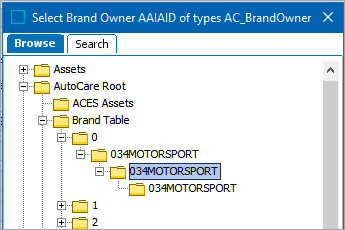
Select the desired Brand Owner object. The STEP Name of the selected Brand Owner object will display followed by the STEP ID of the selected object in parentheses. However, only the four character AAIA code of the selected Brand Owner object will display between the <BrandOwnerAAIAID> tag in the export. Optionally, instead of browsing to select the Brand Owner object, users can type in the STEP Name of the object in the field and select the Brand Owner from the options in the drop-down list.
For example, if the Brand Owner object ‘034MOTORSPORT' (STEP ID = AC_BrandOwner_GWWP) is selected, then the exported PIES file will display as shown below.
<BrandOwnerAAIAID>GWWP/BrandOwnerAAIAID>
- Buyer Duns: Allows a unique 9 digit Buyer DUNS Number to be specified within the free text field. May also use +4 format with 13 digits. The D&B D-U-N-S Number is a unique nine-digit identification sequence, which provides unique identifiers of single business entities, while linking corporate family structures together. The value will display within the PIES export between the <BuyerDuns> tags. For example, if the value ‘003205242’ is provided, then the exported PIES file will display as shown below.
<BuyerDuns>003205242</BuyerDuns>
- Currency Code: Allows a three character currency code (from the AC_PIESCurrencyCode LOV Value ID) to be specified within the free text field. If the characters do not match the LOV Value ID, then the field will be displayed as red. This value may be overridden at the PRCS (Price Sheet Segment) or PRCE (Pricing Segment) levels. The value will display within the PIES export between the <CurrencyCode> tags. For example, if the value ‘USD’ is provided, then the exported PIES file will display as shown below.
<CurrencyCode>USD</CurrencyCode>
Note: The Currency Code LOV is populated by the coded values from the PCdb file. If there is a Currency Code that does not exist in the LOV, then users can manually add the missing Currency Code LOV Value ID and Value to the AC_PIESCurrencyCode LOV.
- Language Code: Allows a two character language code (from the AC_PIESLanguageCode LOV Value ID) to be specified within the free text field. If the characters do not match the LOV Value ID, then the field will be displayed as red. This value may be overridden within many of the underlying Segments. The value will display within the PIES export between the <LanguageCode> tags. For example, if the value ‘EN’ is provided, then the exported PIES file will display as shown below.
<LanguageCode>EN</LanguageCode>
Note: The Language Code LOV is populated by the coded values from the PCdb file. If there is a Language Code that does not exist in the LOV, then users can manually add the missing Language Code with the proper LOV Value ID and Value to the AC_PIESLanguageCode LOV.
- Technical Contact: Allows a contact name for resolving technical issues with PIES file to be specified for the exported data within the free text field. At least one character is required. The value will display within the PIES export between the <TechnicalContact> tags. For example, if the value ‘Grace’ is provided, then the exported PIES file will display as shown below.
<TechnicalContact>Grace</TechnicalContact>
- Contact Email: Allows for the email of a contact for resolving technical issues with PIES file to be specified within the free text field. The value will display within the PIES export between the <ContactEmail> tags. For example, if the value ‘abcd@acme.com’ is provided, then the exported PIES file will display as shown below.
<ContactEmail>abcd@acme.com</ContactEmail>
- Brand Owner DUNS/GLN: The parameters must be populated with the correct number of characters. After one character is entered into either of the fields, a red fill will display until the correct number of characters are entered.
- Brand Owner DUNS: Allows a unique D&B DUNS ID (number to identify single business entities, while linking corporate family structures together) to be specified within the free text field. Must be either 9 or 13 digits. The value will display within the PIES export between the <BrandOwnerDUNS> tags. For example, if the value ‘005706338’ is provided, then the exported PIES file will display as shown below.
<BrandOwnerDUNS>005706338</BrandOwnerDUNS>
- Brand Owner GLN: Allows a GLN (Global Location Number) (to identify global trading partner locations) to be specified within the free text field. Must have 13 digits. The value will display within the PIES export between the <BrandOwnerGLN> tags. For example, if the value ‘1100001009824’ is provided, then the exported PIES file will display as shown below.
<BrandOwnerGLN>1100001009824</BrandOwnerGLN>
- Deliver a file if there are validation errors?: By default, 'no' is selected, and the export file will not be delivered when validation errors occur. When ‘yes’ is selected, the export file will be delivered even though validation errors occur.
Step 4. Advanced
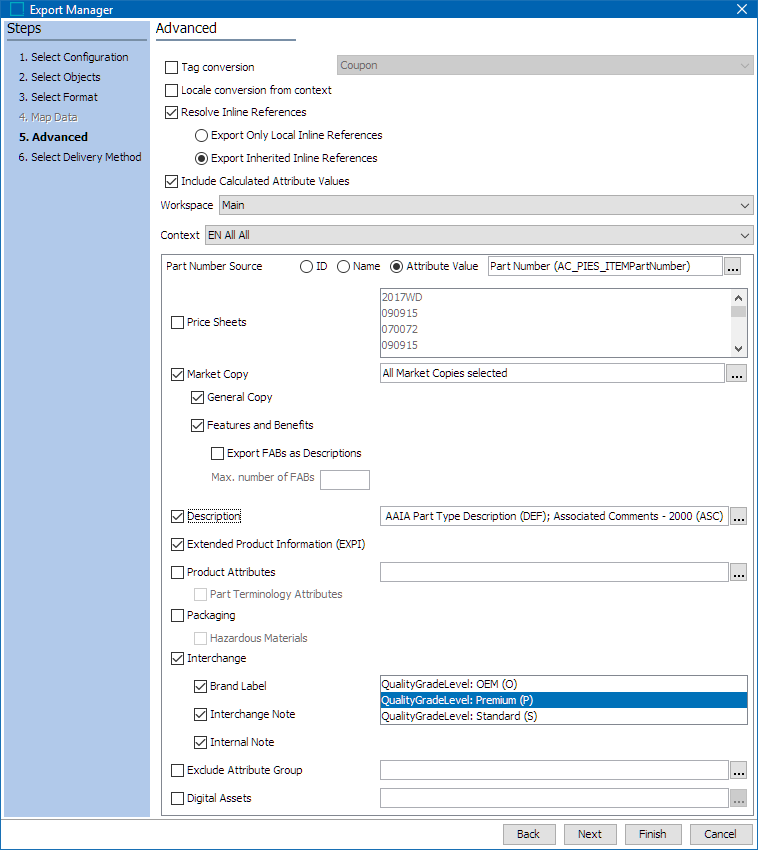
When a PIES format is selected in the previous dialog, the Advanced step within the Export Manager includes several parameters unique to the PIES exporter (outlined in red below). Only the parameters specific to the PIES format are described within this topic. For more information on the general parameters within the Advanced Export Manager dialog, refer to the Export Manager - Advanced topic within Data Exchange documentation.
Important: In the descriptions, the 'PIES object' is taken to mean either the standard AutoCare PIES Item object, or the Own model object representative of a PIES Item. In either case, the standard AutoCare PIES attributes for the segment must be valid on the object type and populated for the data to be included in the export.
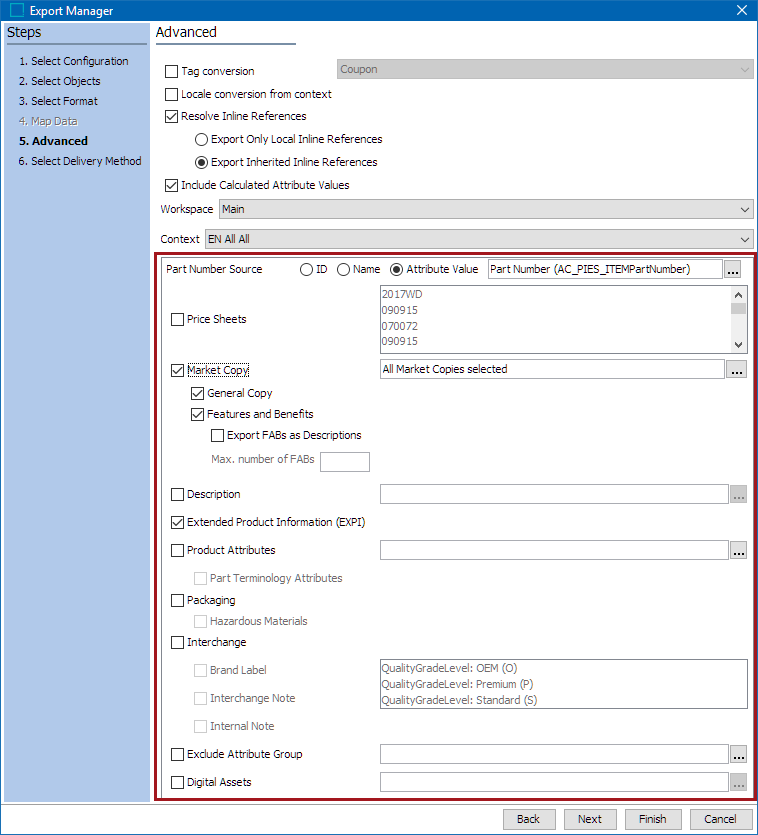
- Part Number Source: The following options are available for this parameter: ID, Name, Attribute Value.
- Attribute Value: By default, the 'Attribute Value' radio button is selected and the 'Part Number (AC_PIES_ITEMPartNumber)' attribute value from the PIES Item is used to be inserted between the <PartNumber> tags in the exported file. For example, if the 034-VC21499 PIES Item is included in the PIES export and the Attribute Value Part Number Source option is selected, then the "034-VC21499" value from the Part Number attribute will be used to be inserted between the <PartNumber> tags as shown below.
Note: If the part number should be retrieved from a different attribute, then users can select another attribute by clicking on the ellipsis button ().

<PartNumber>034-VC21499</PartNumber>
- ID: When enabled, the STEP ID of the PIES Item is used to be inserted between the <PartNumber> tags in the exported file. For example, if the 034-VC21499 PIES Item is included in the PIES export and the ID Part Number Source option is selected, then the STEP object ID will be used to be inserted between the <PartNumber> tags as shown below.

<PartNumber>AC_PIESItem_GWWQ_034-VC21499</PartNumber>
- Name: When enabled, the STEP Name of the PIES Item is used to be inserted between the <PartNumber> tags in the exported file. For example, if the 034-VC21499 PIES Item is included in the PIES export and the Name Part Number Source option is selected, then the STEP object Name will be used to be inserted between the <PartNumber> tags as shown below.

<PartNumber>034-VC21499</PartNumber>
- Price Sheets: If the PIES Pricing segment (<PriceSheets> and <Prices>) is to be included in the export, then the Data Containers that holds the PIES Pricing attributes needs to be selected in this option.
- Market Copy:If selected, all marketing copy that is linked to the Brand or Part Type that the PIES Item(s) belongs to will be included in the export. By default, both General Copy (GCC) and Features and Benefits (FAB) marketing copy options are selected and will get exported in the <MarketingCopy> segment. If these options are not selected, then no marketing copy will get exported.
- The Export FABs as Descriptions option is active only if the Features and Benefits option is selected. Selecting this option will take the market copy content and include it within the Item <Descriptions> segment instead of the <MarketingCopy> segment.
For this functionality to work, there should be a reference established from the PIES Item Descriptions (AC_PIESItem_Description) data container to the Market Copy object (AC_PIESMarketCopy) using the reference type Overwriting Market Copy (ID = AC_PIES_DescriptionToMarketCopy)
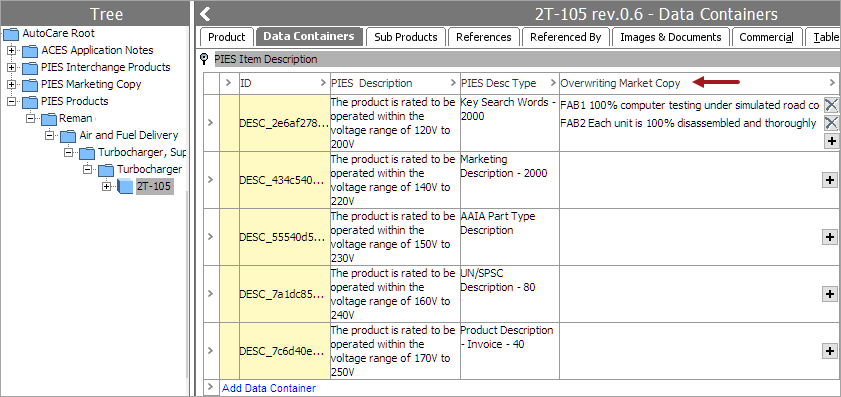
Note: The Descriptions parameter that is available within the Advanced step of the PIES Export Manager has to be selected to include <Descriptions> segment in the exported file. Selecting 'Export as descriptions' parameter without selecting the Descriptions parameter will not include the FAB type Market Copies in the exported file.
- The Max. number of FABs field gets active only when the 'Export as descriptions' parameter is selected. This parameter allows users to define the maximum number of FAB type of Market Copies that can be written within the <Descriptions> segment.
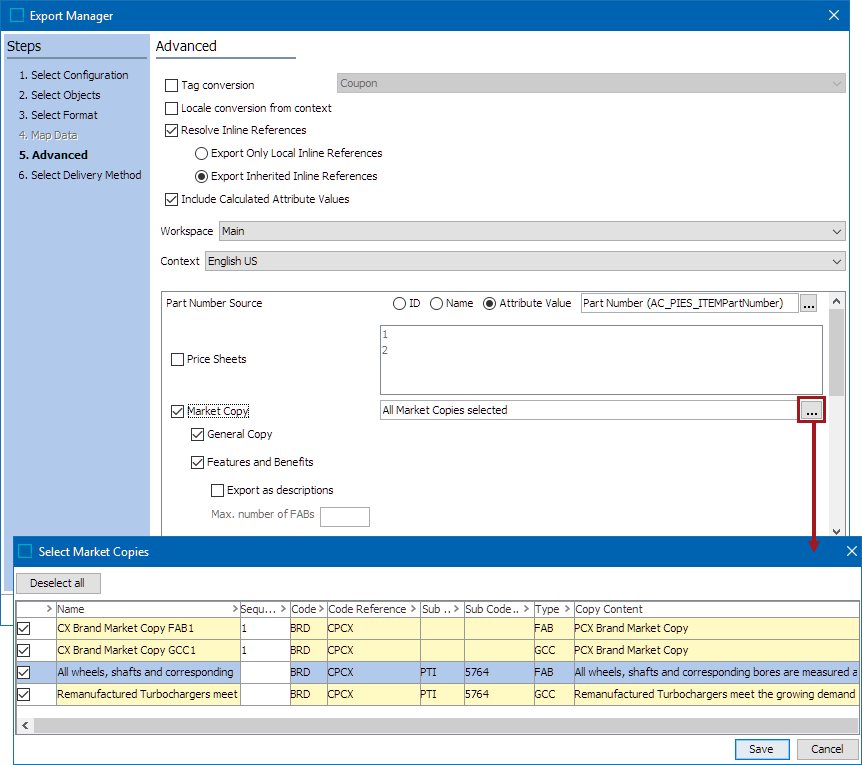
Click on the ellipsis button () to open the Select Market Copies window where users can filter market copy content that should get exported by selecting or deselecting the available copy content.
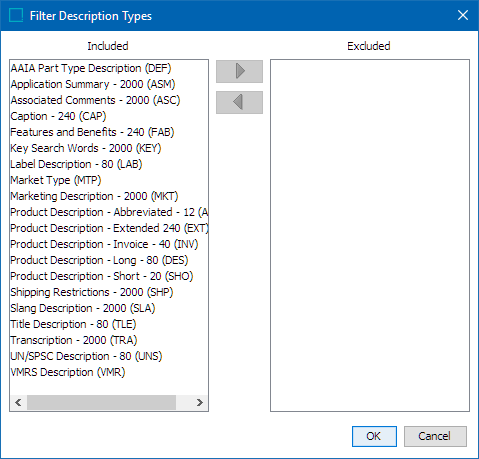
- Description: If selected, all Description Types within the PIES Item Description data container for the PIES object will be exported in the <Descriptions> segment. By default, Descriptions of all Description Types will be included in the exported file. However, to exclude any Descriptions based on the Description Type, click the ellipsis button () that is available next to the parameter to display the File Description Types dialog (as shown below). Select a Description Type from the left 'Included' panel and click the right arrow button (
 ) to move the selected Description Type(s) to the right 'Excluded' panel. Based on the selected Description Type(s), the Descriptions belonging to the excluded Description Types will not be included in the exported file.
- Extended Product Information (EXPI): If selected, all standard PIES EXPI attributes that are valid for the PIES object and have a value will be exported in the <ExtendedInformation> segment.
- Product Attributes / Part Terminology Attributes: Allows the selection of attribute groups that contain custom attributes to be included in the exported file (e.g., any attributes outside of those included in the PIES standard can be sent in this way). Selecting the Part Terminology Attributes option will export all PAdb attributes that are linked to the Part Type if there are values for those attributes. If a user only wants their own custom attributes to get exported but do not want to include PAdb attributes, then an attribute group must be selected first before the user can deselect the Part Terminology Attributes option. The values for these attributes will be included in the <ProductAttributes> segment for the PIES Item.
- Packaging / Hazardous Materials: If selected, exported data will be displayed in the <Packages> and <HazardousMaterial> segments.
- If PIES Packaging and Hazmat segments are to be included in an export running outside of the AutoCare PIES hierarchy, the customer's Packaging object(s) must exist as child to the PIES product object and the Hazmat object(s) must exist as a child to the Packaging object. Additionally, the standard PIES attributes for these segments must be made valid on the corresponding Own objects, and all required data for the segments must be populated or the file will fail XSD validation in downstream systems.
- Interchange: If selected, exported data will be displayed in the <PartInterchangeInfo> segment. By default, if no Quality Grade Level / Type Code is selected after selecting the Interchange parameter, then the exported PIES file will not include any PIES Interchange items. It is important to always select the Quality Grade Level / Type Code after the 'Interchange' parameter is checked. The selection of the 'Brand Label', 'Interchange Note', and the 'Internal Note' parameters will include the values from the Brand Label, Interchange Note, and the Internal Note attribute (related to the PIES Interchange item) in the exported file.
Note: Users can filter the PIES Interchange items based on their Type Code only in the PIES export file version 6.5, and can filter the PIES Interchange items based on their Quality Grade Level only in the PIES export file versions of 6.7 and above.
The PIES Importer creates interchange records under the PIES Interchange Products node, which has a Brand and an Interchange child structure. If PIES Interchange data is to be exported, then this standard structure must be in place with the appropriate data on the interchanges (as is created with the PIES Importer).
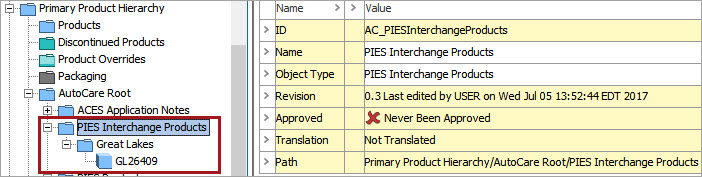
Important: If interchanges should be included in an export running from an Own model, the Own PIES Product object type must be added as a valid source for the Product Reference with ID= AC_PIESInterchange, and a reference must exist from the Own PIES Product to the AutoCare PIES Interchange object.
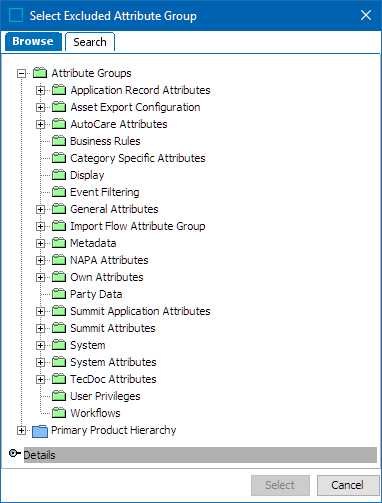
- Exclude Attribute Groups: This parameter allows users to select attribute groups that can be excluded from being exported. By default, if no attribute group(s) is defined after selecting the Exclude Attribute Group parameter, the export continues to function as before and no attribute groups will be excluded from the export. After selecting the parameter, click the ellipsis button () that is available next to the parameter to display the 'Select Excluded Attribute Group' dialog (as shown below) and select an attribute group that is to be excluded from being exported.
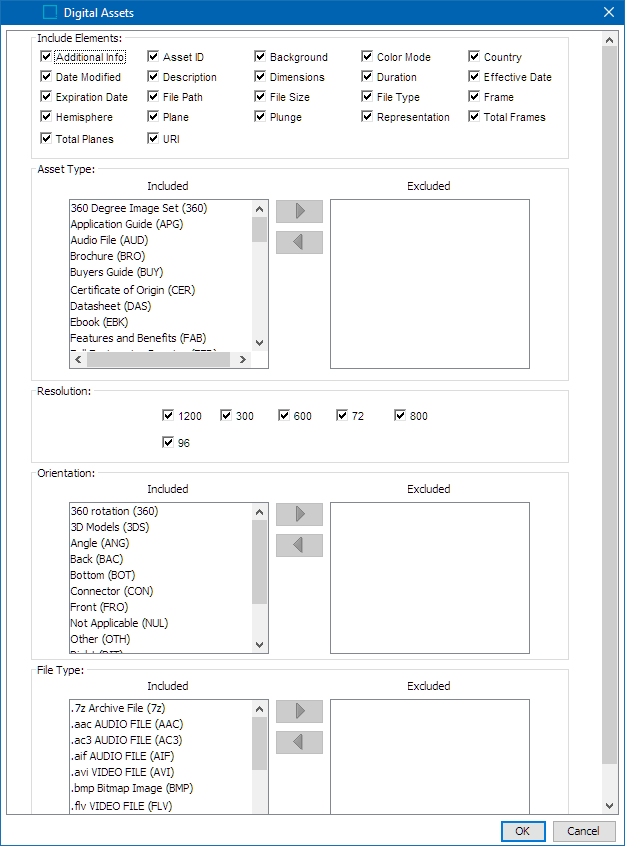
- Digital Assets: This parameter allows users to filter Digital assets based on their Asset Type, Resolution, Orientation, and File Type. In addition, users can also select which Digital Asset attributes should be excluded from being exported. Clicking the ellipsis button () that is available next to the parameter will display the Digital Assets dialog (as shown below). If no asset attribute is deselected in the Include Elements section, then the export continues to function as before and no attribute will be excluded from export. Similarly, if no Asset Type, Resolution, Orientation, and File Type is moved from the Included to the Excluded column, the export continues to function as before and no Digital assets will be excluded from export.
To select the Asset Type, Orientation, or File Type to be excluded, users can click on the options individually from the Included column and use the (>) icon to move it to the Excluded column. Or use Ctrl + click, Shift + click, or Ctrl + A (Select All) to multi-select.
For example, if the user wants to specify that certain Asset Types such as Primary Photo (P04) and User Defined (ZZ1-ZZ9) should be exported, but exclude all other Asset Types, then the user will be able to do that by selecting all other Asset Types that are not Primary Photo (P04) and User Defined (ZZ1-ZZ9), and moving the other Asset Types to the Excluded column.
Example
Below is an example of how the exporter could be configured and the expected PIES xml file results for one part.
<?xml version="1.0" encoding="UTF-8" standalone="true"?>
-<PIES xmlns="http://www.aftermarket.org">
-<Header>
<PIESVersion>6.5</PIESVersion>
<SubmissionType>FULL</SubmissionType>
<ParentDUNSNumber>002606342</ParentDUNSNumber>
<ParentGLN>1100001005984</ParentGLN>
<ParentVMRSID>FP220</ParentVMRSID>
<ParentAAIAID>GWWN</ParentAAIAID>
<BrandOwnerDUNS>005706338</BrandOwnerDUNS>
<BrandOwnerGLN>1100001009824</BrandOwnerGLN>
<BrandOwnerVMRSID>FL220</BrandOwnerVMRSID>
<BrandOwnerAAIAID>GWWP</BrandOwnerAAIAID>
<BuyerDuns>003205242</BuyerDuns>
<CurrencyCode>USD</CurrencyCode>
<LanguageCode>EN</LanguageCode>
<TechnicalContact>Grace</TechnicalContact>
<ContactEmail>abcd@acme.com</ContactEmail>
</Header>
-<Items>
-<Item MaintenanceType="A">
<HazardousMaterialCode>Y</HazardousMaterialCode>
<BaseItemID>VC21</BaseItemID>
<ItemLevelGTIN GTINQualifier="UP">11234567890123</ItemLevelGTIN>
<PartNumber>034-VC21499</PartNumber>
<BrandAAIAID>GWWQ</BrandAAIAID>
<BrandLabel>034MOTORSPORT</BrandLabel>
<ACESApplications>Y</ACESApplications>
<ItemQuantitySize UOM="EA">1</ItemQuantitySize>
<ContainerType>BO</ContainerType>
<QuantityPerApplication UOM="EA" Qualifier="VAR">1</QuantityPerApplication>
<ItemEffectiveDate>2010-08-13</ItemEffectiveDate>
<AvailableDate>2010-08-13</AvailableDate>
<MinimumOrderQuantity UOM="EA">123</MinimumOrderQuantity>
-<ManufacturerProductCodes>
<Group>02347</Group>
<SubGroup>A</SubGroup>
</ManufacturerProductCodes>
<AAIAProductCategoryCode>199456</AAIAProductCategoryCode>
<UNSPSC>11223348</UNSPSC>
<PartTerminologyID>11279</PartTerminologyID>
<VMRSCode>123000789</VMRSCode>
-<Descriptions>
<Description MaintenanceType="A" DescriptionCode="VMR">VMR</Description>
<Description MaintenanceType="A" DescriptionCode="UNS">UNS</Description>
<Description MaintenanceType="A" DescriptionCode="SLA">SLA</Description>
<Description MaintenanceType="A" DescriptionCode="MKT">MKT</Description>
<Description MaintenanceType="A" DescriptionCode="EXT">EXT</Description>
<Description MaintenanceType="A" DescriptionCode="ASM">ASM</Description>
<Description MaintenanceType="A" DescriptionCode="INV">INV</Description>
<Description MaintenanceType="A" DescriptionCode="SHO">CKENGSENS</Description>
<Description MaintenanceType="A" DescriptionCode="ABR">ABR</Description>
<Description MaintenanceType="A" DescriptionCode="KEY">Sensor Engine Check</Description>
<Description MaintenanceType="A" DescriptionCode="ASC">ASC</Description>
<Description MaintenanceType="A" DescriptionCode="DEF">DEF</Description>
<Description MaintenanceType="A" DescriptionCode="SHP">SHP</Description>
<Description MaintenanceType="A" DescriptionCode="DES">Check Engine Light Sensor</Description>
<Description MaintenanceType="A" DescriptionCode="LAB">LAB</Description>
</Descriptions>
-<ExtendedInformation>
<ExtendedProductInformation MaintenanceType="A" EXPICode="PLC">100</ExtendedProductInformation>
<ExtendedProductInformation MaintenanceType="A" EXPICode="WD1">500</ExtendedProductInformation>
<ExtendedProductInformation MaintenanceType="A" EXPICode="TMC">AB</ExtendedProductInformation>
<ExtendedProductInformation MaintenanceType="A" EXPICode="RET">RET</ExtendedProductInformation>
<ExtendedProductInformation MaintenanceType="A" EXPICode="NPD">Top 60%</ExtendedProductInformation>
<ExtendedProductInformation MaintenanceType="A" EXPICode="REM">N</ExtendedProductInformation>
<ExtendedProductInformation MaintenanceType="A" EXPICode="WT1">36</ExtendedProductInformation>
<ExtendedProductInformation MaintenanceType="A" EXPICode="WS2">LF</ExtendedProductInformation>
<ExtendedProductInformation MaintenanceType="A" EXPICode="STA">S</ExtendedProductInformation>
<ExtendedProductInformation MaintenanceType="A" EXPICode="WS1">SR</ExtendedProductInformation>
<ExtendedProductInformation MaintenanceType="A" EXPICode="PLM">20</ExtendedProductInformation>
<ExtendedProductInformation MaintenanceType="A" EXPICode="WD2">MI</ExtendedProductInformation>
<ExtendedProductInformation MaintenanceType="A" EXPICode="RPC">30060</ExtendedProductInformation>
<ExtendedProductInformation MaintenanceType="A" EXPICode="CPN">CPN</ExtendedProductInformation>
<ExtendedProductInformation MaintenanceType="A" EXPICode="RST">GA</ExtendedProductInformation>
<ExtendedProductInformation MaintenanceType="A" EXPICode="CGR">CGR</ExtendedProductInformation>
<ExtendedProductInformation MaintenanceType="A" EXPICode="WT2">MO</ExtendedProductInformation>
<ExtendedProductInformation MaintenanceType="A" EXPICode="CCL">CCL</ExtendedProductInformation>
<ExtendedProductInformation MaintenanceType="A" EXPICode="MSR">Y</ExtendedProductInformation>
<ExtendedProductInformation MaintenanceType="A" EXPICode="CTO">US</ExtendedProductInformation>
<ExtendedProductInformation MaintenanceType="A" EXPICode="MSD">MSDS26426</ExtendedProductInformation>
<ExtendedProductInformation MaintenanceType="A" EXPICode="RCT">Marietta, GA</ExtendedProductInformation>
<ExtendedProductInformation MaintenanceType="A" EXPICode="EMS">1</ExtendedProductInformation>
<ExtendedProductInformation MaintenanceType="A" EXPICode="RCS">Cobb, GA</ExtendedProductInformation>
<ExtendedProductInformation MaintenanceType="A" EXPICode="CXP">12</ExtendedProductInformation>
<ExtendedProductInformation MaintenanceType="A" EXPICode="OSN">OSN</ExtendedProductInformation>
<ExtendedProductInformation MaintenanceType="A" EXPICode="CTR">GB</ExtendedProductInformation>
<ExtendedProductInformation MaintenanceType="A" EXPICode="OEP">OEP</ExtendedProductInformation>
<ExtendedProductInformation MaintenanceType="A" EXPICode="CTQ">DE</ExtendedProductInformation>
<ExtendedProductInformation MaintenanceType="A" EXPICode="OEM">OEM</ExtendedProductInformation>
<ExtendedProductInformation MaintenanceType="A" EXPICode="CTP">DK</ExtendedProductInformation>
<ExtendedProductInformation MaintenanceType="A" EXPICode="HSB">01</ExtendedProductInformation>
<ExtendedProductInformation MaintenanceType="A" EXPICode="HAC">HAC</ExtendedProductInformation>
<ExtendedProductInformation MaintenanceType="A" EXPICode="CTS">FR</ExtendedProductInformation>
<ExtendedProductInformation MaintenanceType="A" EXPICode="LIS">Proposed</ExtendedProductInformation>
<ExtendedProductInformation MaintenanceType="A" EXPICode="OSP">OSP</ExtendedProductInformation>
<ExtendedProductInformation MaintenanceType="A" EXPICode="LIF">0</ExtendedProductInformation>
<ExtendedProductInformation MaintenanceType="A" EXPICode="NAF">1</ExtendedProductInformation>
<ExtendedProductInformation MaintenanceType="A" EXPICode="HTS">02</ExtendedProductInformation>
<ExtendedProductInformation MaintenanceType="A" EXPICode="NPC">A</ExtendedProductInformation>
<ExtendedProductInformation MaintenanceType="A" EXPICode="REF">Y</ExtendedProductInformation>
<ExtendedProductInformation MaintenanceType="A" EXPICode="HZ1">12</ExtendedProductInformation>
<ExtendedProductInformation MaintenanceType="A" EXPICode="PTS">PTS</ExtendedProductInformation>
<ExtendedProductInformation MaintenanceType="A" EXPICode="TAX">Y</ExtendedProductInformation>
<ExtendedProductInformation MaintenanceType="A" EXPICode="PTN">PTN</ExtendedProductInformation>
</ExtendedInformation>
-<PartInterchangeInfo>
-<PartInterchange MaintenanceType="A" LanguageCode="EN">
<TypeCode>O</TypeCode>
<BrandAAIAID>BBTB</BrandAAIAID>
<BrandLabel>Great Lakes</BrandLabel>
<PartNumber>GL26409</PartNumber>
<QualityGradeLevel>P</QualityGradeLevel>
<InterchangeNotes>Yellow indicator light</InterchangeNotes>
<InternalNotes>May be difficult to remove</InternalNotes>
</PartInterchange>
</PartInterchangeInfo>
-<DigitalAssets>
-<DigitalFileInformation MaintenanceType="A" LanguageCode="EN" AssetID="Asset456">
<FileName>VC21499_P04</FileName>
<AssetType>P04</AssetType>
<Representation>R</Representation>
<Resolution>96</Resolution>
<Background>CLI</Background>
<OrientationView>BAC</OrientationView>
<Details>Details/Description</Details>
<FilePath>images\SVlight.tif</FilePath>
<URI>www.stibo.com</URI>
<FileDateModified>2008-04-11</FileDateModified>
<EffectiveDate>2008-04-11</EffectiveDate>
<ExpirationDate>2012-04-11</ExpirationDate>
<Country>US</Country>
</DigitalFileInformation>
</DigitalAssets>
</Item>
</Items>
-<Trailer>
<ItemCount>1</ItemCount>
<TransactionDate>2018-11-07</TransactionDate>
</Trailer>
</PIES>