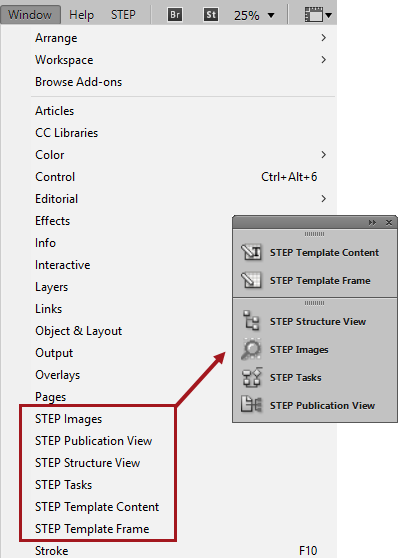
This section contains a description of the InDesign interface, with a focus on the STEP menus and panels that are specific to Print Publisher. These options are available after you have installed the Print Publisher / InDesign plugin. (For more information on the plugin, refer to Installing Print Publisher (InDesign Plugin) topic.)
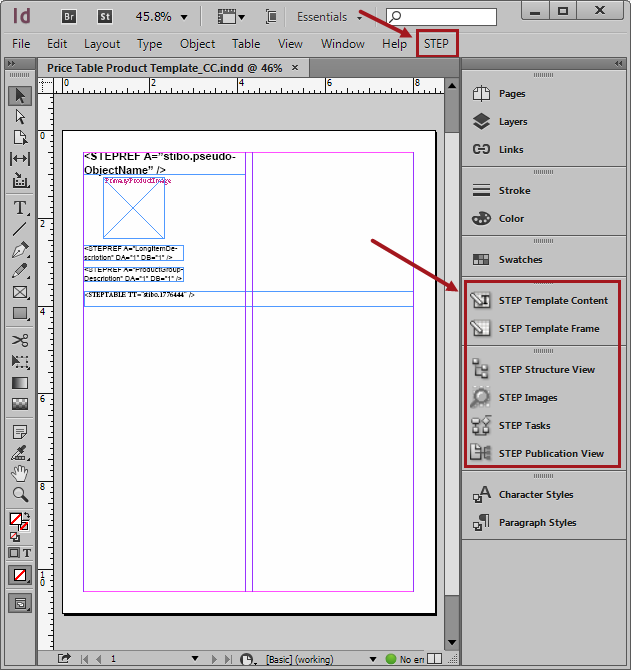
STEP Menu
The STEP menu is located in the application bar across the top of the InDesign interface. A number of Print Publisher functions are available from the STEP menu that allow you to perform a range of operations on the active InDesign page.
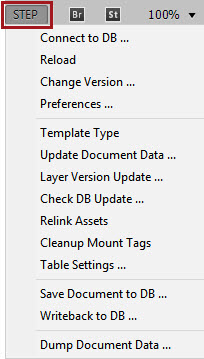
Below you will find a brief description of the commands available from the STEP menu.
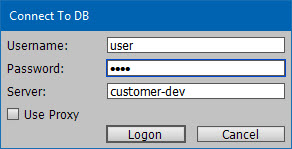
Connect to DB
Use this command to connect your InDesign client to the STEP database. For more information about connecting to STEP, refer to the Installing Print Publisher (InDesign Plugin) topic.
Reload
Use this command to reload STEP data to ensure that the current view in InDesign is up to date.
Change Version
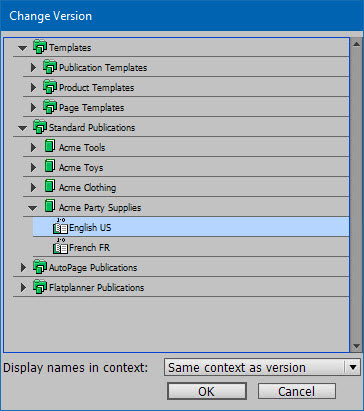
Use this command to change the publication version that you are working in and/or the context in which object names are displayed in the STEP panels. A publication version defines the workspace and context from which mounted data is being pulled from STEP. For more information about creating a publication version, refer to the Publication Versions topic.
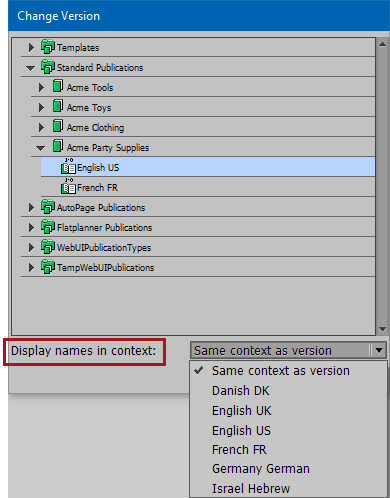
Display names in context
At the bottom of the Change Version dialog is the 'Display names in context:' dropdown menu, which allows you to choose the display language for object names and attribute names in the following STEP panels: STEP Structure View, STEP Template Content, STEP Images, and STEP Publication View. Refer to the Print Publisher Multi-Language Support topic for more information.
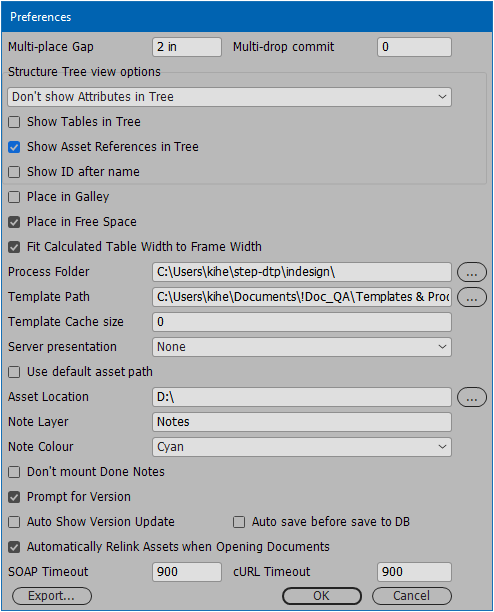
Preferences
Launches the STEP Preferences menu. Refer to Configuring the STEP Preferences Menu for full details on this menu.
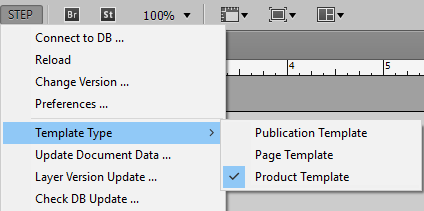
Template Type
Click to select the type of template that you would like to create. Refer to the Templates in Print Publisher topic for more information.
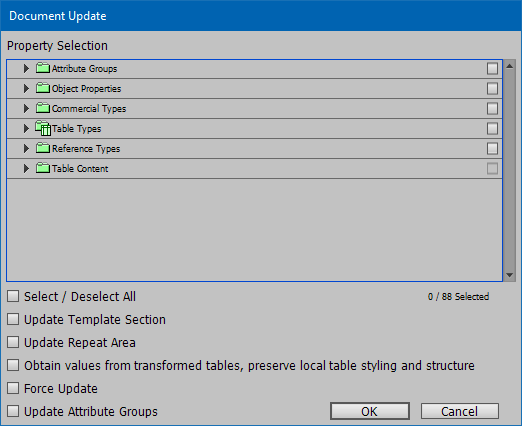
Update Document Data
Launches the Document Update dialog. Refer to the Updating Documents From InDesign topic for information on this functionality.
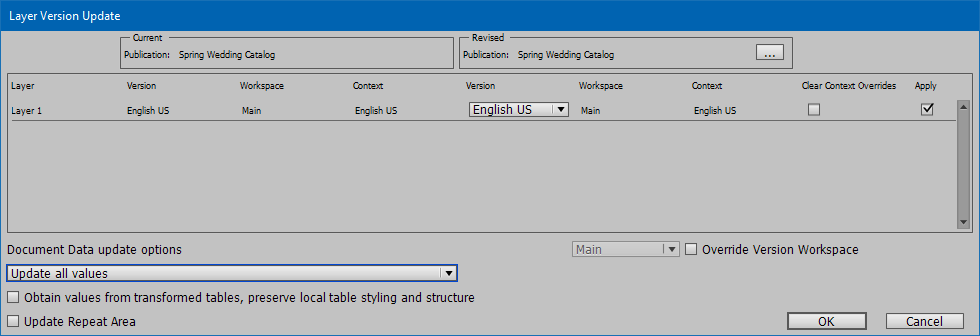
Layer Version Update
Use this command to switch context / workspace for an InDesign version layer of your own choice. Refer to the Working With Version Layers topic for more information.
Check DB Update
Use this command to check the page against the STEP database and list all the cases where a newer version of the data exists in STEP. For more information, refer to the Updating Documents From InDesign topic.
Relink Assets
Refer to the Relinking Assets in Print Publisher topic for information on this functionality.
Cleanup Mount Tags
Use this command to remove STEPXML tags from the XML structure after deleting a mounted object from the page. Not required if you use the Unplace selected object option in the STEP Structure View panel.
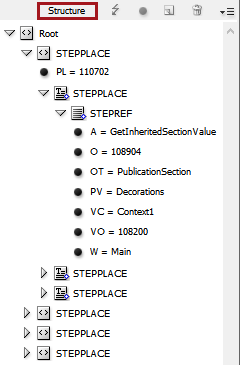
For more information, refer to the Mounting Pages in Print Publisher topic.
Table Settings
Launches the Table Settings dialog. Refer to the Configuring Table Styles in Publication Templates topic in the Tables documentation for more information.
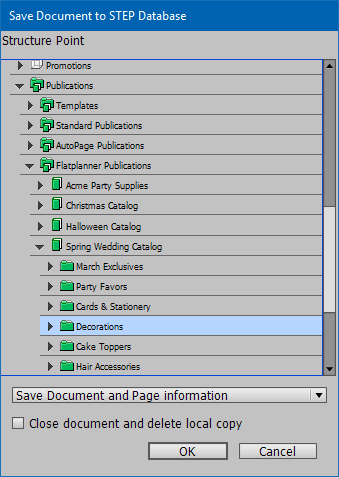
Save Document to DB
Launches the Save Document to STEP Database dialog. Use this command to save your InDesign templates and page(s) back to the STEP database instead of (or in addition to) storing them only on your local hard drive. Refer to the Saving Finalized InDesign Documents to STEP topic for more information.
Writeback to DB
Launches the Writeback to DB dialog. Use this command to write back mounted attribute content from InDesign to STEP. This feature allows you to make changes to data on your mounted InDesign page, then make the same change to the data in STEP without having to open the workbench.
For more information, refer to the Writing Data Back to STEP topic.
Dump Document Data
Use this command to save an XML file containing information about the document, such as context, workspace, mounted objects, layers, and page information. This file is used for troubleshooting.
STEP Panels
The STEP panels (also referred to as panels in various locations throughout this guide) are accessed from the Window menu on the application bar across the top of the InDesign interface. For more information, refer to STEP Panels in InDesign.