An object type can be updated with the same Attribute Validity, Reference Types Validity, Object Type Parent Links and Object Type Child Links based on another object type. When the new object type has been updated in this way, it gets the same Validity settings on Attributes and Reference Types and Object Type Structure as the original object type.
Important: Existing settings on the object type are not removed / overwritten, but rather the original object type settings are added to the updated object types existing settings.
An example of this is when you have products that are obsolete, and you would like to save the obsolete product information for future reference, yet easily distinguish them from the active products. You could create a new obsolete products object type, save it in a different hierarchy, and update the obsolete products object type with the validation settings from the active products object type.
This concept could also be used for Onboarding products, so that there would be a temporary object type being assigned until the product is enriched and ready to be published, at which time its object type would be changed to the actual object type. This would defend against publishing incomplete data to downstream systems until the product is properly enriched.
Note: Dimension dependency will not be updated from the source object type, if needed then it should be done manually. For more information, refer to the topic Maintaining Dimensions and Dimension Points within the 'Dimensions, Dimension Points, and Contexts' section of the System Setup documentation.
Steps to Update an Object Type from Another Object Type
Below are the steps to update an object types Attribute Validity, Reference Types Validity, Object Type Parent Links and Object Type Child Links from another object type.
- Go to System Setup > Expand Object Types and Structures > Select the relevant object type to be updated from another object type. For this example, the 'Obsolete Products' object type is selected.
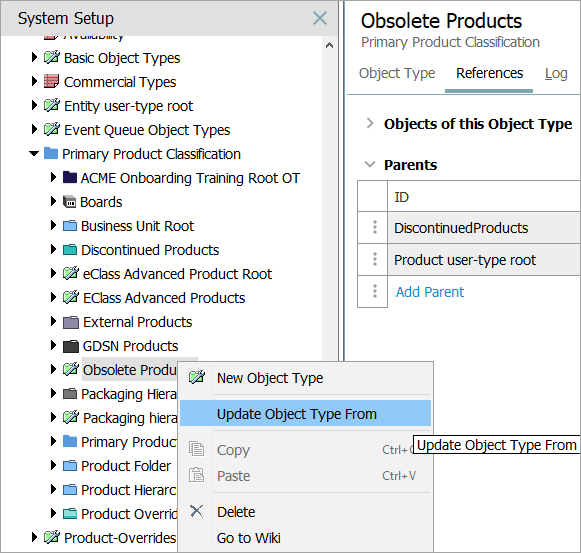
- Right-Click the relevant object type to be updated from another object type > Click the Update Object Type from menu option.
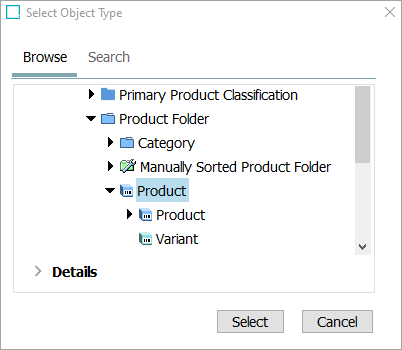
- The Select Object Type dialog will display. Use the Browse or Search tabs to find the object type with the validity settings that need to be applied. For this example, the 'Active Products' object type is selected.
- Click the Select button.
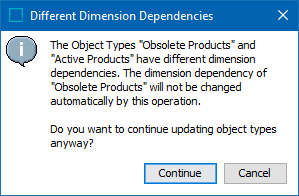
If the object types have different dimension dependencies then the Different Dimension Dependencies dialog will display as shown below. Click the Continue button to continue. Click the Cancel button to cancel and return to the workbench.
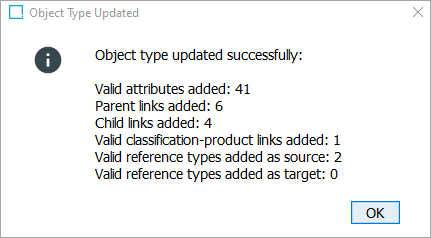
- The Object Type Updated status dialog will display indicating how the selected object type was updated by listing the number of:
- Valid Attributes added
- Parent links added
- Child links added
- Valid classification-product links added
- Reference Types added as Source
- Reference Types added as Target
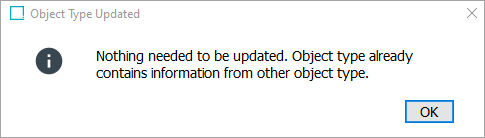
If the object types already match, then the Object Type Updated dialog will display with 'Nothing needed to be updated. Object type already contains information from other object type.' as shown below.
Once the object types is updated, optionally verify the updated object type results by comparing the Object Type and References tabs for each object type and/or look for the 'Updated from object type with ID...' text within the Log tab of the newly updated object type.