Dimension dependency can be added to Object Types to control whether the object name or the object type name can be displayed differently based on language.
Setting an Object Type Name to be Language Dimension Dependent
The name of the object type in the System Setup tab can be different based on configuring the language dimension dependency on the root object type levels. For example, if the object type is called 'Item' in English, setting language dimension dependency will allow the object type to be named as 'Artikel' in German context and 'Article' in French context.
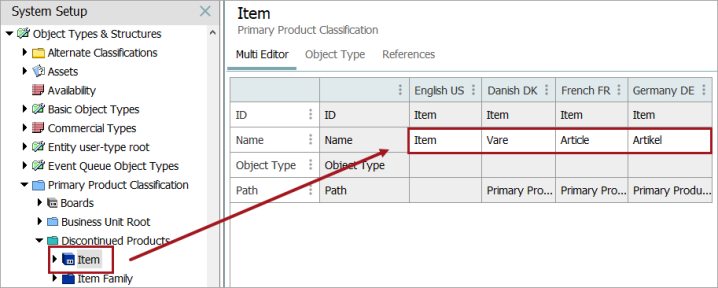
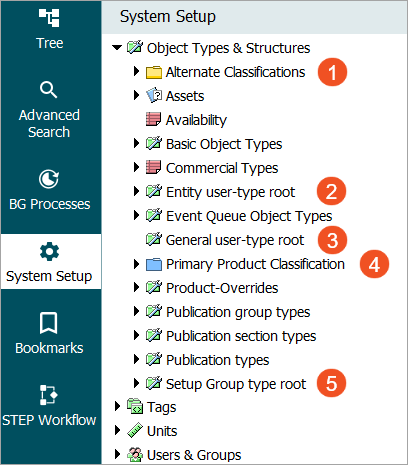
Set the language dependency on the root object type level options listed below:
-
'Alternate Classifications' hold the classification object types. Set the dimension dependency at the 'Classification 1 user-type root' level.
-
'Entity user-type root' holds the entity object types. Set the dimension dependency at the for the 'Entity user-type root' level.
-
For object types below 'Assets' and 'Basic Object Types', search for 'General user-type root' using the Advanced Search and set the dimension dependency at the 'General user-type root' level.
Note: Setting the language dependency at the 'Assets' level or for the objects under 'Basic Object Types' will change the name of the object not the object type name.
-
'Primary Product Classification' holds the product object types. Set dimension dependencies at the 'Product user-type root' level.
Note: Setting the language dimension dependency at the 'Product user-type root' level will affect all child object types below the root level, so any new product object type (not objects) that is created in the System Setup tab will need to have the Name defined in each context.
-
'Setup Group type root' holds the setup group object types. Set the dimension dependency at the 'Setup Group user-type root' level.
Important: Changing the dimension dependencies at the root object type level requires single update mode or Lock Free Schema Change mode, therefore it is recommended to do this operation outside of business hours. Refer to the Single-Update Mode or the Lock-free Schema Change topic.
Adding a Dependency
To add a dependency on an object type name:
-
Navigate to the System Setup tab and expand the Object Types & Structures node.
-
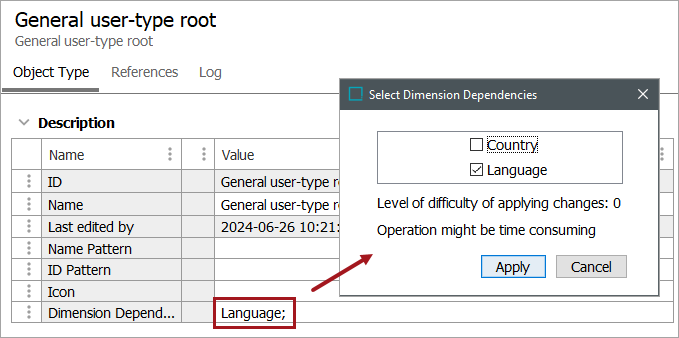
Select the root object type and navigate to the Object Type tab.
-
Click the ellipsis button (
 ) in the Dimension Dependencies field and check the applicable dependencies from the options. Click Apply to save.
Setting an Object Name to be Language Dimension Dependent
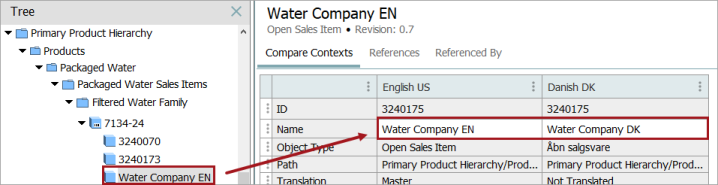
Setting an object name as dimension dependent means that the node of that particular object type in the Tree tab can have a different name depending upon the context. An example may be if you have the same product line in two countries but they are called by different names. A prerequisite for changing the object name for each context is that the parent object type must have a dimension dependency selected.
For example, if the object type 'Open Sales Item' depends upon the language dimension, then the name field of a node of that object type in the Tree tab may be translated into different languages. This means translation of the names will support a local language view of the database.
For more information, refer to the Maintaining Dimension Dependent Object Types topic.