Though each search box contains its own typeahead field, and each typeahead field displays data specific to that search box, the behavior of the field is similar, and common keyboard shortcuts are compatible. Functionality specific to each search box is addressed in subsequent sections of this guide. This section addresses the following functionality that is consistent across the Application Manager search boxes:
- Searching for Criteria
- Selecting Valid Criteria
- Removing Criteria
Searching for Criteria
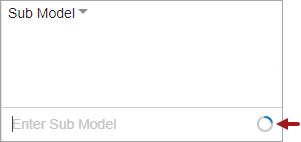
The cursor is activated for each search box either by clicking within the box itself or within the typeahead field at the bottom of the box. Text typed into the field is used to filter and then display only valid criteria within a dropdown list. Typing an asterisk (*) displays any available criteria for selection in the dropdown. Typing additional text allows for a wildcard search to occur against the available criteria. If the display of a dropdown list is delayed, a blue and gray circle will display within the typeahead field indicating the request is in progress (as shown below).
Once the dropdown list for a search box displays, if the list of options is too long to display within the screen, then a scroll bar will display to the right of the list. The scroll feature on a mouse and/or the Up and Down arrows on a keyboard can be used to navigate up and down the dropdown list.
Selecting Valid Criteria
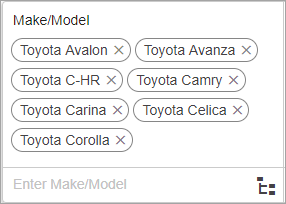
Once one or more desired criteria are highlighted, pressing the Enter key on the keyboard (or using the mouse to select) will add the highlighted criteria to the search box. Each selected criterion will display as a tile within the search box. In the example below, seven Toyota model criterion tiles have been added to the Make/Model search box.
Once a criterion is selected to display within a search box, it will no longer display within the dropdown for selection. This allows users to focus on valid options they have not yet selected.
The Tab key on the keyboard can be used to move the cursor from left to right across different search boxes. Holding the keyboard Shift key down while pressing the Tab key will move the cursor from right to left.
Note: When multiple options are available for selection within an Options search box, the Tab key will move the cursor to the Options dropdown, and the down and up arrow keys can be used to change the selected option.
Selecting Multiple Criteria
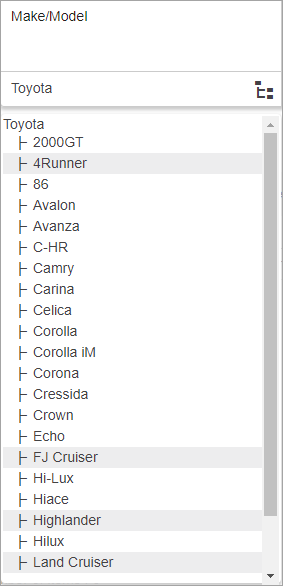
Within a dropdown list, multiple criteria (either as a group or scattered throughout the list) can be selected and added to a search box. Holding down the Shift key on a keyboard will enable the selection of multiple criteria. While holding down the Shift key, the mouse pointer can be used to click on a criterion listed at the top and/or bottom of a group of desired criteria, next the mouse pointer can be used to click on a criterion listed at the bottom and/or top of that group, resulting in the group of selected criteria being highlighted. Optionally, a keyboard can be used to highlight a collective group by holding down the Shift key, and using the arrow up and down keys to highlight a group of criteria. Once the group is highlighted, pressing the Enter key on the keyboard will add the selected criteria as tiles within the search box.
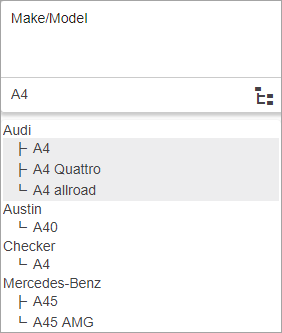
In the example below, after a list of valid criteria options displayed are within the dropdown list, the down arrow key was used to highlight the Audi A4 option, the Shift key was held down, and the down arrow key was used to highlight the two additional Audi model options.
To select multiple criteria that are not grouped next to each other in the dropdown, hold down the Ctrl key on the keyboard, and use the mouse to click on the desired criterion. Once the desired criteria are highlighted, pressing the Enter key on the keyboard will add the selected criteria to the search box.
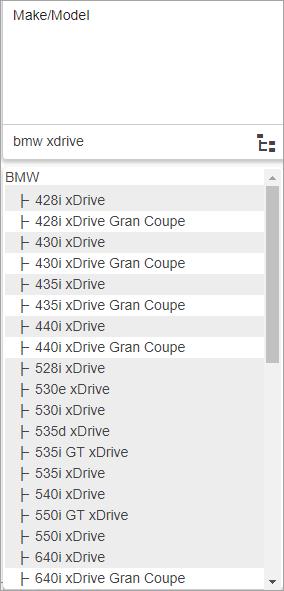
Optionally, when a group of criteria are highlighted, but one or more criteria within the list should not be selected, holding down the Ctrl key on the key board, and then using the mouse to click the undesired criterion will remove the highlight. In the example below, a large group of BMW xDrive Models have been highlighted for selection, and then those with 'Gran Coupe' have been deselected.
Removing Criteria
Criterion can be individually removed from a search box, or the Clear All link can be used to remove all selected criteria. To remove a criterion from a search box using the mouse, click the 'X' at the right of a criterion tile. Optionally when the Tab key on the keyboard is used to select a criterion, pressing the Enter key on the keyboard will remove the criterion.
Minimum Search Criteria
Though only one value within one search box is required for the Search button to be enabled, recommended practice is to provide as much detail as possible prior to running a search. When broad search criteria is provided (especially by leaving the Make/Model search box type blank) results can take much longer than expected to display.
When the use of broad search criteria is necessary, recommended practice is to use the Application Coverage Report by clicking the Report button within the Application Manager. For more information about using the Report button, refer to the Application Coverage Report topic.
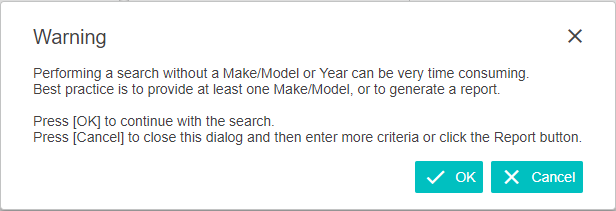
When users attempt to run a search without populating the Make/Model search box, a dialog will display warning that the search may be time consuming, and reminding them of the Report button option. Below is an example of the warning dialog.