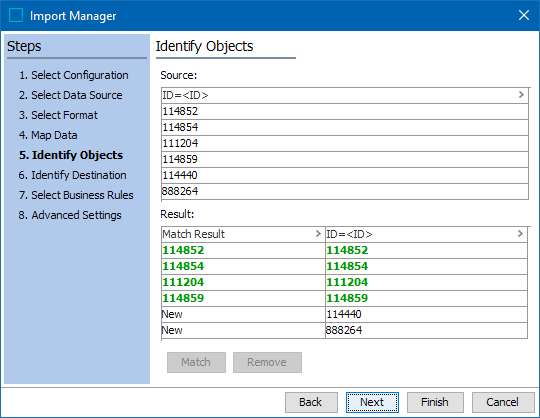
Identify Objects allows you to Identify Objects allows you to verify if loaded objects are existing data in STEP or will be created as new objects. Additionally, you can specify to locate existing objects by attribute value rather than by the ID or name.
Importing With Object IDs
When the ID has been mapped, the Result panel displays the first 20 results:
- Objects found in STEP are displayed in green
- New objects display 'New' in the Match Result column
You cannot introduce new products by using Identify Objects (in this step). When importing with object ID, all products must exist already in STEP. If there is no match of the attribute value to a Object ID, the record is ignored.
You can select any attribute that you have already mapped in the prior Map Data screen, but you can only match on one attribute. For example, if you have several attribute columns that are 'alternate part numbers' or 'replacement part numbers', you cannot select multiple attributes at one time in order to find the actual Object ID in STEP.
Matching can only be done on one attribute at one time. However, you can try several columns on the same import by using the Remove button and by selecting another attribute column in the top panel.
Click the Next button to display Import Manager - Identify Destination.
Importing with Unique Key
Note: Unique Key must be activated before the import process is started.
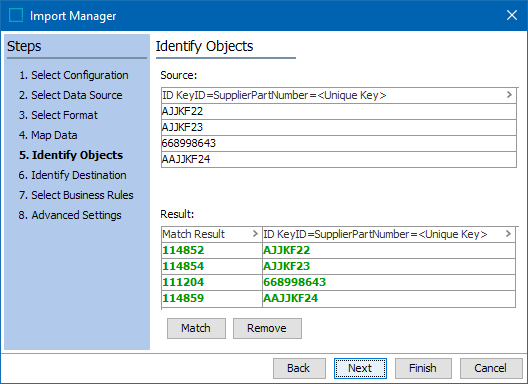
When the key has been mapped, the Result panel displays the first 20 results:
- The Result pane shows a column respective IDs for the unique key.
- Objects found in STEP are displayed in green.
Importing Without Object IDs
If new objects without IDs are to be imported, an ID Pattern must be set for the target object type. Otherwise the objects cannot be created.
You can select any column that you have already mapped in the prior screen, the Map Data screen, but you can only match on one column. So if you have several columns that are 'alternate part numbers' or 'replacement part numbers', etc. you cannot select multiple columns at one time in order to find the actual Object ID in STEP. Matching can only be done on a column at once. However, you can try several columns by using the 'Remove' button and by selecting another column in the top panel.
Identifying Objects by Attribute Values
When matching on an attribute other than STEP ID, prior to running live imports, test typical data to determine if performance is negatively affected.
The following example describes how to identify products by attribute values. The product data is loaded from a file with no product IDs listed but contains the manufacturer’s own part numbers.
Important: New products are not loaded to STEP when they are located by attribute values. Even if you have set up the system to auto-generate an ID for new products, and even if you allow new products to be created, the system rejects any new products in this file when the products are located by attribute values.
Normally, the manufacturer part number would be an attribute of your own product. If the manufacturer’s part number is unique, you can then load the file by having the system locate the products by an attribute value – the manufacturer’s part number - instead of mapping a column of data to the product ID as you would normally do.
A file with two columns of data is imported to STEP. Both columns are mapped to attributes. The first one is mapped to the attribute 'Manufacturer Part Number', and the second is mapped to 'Description.'
- Select a column in the top panel, and click Match. The system attempts to locate products by the values in that attribute.
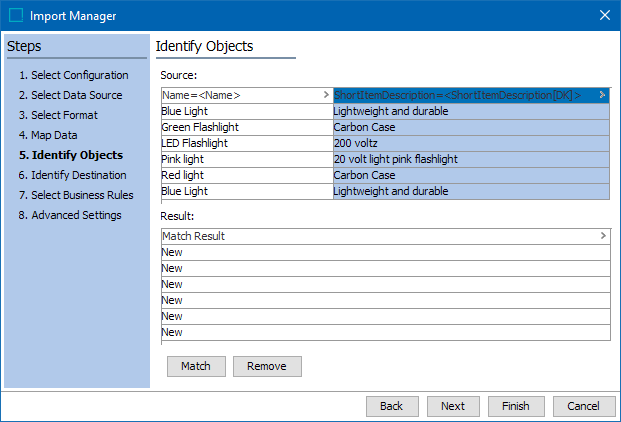
Note: The Match button is only enabled if you have not mapped a column to a product ID in the Map Data step. STEP assumes that if you defined a column of data as the ID, no matching of attribute values to Objects IDs is required.
If the match is successful, the result is displayed in green in the Results pane.

The first column is the ID of the product in STEP. The second column is the attribute value that matches that product.
Match only checks the first 20 products in the file. If it is unable to find a match it the result in the first column is 'New.'
- Click the Next button to display Import Manager - Identify Destination or click Finish if you have made all required selections and want to launch the import process as defined in Running a Data Import.