Any free text information that is not covered by a vehicle attribute will be stored as individual qualifiers in the system. These qualifiers are imported through the Qdb file and are stored as classification objects in the system. The relation between the application records and the qualifiers is established using the 'ACES Application To Qualifier' Classification Reference Type (ID = AC_ACESApplicationToQualifier).
An application record can hold the relationship with multiple qualifiers to create a piece of compound information. Also, some qualifier texts will have placeholders (called parameters) that can be used to replace variable data found in a qualifier. This mechanism reduces the number of qualifiers stored in the system. For example, dates or serial numbers are often used to identify mid-year production changes ('From 2/20/98', 'To Chassis #92817820'). Rather than creating a new qualifier for every date or chassis number that might be needed, a template is used with a parameter in it. Instead of 'From 12/1/2002', for example, the entry would include just the static text ('From') and leave a placeholder for the actual date.
The ACES Application Qualifier table header component displays the AutoCare application qualifier within the AutoCare Application Manager Results Table and/or Application Editor Screen. The applicable qualifiers are listed in a column against each result. Further, users can double click on the cell to open up the Value Editor window and can add, delete, and override the qualifiers.
Prerequisites
It is expected that anyone configuring the ACES Application Qualifier component is familiar with the Web UI Designer as basic concepts for working with the designer are not covered in this section. In addition, the user must have appropriate privileges to access the designer. Additional information can be found in the Designer Access section of the Web User Interfaces documentation here.
For information about accessing and configuring the Node List component, refer to the Node List Component topic within the Web User Interfaces section of STEP Online Help here.
Configuration Steps
The ACES Application Qualifier component can be added within any of the display modes available in the Node list Properties for the selected Application Manager Screen (or Application Editor Screen). Below are the steps to configure the ACES Application Qualifier component.
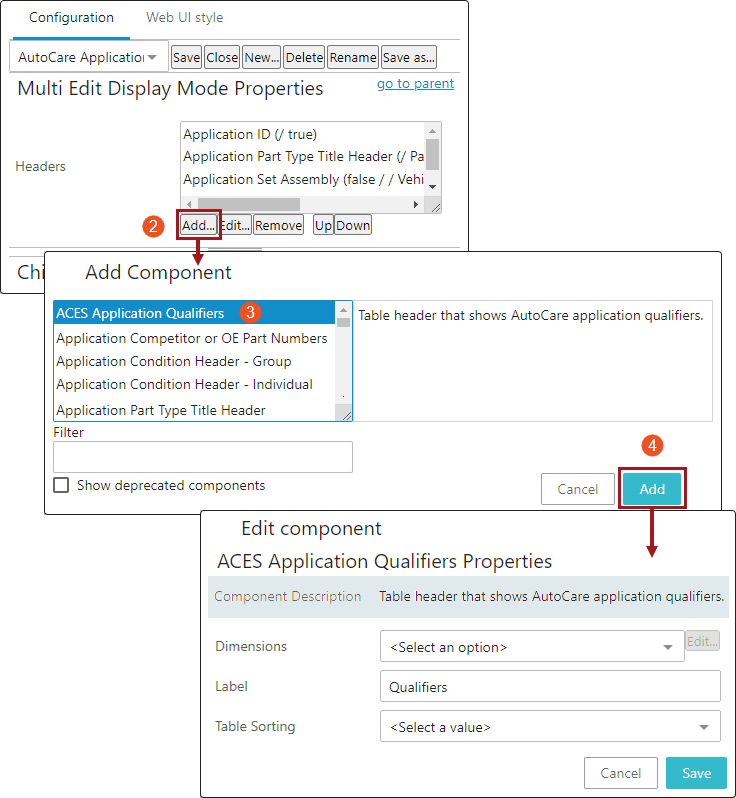
- Using the Web UI designer as shown in the image below, go to Node List Properties > Multi Edit Display Mode Headers parameter for the Application Manager Screen (or Application Editor Screen) that needs to display qualifiers.
- Click the Add button for the Headers parameter, and the Add Component dialog will display.
- Find and select the ACES Application Qualifiers component.
- Click the Add button, and the ACES Application Qualifiers Properties dialog will display (as shown below).
- Optionally, populate the parameters listed below.
- Dimensions: By default, the parameter is blank. Optionally, to configure the column width and height, select 'Table Header Dimensions.'
- Label: By default, the parameter is populated with the value 'Qualifiers'. Optionally, enter the desired label to be displayed as the column header within the Application Manager results table.
- Table Sorting: By default, the parameter is blank. Optionally, select from the dropdown values to specify the default sorting order of the column data.
- Click the Save button to save the newly added component to the Headers parameter.
- Optionally, on the Node List Properties Headers parameter, use the Up and/or Down buttons to configure the order in which the newly added column should display within the results table.
- Click the Save and Close buttons for the designer.
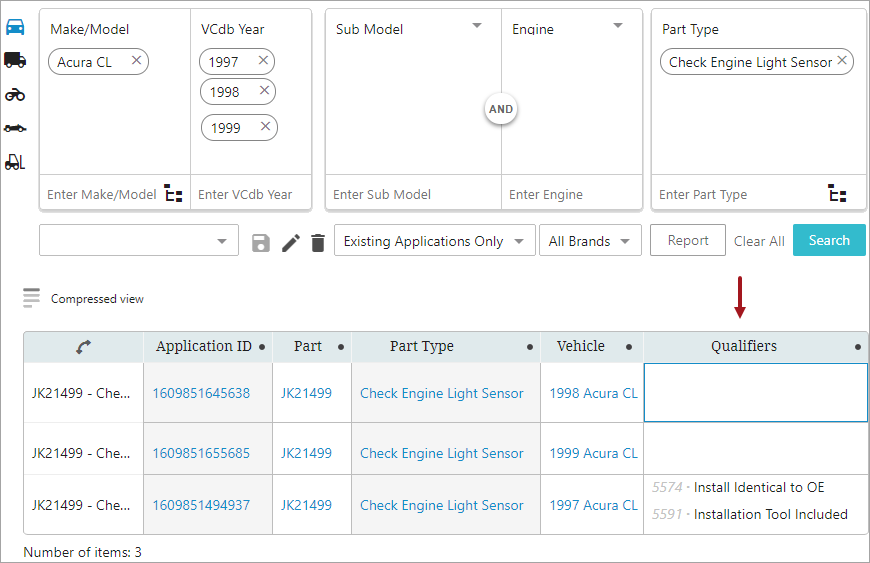
When a search is performed in the Application Manager Screen, the Application Manager results table will display the application records with the qualifiers (if any) of each application as shown below.
Using Application Qualifier Value Editor to Add or Remove References to Qualifiers
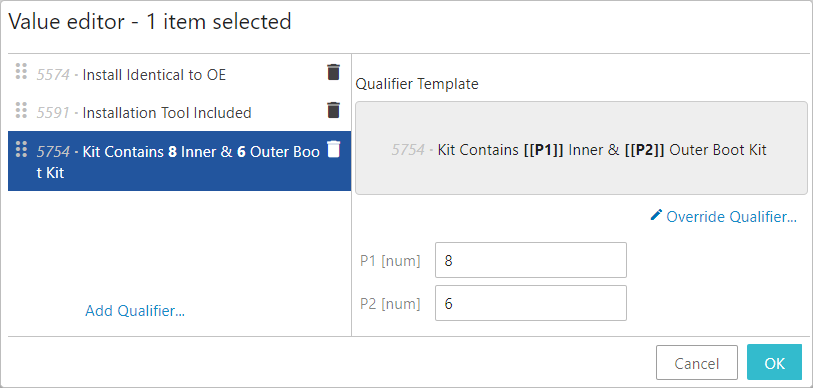
To add or remove references to a qualifier from an application record via the 'ACES Application Qualifier' component, double click on the cell. A Value editor dialog will display as shown below.
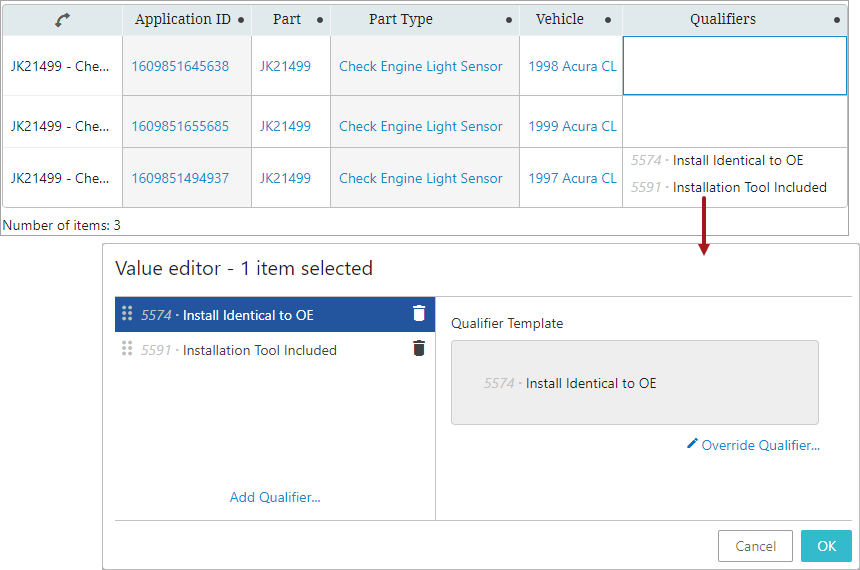
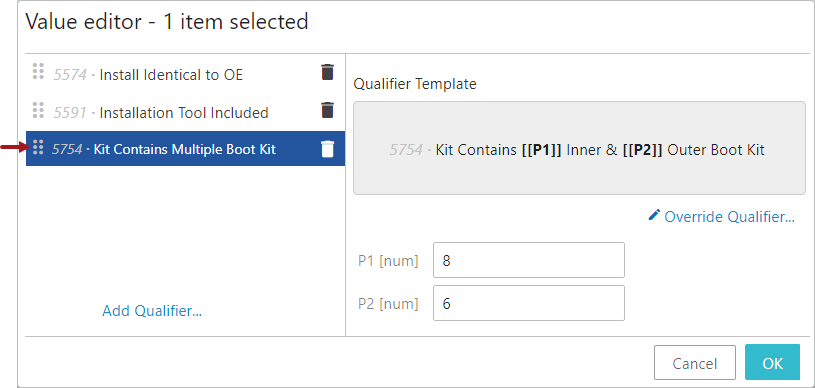
The Value editor dialog has two columns. The left column displays the qualifiers (along with the QualifierID) that are currently referenced to the application record. Clicking on a qualifier listed in the left column will display the template that the qualifier text is adopted to. If a qualifier comprises only static text, then the same text will be displayed in the left and right columns. If a qualifier text has a combination of static text and a parameter, then its template is displayed in the right column along with their parameter fields that allow populating values. Any values typed in the parameter fields will instantly be displayed in the qualifier text displayed in the left column.
In the example screenshot below, the qualifier template 'Kit Contains [[P1]] Inner & [[P2]] Outer Boot Kit' has two parameters P1 and P2. Adding the values of numeric '8' and '6' in parameters P1 and P2, respectively, has lead to the display of qualifier text 'Kit Contains 8 Inner & 6 Outer Boot Kit' in the left column.
Clicking on the 'Override Qualifier' button that is available in the right column will open an 'Override Qualifier' dialog. Any text entered in the dialog will override the existing qualifier text (not the template). In the example screenshot below, the qualifier template 'Kit Contains [[P1]] Inner & [[P2]] Outer Boot Kit' is overwritten with a new text 'Kit Contains Multiple Boot Kit.'
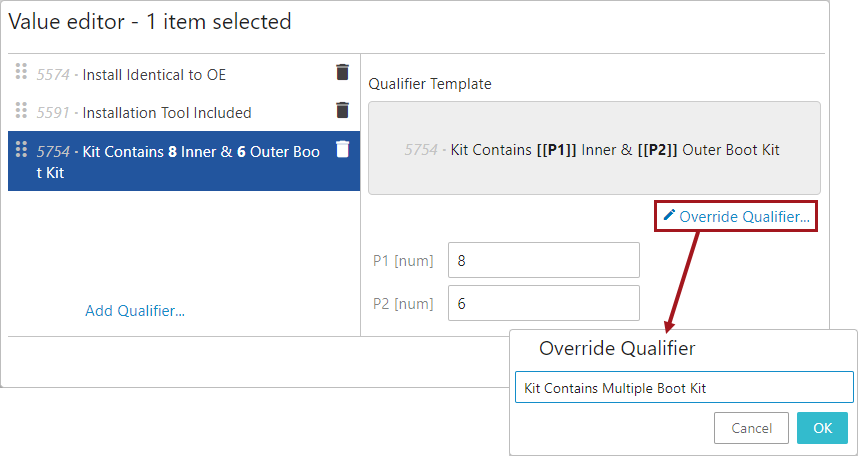
The below image shows the overridden text 'Kit Contains Multiple Boot Kit' displayed as the qualifier text in the left column.