When working with workflows, it is very common to use business rules. They can help with a number of functions, such as sending email, validating data, moving a task through a workflow, assigning tasks in a workflow to particular users, among many other actions. It is important to know that business actions can take actions in a workflow, while business conditions are able only to check and/or validate data.
This topic provides a general introduction to some overall functionality specific to business rules in workflows. Much more information regarding business rules in general (applicable to rules used both within workflows and external to workflows) is available in the general Business Rules section
A Simple Example
Below is an example of how a number of business rules can work together to make a coherent and functioning workflow. It is possible to define business actions to be executed as part of the workflow on states or transitions, and to define conditions to be tested before transitions between states are performed.
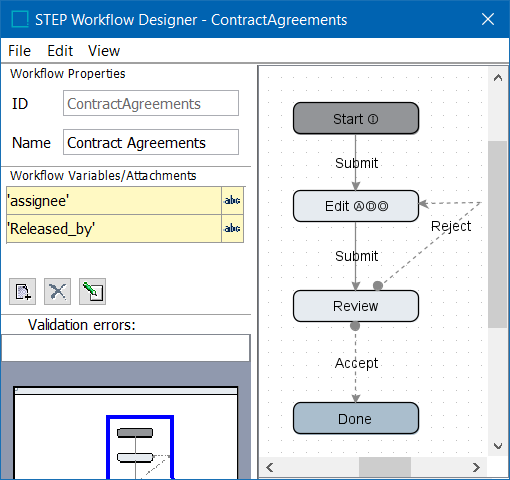
For example, a company needs a number of documents signed and agreed upon before they can proceed with their new business partners. In order to make sure that the documents were reviewed and signed to exact specifications, the workflow above was created to help with the process.
For this workflow a document, or task, enters into the Start state where it is picked up by an assigned user,  . After all assignments are completed they submit the task to the Edit state. Next, a user claims the task, completes any assignments regarding the task on time,
  , and then submits it to the Review state. As they submit it to the Review state, a business rule captures the ID of the user who submitted the task,
  .
.
Once in the Review state, a new user claims the task. If however, they do not think that it is ready for review, they have the option to send it back to the Edit sate. If they choose to do this, as the task enters into the Edit state again, there are business rules in place to send the task back to the user who originally worked on it in this state,  , and sends them an email to notify them it was rejected back to them.
However, if the task enters the Review state and the user who picks it up does think it is ready to be delivered, they can choose to accept it, and submit it to the Done state. Notice that a condition is in place on the transition from the Review State to the Done state. This condition makes it so that the reviewer has to populate an attribute field on the task called 'Approved' to 'Yes' in order for it to be submitted to the Done state successfully.
A few aspects to note:
- If a script exception is thrown during the transaction, or the assignee for the Edit state cannot be set, the entire transaction including any changes made is rolled back
- When the On Transition Action is executed the task is not in any state, any attempt to manipulate a task will cause an error to be thrown, and again the transaction will be rolled back
Applying Rules in a Workflow
Business actions can executed from workflow states at three points:
- Entering a state (On Entry)
- Exiting a state (On Exit)
- As part of an escalation when a deadline for a state has been met (see Deadlines and Escalations
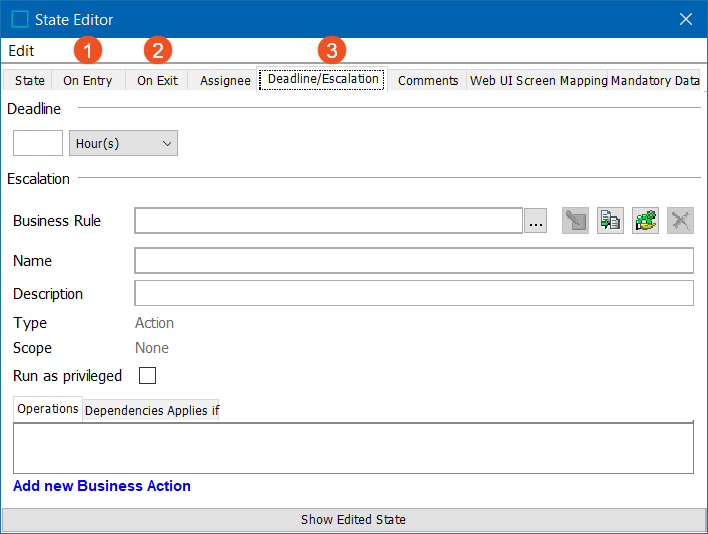
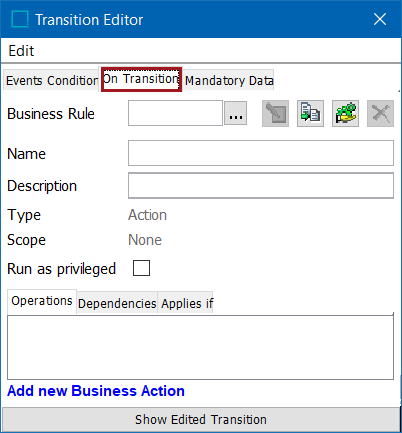
Business actions can also be executed on transitions between states:
Business conditions can be executed only on transitions:
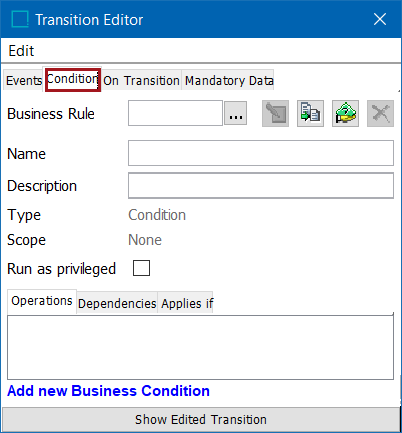
Regardless of the place the rule is applied, or whether it is a condition or an action, a few things are common to the editors (and specific to the business rule editors within workflows).
To add a business rule to a workflow, click the ellipsis button ( ) and select an existing rule (1), or click the Add new Business Action / Add new Business Condition link (2).
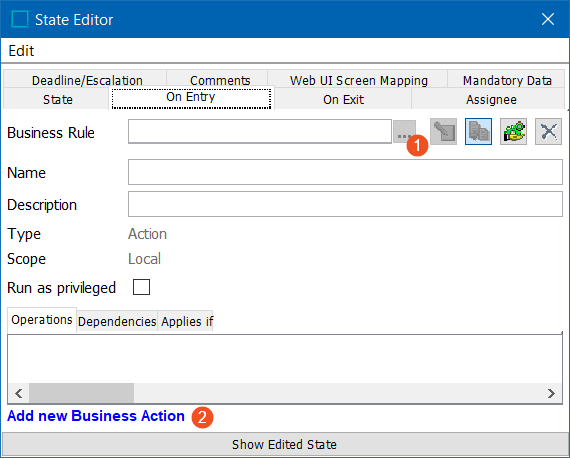
Defining a new business rule from within the STEP Workflow Designer, creates a local business action (2), while selection of an existing rule (1) allows users to choose from global rules.
Important: Local business rules can only be used in the workflow where they were created.
If a rule could be re-used in multiple locations, it is generally better to create it as a global rule.
If a local rule has been created, it can be promoted to a global rule using the hand icon  . This creates a global copy of the rule so that it can be used elsewhere.
If a global rule is selected, it can be edited using the edit icon  , though care should be take with this as it results in changing the rule in all places where it is used.
If a global rule should be changed, it is often better to make a local copy of the rule using the copy button  , ensuring that any changes made to the rule will only affect the current workflow.
Local business rules created or edited through the STEP Workflow Designer are saved when the workflow is saved. Global business rules are saved when changes are saved within the business rule editor.
Workflow Business Rules in Operation
Each time a business action or condition is configured on a state or on a transition, the workflow has indicators to signal to the user where these business rules have been applied. The indicators are the following:
|
Indicator |
Description |
|---|---|
|
'A' |
A default assignee for a particular state (or workflow) has been assigned. |
|
'D' |
A default deadline has been selected. |
|
'I' |
Signals the configuration of an 'On Entry' action. It may help to remember this as 'I' for 'In' (e.g., into the state). |
|
'O' |
Signals the configuration of an 'On Exit' action. It may help to remember this as 'O' for 'Out' (e.g., out of the state). |
|
dotted transition line |
Indicates a condition has been placed on the transition. |
|
rounded end on transition |
Indicates an action has been placed on the transition. |
Order of Operation
It is important to note the order of operation of the various rule types (condition or action) and where they are applied (entry, exit, transition, or deadline). Consider an object going from a current state to a next state. Business rules are evaluated in this order:
- Condition on transition exiting current state
- On exit action from current state
- On transition action between current and next state
- Default assignee on entry to next state (if assignee is set in workflow designer rather than using business rules)
- Deadline set in next state
- On entry action in next state
More Information
This topic has provided a basic introduction to how business rules can be used in conjunction with workflows. Topics covering how to carry out all of the functions described in the above example can be found throughout the Advanced Workflow Topics section of the documentation, in addition to other use cases and topics, including:
- Assigning Tasks Using Business Rules
- Auto-Routing Tasks in a workflow
- Configuring Status Flags in workflows
- Deadlines and Escalations in workflows
- e-Signature used to re-authenticate in a workflow here
- Java API for workflows
- Remove Objects from workflows
- Running Background Processes from workflows
- Send Email from a workflow
- Validate Data in a workflow
As business rules provide robust functionality to meet the individual needs of each customer, it will also be useful to see the general Business Rules section here of the documentation to understand more advanced features, as well as the Scripting API section of the STEP API documentation, accessed by clicking the STEP API Documentation button on the STEP Start Page.