Views allow individual users to display the attributes that are important for their work. Creating a view involves selecting the attributes to be visible on the Search Screen.
Click the 'View' tab to display the following options:
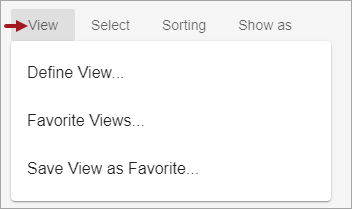
Define View
Click 'Define View...' to display a dialog with the attributes selected as a data specification in the Elasticsearch configuration, as defined in the Creating an Elasticsearch Configuration topic here.
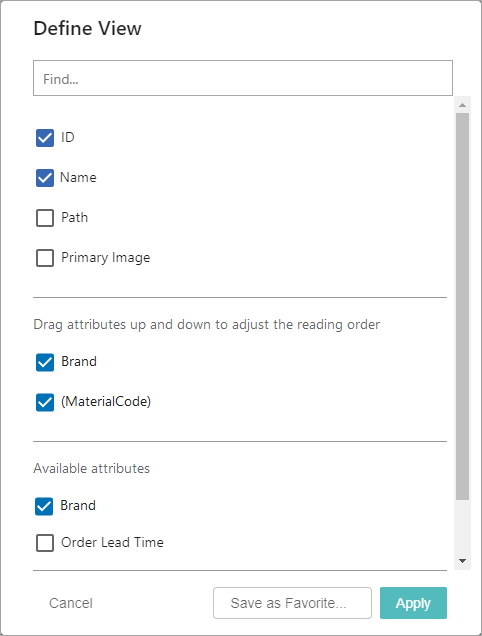
The Define View dialog includes the following:
- Find ... - Search for configured attributes to update their display status on the view. This field uses typeahead and will display attributes that match the text in the 'Available attributes' section.
- Standard attributes - By default, the first set of attributes (ID, Name, and Path, and Primary Image) are checked and display in the view. Standard attributes display order cannot be changed.
When Primary Image is selected an image is not available, 'No image' displays instead. When 'Show as' is set to the Card layout, the Primary Image is always displayed first.
- Additional attributes being displayed - When attributes available for display (based on the Elasticsearch Configuration) have been selected, they display in this section. The text 'Drag attributes up and down to adjust the reading order' indicates that these attributes can be rearrantged to the desired order. Uncheck an attribute to remove it from this section and also uncheck it in the 'Available attributes' section below.
- Available attributes - Attributes available for display (based on the Elasticsearch Configuration) are listed in this section.
- Check an attribute to include it in the 'Additional attributes being displayed' section above.
- Uncheck an attribute to remove it from the 'Additional attributes being displayed' section above.
Note: The number of attributes selected can affect column sizing as explained in the Table section of the Search Screen Show As topic here.
- Cancel - Returns to the search results page without making any changes.
- Save as Favorite button - Displays the 'Save View as Favorite' dialog described Save View as Favorite section below. Saving a view as a favorite makes it available to the same user again.
- Apply - Display the view for objects included in the search results.
Favorite Views
Click 'Favorite Views...' to display a dialog with the unique names of saved views for the current user. Until you save a Favorite View, the text 'There are no favorite views yet' is displayed.
Note: To see the attributes assigned to a favorite view, from the View menu, click 'Favorite Views' and select the view you want to investigate, and then click the Close button. From the View menu, click 'Define View' to display the selected attributes of the view. Click the Cancel button if no changes are made, or click the Apply button.
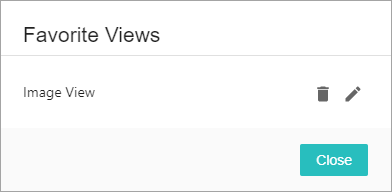
Actions available on this dialog are:
- Click the Close button to return to the search results.
- Hover over a favorite view to display the delete button (
 ) and click the button to remove the view without further confirmation.
 - Hover over a favorite view to display the edit button (
 ) and click the button to display an edit box for changing the name. In the image below, 'edited' has been added to the 'Image View' favorite view name.
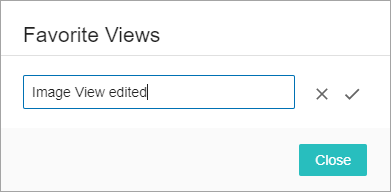
- Click the cancel button (
 ) to return to the delete / edit options without the change or click the save button (
 ) to keep the new name and return to the delete / edit options.
Note: To keep edited text you must click the save button () before clicking the Close button.
Save View as Favorite
Click 'Save View as Favorite...' to display a dialog to create a new favorite or update an existing favorite.
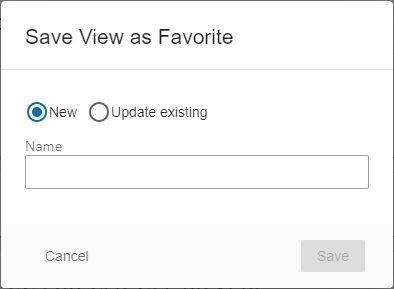
Actions available on this dialog are:
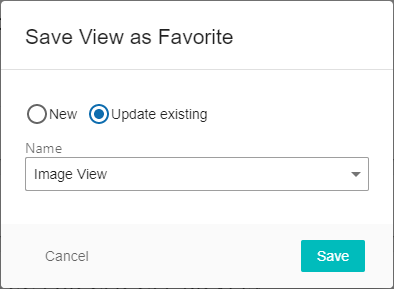
- Click the Update existing radio button to display a dropdown of the saved favorite views. Select a view from the dropdown and click the Save button to modify the settings of the selected view. In the image below, clicking the Save button updates the 'Image View' favorite view to use the current settings.
Note: Elasticsearch can display product and/or classification data only, based on configuration.