The Searches menu allows you to save a set of search criteria (not a set of data) as a named search. Searches are saved per user, can be run on demand, and can be updated and marked as favorite.
Note: You can send a search to a coworker by sharing the URL. The data displayed for the user running a shared URL is based on that user's access privileges and their search results may not match yours.
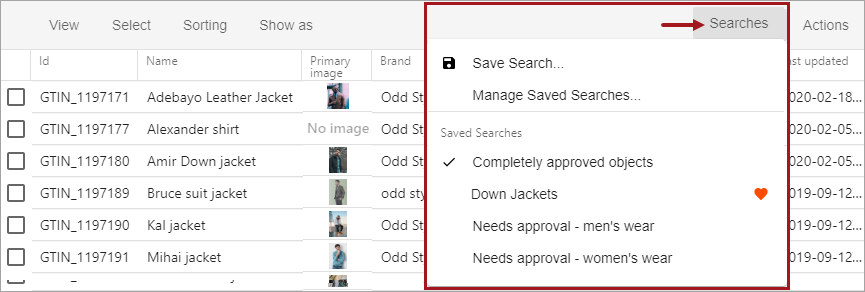
The Searches menu displays the following indicators:
-
 - the currently applied saved search.
 -
 - the favorite saved search. A user can only have one favorite saved search. The user's favorite search criteria is automatically loaded and run when the Search Screen is opened.
Save Search
Use the 'Save Search...' option to store the search bar text and the facet settings for the current user. Saved search names are shown on the Searches menu. The results produced by a saved search vary based on the data when the search is run.
Create a new search
Use the following steps to create a new saved search.
- On the Search Screen, enter search bar text and/or facet settings to produce the desired result set criteria.
- Click the 'Searches' menu and click the Save Search... option.
- On the 'Save search' dialog:
- Click Cancel to exit the dialog without saving.
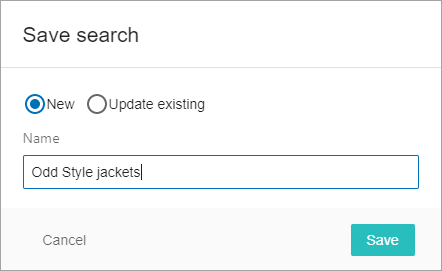
- Click the New radio button, type a name for the search, and click the Save button. A confirmation message is displayed and the new saved search name is added to the Searches menu.
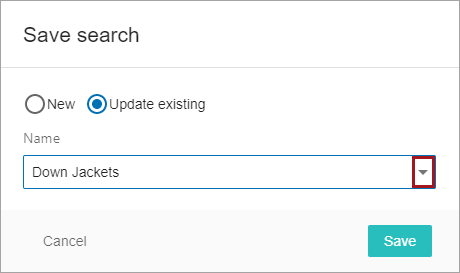
- Click the Update existing radio button, select a named search from the dropdown, and click the Save button. An update confirmation message is displayed and the current search criteria overwrites the saved search previously created.
Manage Saved Searches
Use the 'Manage Saved Searches' option to update a search name, set a favorite, or delete a saved search.
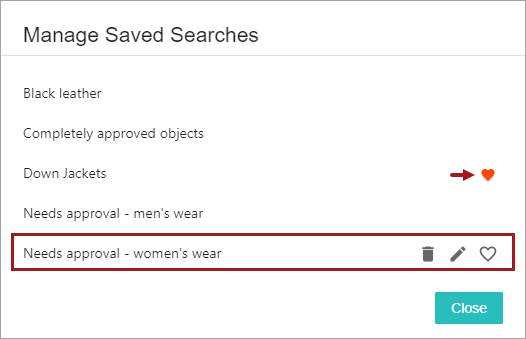
- On the Search Screen, click the Searches menu and click the Manage Saved Searches... option.
-
- click to remove the favorite status of the saved search. For example, on the 'Down Jackets' search shown above.
- Hover over a search name (as shown above for the 'Needs approval - women's wear' search) to display the following options:
-
 - click to delete the saved search.
 -
 - click to modify the name of the saved search.
Note: To update the criteria for a saved search, set the criteria and use the 'Update existing' option from the Save Search option in the previous section.
-
 - click to set the saved search as the user's favorite (as shown above for the 'Needs approval - women's wear' search) or to remove the favorite setting (as shown above for the 'Down Jackets' search.
Run a Saved Search
Running a saved search updates the Search Screen with the saved search bar text, the facet settings, and the search results. Use one of the following methods to run a saved search.
Searches menu
From the Searches menu, click the name of the search. The results are displayed.
Search bar
Use the following steps to run a saved search from the search bar.
- In the search bar, type several characters within the name of the saved search.
The Suggestions list displays:
-
 - indicates saved searches.
 -
 - indicates text previously used in the Search Bar.
 -
 - indicates a file previously uploaded.
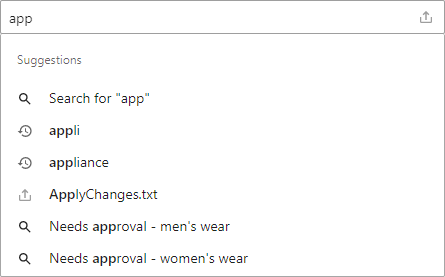
- Complete the search request using one of these options:
- Finish typing the search name and press the Enter key.
- Click on a saved search name from the dropdown.
The search results are displayed.