The Search Widget allows for a quick (and configurable) search of objects in the STEP system. The Search Widget can be configured to search widely through STEP, or it can be configured to search only a narrow segment of STEP, depending on the needs of the user.
Adding Search Widget
Note: Adding the Widget Grid is explained in the Homepage Widgets section of the Using a Web UI topic in the Web User Interfaces / Web UI Setup and User Guide documentation here.
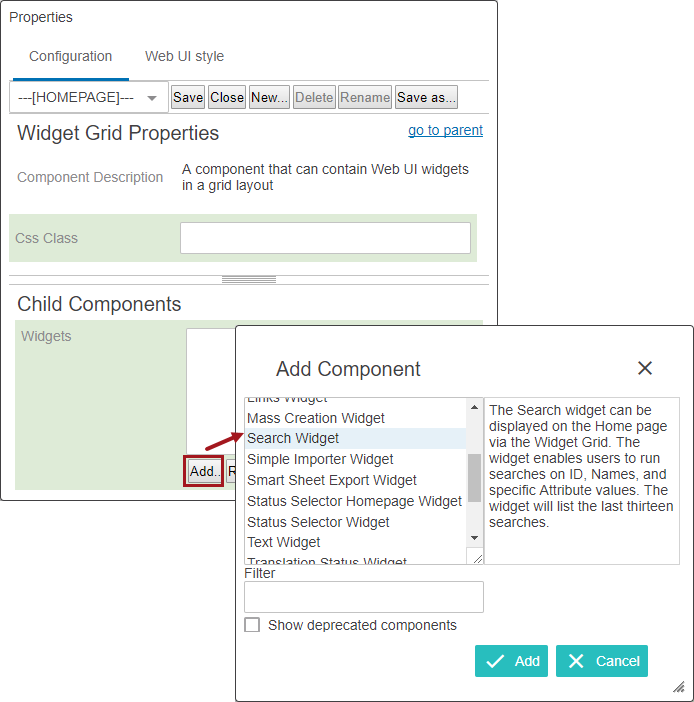
- In design mode, double click on the desired 'widget grid' from the Homepage Properties screen.
- Click on the Add button from the child components of the widgets field.
- Select the Search Widget from the Add Component screen and click Add.
Configuring a Search Widget
Each parameter should be configured as needed. The following section explain what each parameter does and the steps / options for configuring them.
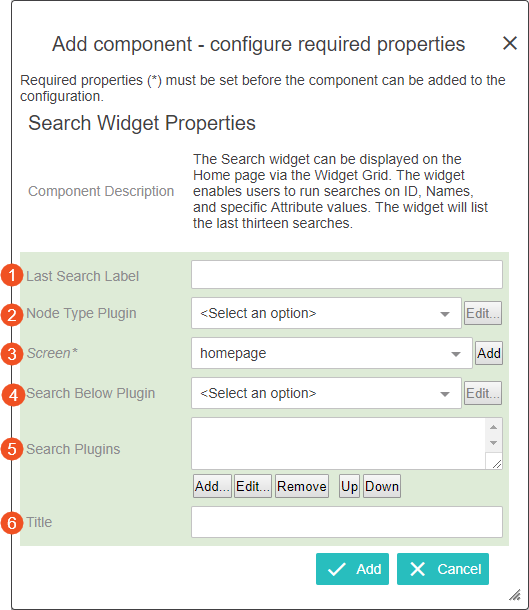
- Last Search Label: Used for he title of the last searched phrases.
- Node Type Plugin: This is used to determine the type of nodes to search for. If not set, the widget will search for all Assets, Classifications, Entities, and Products.

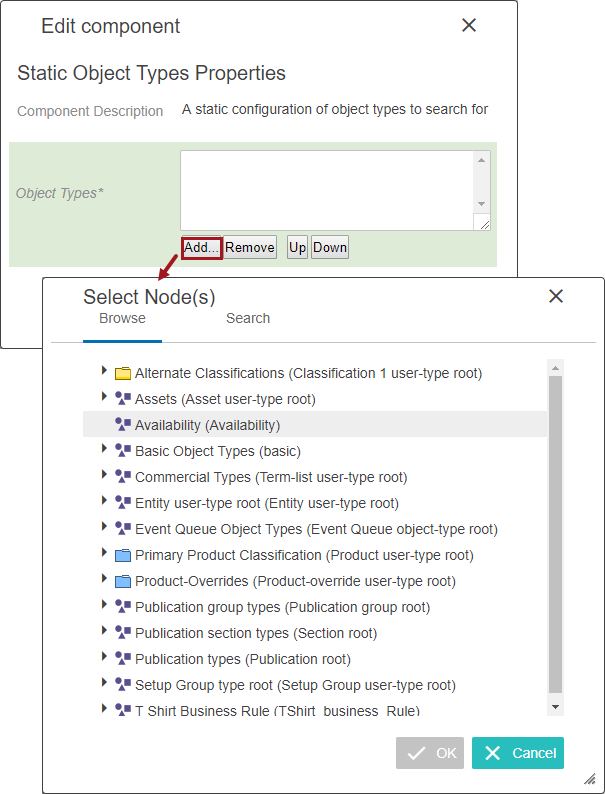
- Static Object Types: Selecting this option and clicking on edit will display the ‘Static Object Type Properties’ screen. Clicking on the ‘Add’ button will display all the object types in STEP. The user has to select the relevant object type and click the Save button.
- Screen: The screen that should be used to display hyperlinked objects from the widget. The screen must be either a ‘Generic Search’ or ‘Node List Browser’ type. The Node List Browser will show one product at a time with the option to go forward and back in the search results, whereas the Generic Search will show the result in a Node list table or multieditor format.
The user can select a pre-configured screen or the user can click on the ‘Add’ button where the user enters a valid Screen ID and select the ‘Generic Search’ screen.
- Search Below Plugin: This parameter defines the node below which the search is to be carried out. Three options will be displayed when the dropdown of the ‘Search Below Plugin’ is clicked.
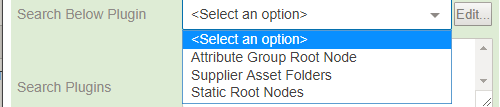
- Attribute Group Root Node: When the Attribute Group Root Node option is selected, the Attribute Group Root Node Properties screen will be displayed where the valid Attribute Group node will be selected. Selected attribute group node will act as the top root node for the Node Picker dialog.
- Supplier Asset Folders: When this option is selected the search result will list the asset folders for the suppliers that the user is a member of.
- Static Root Nodes: This parameter allows the required Root Node URLs. Multiple root nodes of Product Classification, Entity, Assets, Publication, and Collections can be added. Selecting this option will display the ‘Static Root Nodes Properties’ screen where the Root Node URLs are added.
-
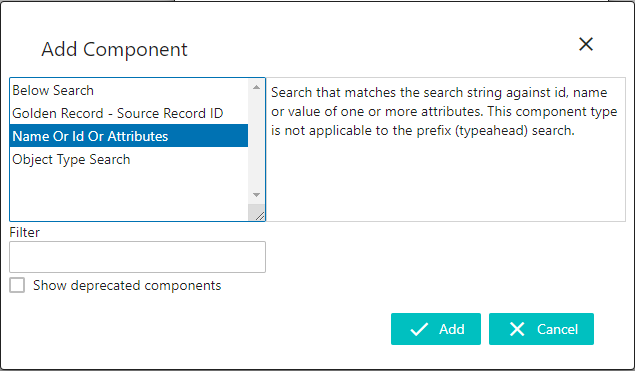
Search Plugins: In this parameter, two options are available when the 'Add' button is clicked.
-
Below Search: This plugin determines under which nodes to run the search. Every node will be searched if this parameter is not configured.
- Golden Record- Source Record ID: Performs a search that matches the Golden Record IDs, or the IDs of the Source Records, that contribute to a Golden Record and returns the active Golden Record. Unless it is explicitly required, this search should not be configured together with any other parameters as doing so might cause poor performance / empty results.
-
- Name Or Id Or Attributes: This plugin is used to add attributes to search against. Once this search plugin is added, the user has to select the plugin and click on the ‘Edit’ button to add the attributes. This action will display the Name or Id Or Attributes Properties screen. There are two parameters that can be chosen:
- Attributes: Attributes are added and removed based on the search criteria. Clicking on Add will display the screen for the attribute selection.
- Search in Data Containers: This is explained further in the section below.
- Object Type Search: This determines which object types to search for.
- Title: This is the Search Widget Title. It is recommended to use a descriptive title.
Search Results
The results of a search can be displayed on either a screen of type generic Search or of type Node List Browser. The generic search screen can be configured with one or more display modes to show the results, and the Node List Browser screen will show a detail screen with the first result and the option of paging through the result list.
Note: The maximum number of search results returned is 10,000 to prevent memory and performance issues. This value can be edited to be less than 10,000 via the Portal.MaxResultCount config property, which can be set on the server by advanced users or by Stibo Systems technical support.
Search in Data Containers
The Search Widget can be configured to search within data containers, if required.
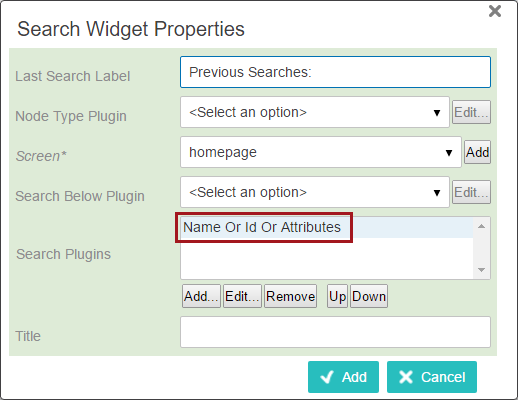
Editing the Search Widget Properties in the designer, the user must first add the 'Name Or Id Or Attributes' value in the Search Plugins field, and then click on the value to open the Edit component window.
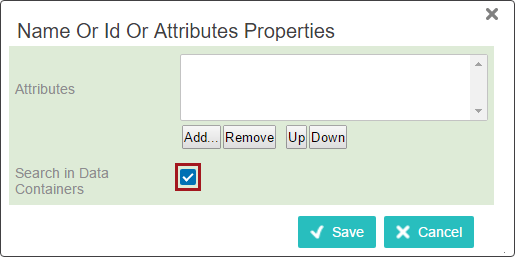
In the Edit component window, add attributes and check the box beside Search in Data Containers. Once this configuration is saved, any search initiated in the Search Widget will also search through data containers and return applicable entities within the search results.
Search Golden Record or Source Record IDs
The 'Golden Record - Source Record ID' plugin can also be configured. This plugin alters the search logic so that it matches the search string against golden record IDs or the IDs of the source records that contribute to a golden record, and returns the active golden record.
To use this plugin, one or more matching algorithms must be set on the widget by selecting the plugin once it has been added and clicking Edit.... In the Golden Record - Source Record ID Properties window, click Add... and browse or search for the desired matching algorithm, then click OK. Once the selections have been made, click Save.
Note: Unless it is explicitly required, the 'Golden Record - Source Record ID' plugin should not be configured together with any other parameters. Doing so can cause poor performance / empty results.