The Merge Over Empty Cells transformation merges row or column contents over empty cells. This transformation is useful when you want to span cells with dynamically created content where you cannot use the Span Cells functionality.
Note: This transformation also merges equal spanned cells.
Prerequisites
The instructions in this topic assume that you have already added the transformation to your table by following the instructions in the Add a Transformation to a Table or Table Type subsection of the Table Transformations topic here.
Example
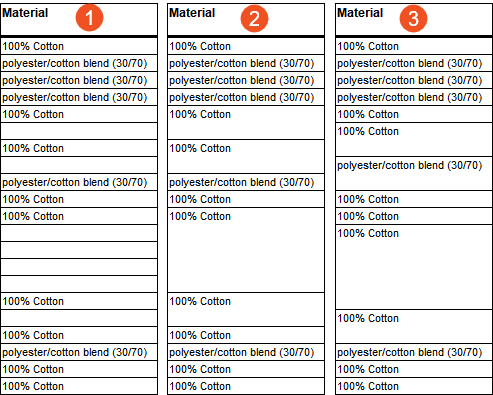
The below screenshots show three examples of the same column, before and after the application of the Merge Over Empty Cells transformation.
- The first is the original column, with individual empty cells.
- The second is how the column appears after applying the transformation. Cells are merged from top to bottom.
- The third is how the column appears after applying the transformation and checking the Reverse Direction box in the Merge Over Empty Cells dialog (more information is provided in the steps below). Cells are merged from bottom to top.
Steps
- After adding the transformation, under Parameters, click the ellipsis button (
 ). The Merge Over Empty Cells dialog displays.

- Click the ellipsis button () to launch the Select Row/Column dialog.
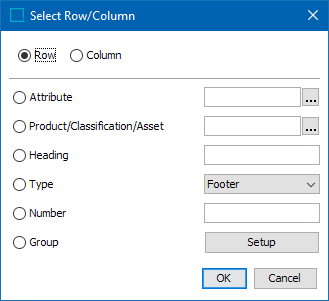
- Select Attribute to apply the transformation to the row or column that contains the specified attribute. Click the ellipsis button () to search or browse for the relevant attribute.
- Select Product/Classification/Asset to apply the transformation to the row or column that contains the specified object. Click the ellipsis button () to search or browse for the relevant object.
- Select Heading to identify the row or column by typing the header text of the relevant row or column.
- Select Type to choose a specific row or column type from the dropdown list.
- Select Number to identify the row or column by entering the sequence number. For example, to apply the transformation to the third column, type 3.
- Select Group to apply the transformation to a group of rows / columns and/or a range of row / columns, then click the Setup button.
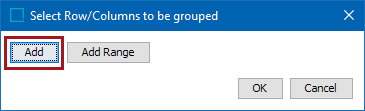
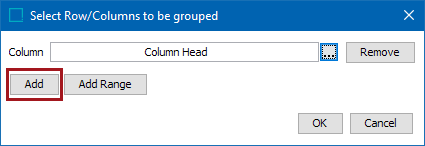
- Click Add in the Select Row/Columns to be grouped dialog to add rows or columns to the group individually.
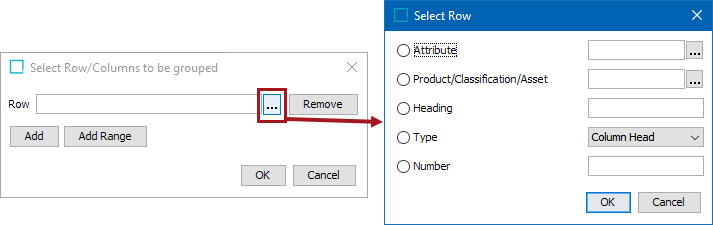
After clicking Add, either a Row or Column field displays, depending on whether you are selecting a row or column. Click the ellipsis button () to launch another Select Row/Column dialog. This is identical to the previous 'Select Row/Column' dialog, except without the Group option. Click OK after making your selection.
Click Add again on the 'Select Row/Columns to be grouped' dialog to repeat the previous steps and add more columns to the group. Click OK when done.
- To add a Range of columns to the group, click Add Range.
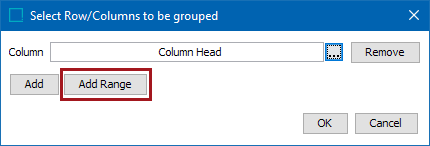
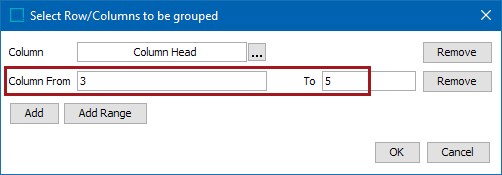
Enter the starting and ending column numbers in the Column From and To fields, then click OK when done. To enter a range that will contain the remainder of the table if rows or columns are added later, enter a large number in the 'To' field such as 5999. Note that these fields can only contain integer values.
- Check the Reverse Direction box to merge over the empty cells from bottom to top instead of top to bottom. See the example given at the beginning of this topic for an illustration.
- Click OK when done.