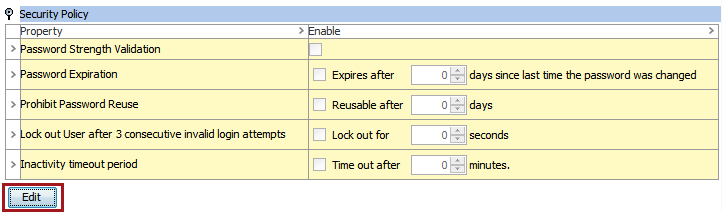
Admin users can configure security settings related to passwords to ensure that STEP users adhere to the required password security level. To access the password settings, on the System Setup tab, select the Users & Groups node. Scroll down to find the Security Policy flipper, which includes the following settings, shown below:
Important: Changes made to these parameters will be applied to all user groups located under the Users & Groups node. These settings cannot be customized for single users or user groups.
To change the Security Policy parameters, click the Edit button below the parameters to display the Security Policy edit dialog.
- Password Strength Validation – When checked, any new password must conform to at least three of the four requirements intended to ensure a strong password.

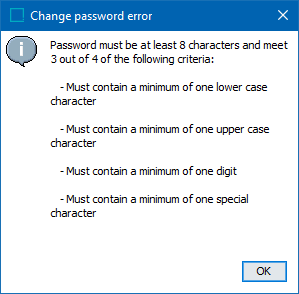
The following error is displayed when a password does not meet the minimum strength requirements– at least one lower-case letter, one upper-case letter, one numeral, and one special character.
- Password Expiration – When checked, all new passwords will expire after the set number of days have passed. Once a password has expired, upon the next log in attempt, the user is notified and prompted to change their password.

Note: Passwords can be set to not expire for a user group via the Group tab for a specific user group. See Working with User Groups documentation here for more information.
- Prohibit Password Reuse – When box checked, the system prohibits a user from reusing old passwords. Old passwords are unavailable for reuse based on the set number of days.

- Lock out User after 3 consecutive invalid login attempts – When checked, three failed attempts to log in by entering a wrong or mistyped password will prohibit any new log in attempts for the set number of seconds.

- Inactivity timeout period – When checked, the system can be configured to automatically sign out any logged in user once the set number of inactive minutes is reached. This setting is most appropriate for STEP systems with a large number of active users.

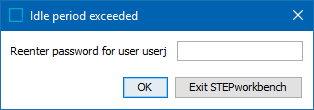
Once the inactivity timeout period is reached, the following dialog is displayed for the logged out user, and the password must be entered to resume work in workbench.
As an additional, but unrelated security measure, workbench token renewal time is required every four hours by default. While increasing that time also increases token-related security risks proportionally, modifications can be made via the sharedconfig.properties file. Include the case-sensitive property text 'Step.Token.ExpiryTimeInHours=[hours]' to set a time between five and 72 hours. For example, Step.Token.ExpiryTimeInHours=5.
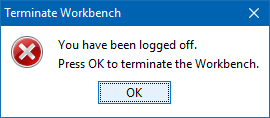
When the expiry time is reached, the Terminate Workbench dialog shown below is displayed and the user is logged out.