Once created, a scheduled process displays on the Background Processes tab under the 'Scheduled Processes' folder, and then in a folder that indicates the state:
- Queued Processes are waiting for the next scheduled run.
- Active Processes are currently running.
- Completed with Errors Processes are available for a limited number of processes and at least some of the process succeeded.
- Ended Processes have been aborted or the schedule is completed.
For details on the states of a background process, see the BG Processes States topic here.
For details on scheduling a background process, see the relevant section of online help, such as the Scheduling a Data Export topic in the Data Exchange documentation (here) or the Scheduling Bulk Updates for Collections topic in the System Setup / Super User Guide documentation (here).
A scheduled process starts in the Queues Processes folder until the scheduled time arrives. Then the process appears in the Active Processes folder until it is completed. The same process again goes into the Scheduled Processes folder until the next scheduled time. The process is moved to Ended Processes after successful completion of the schedule or if it is aborted while not running. If a user aborts the process before the schedule is complete, or if there is an error in the BGP, the process moves to the Active Processes folder with red text indicating an error execution.
Important: Consider the time zone of the application server compared to that of the workbench (the client) where the schedule is created or viewed. When scheduling a job, the local time zone is displayed in the workbench, but the time zone of the server is used to run the background process. Although displayed, the time zone of the client is not included in the instruction to the server to run the job. This can cause confusion about when the job will run since the scheduled time is not automatically converted to accommodate potential differences in time zones.
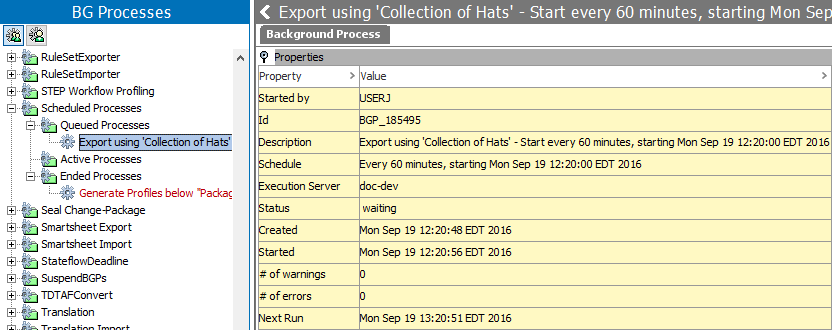
The Background Processes editor tab displays the following data about the selected export:
- Started by shows the user who scheduled the export process.
- ID shows the background process ID.
- Description is the text added in the 'Scheduled Process Name' field when the scheduled export was created.
- Schedule defines the frequency that the export is scheduled to run.
- Execution Server shows the name of the database server running the export.
- Status can be waiting, active, or aborted, depending on the current situation.
- Created shows the day, date, and time that the scheduled export was created.
- Started is the day, date, and time that the scheduled export first ran.
- # of warnings is the number of warning messages included in the execution report.
- # of errors is the number of error messages included in the execution report.
- Next Run is the day, date, and time that the export will run again.