A scheduled process continues to use the configuration it was started on. Therefore, if you change the parameters of the configuration, you should delete the relevant scheduled processes.
Once a process is shown in the Queued Processes node, the schedule details cannot be changed. Instead, it must be deleted and rescheduled as needed.
Delete a Scheduled Process
The images below show an export process, but the steps are the same for all scheduled processes.
- On the BG Processes tab, expand Scheduled Processes node and open Queued Processes. If needed, use the filter buttons at the top of the BG Processes tab to display processes started by other users.
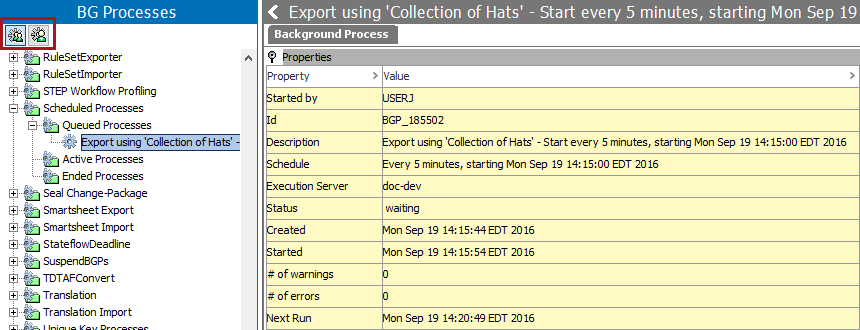
For details on the states of a background process, see the BG Processes States topic in the System Setup / Super User Guide documentation here.
- Select the one or more processes to delete, and from the Maintain menu, click Delete.
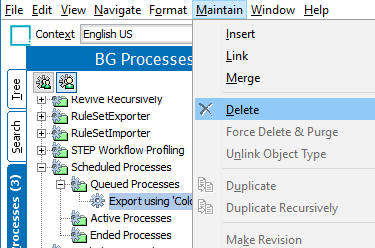
Important: This step moves the scheduled process to an aborted status and displays it in red text as an Ended Process. The details of the process continue to display, however, an aborted scheduled process cannot be started again. To run it again, use the details to recreate the scheduled process.
- On the Delete dialog confirm or deny deletion using the following options:

- Yes deletes only the single selected process shown in the message.
- Yes All deletes all selected processes.
- Skip does not delete the single selected process shown in the message.
- Cancel does not delete any of the selected processes.
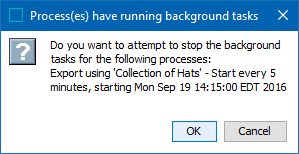
Since deleting a queued process attempts to move it to Ended Processes, you must confirm that you want to stop the background tasks.
- Select an aborted process in Ended Processes.
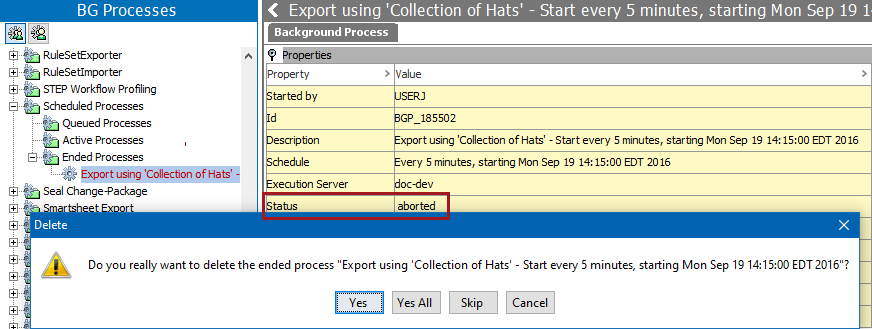
Important: Once deleted, an aborted scheduled process is removed from STEP and cannot be restored.
- From the Maintain menu, click Delete to display the Delete dialog again. Confirm or deny deletion using the following options:
- Yes deletes only the single selected process shown in the message. The scheduled process is removed from STEP.
- Yes All deletes all selected processes. The scheduled processes are removed from STEP.
- Skip does not delete the single selected process shown in the message. The scheduled process remains in aborted status.
- Cancel does not delete any of the selected processes. The scheduled process remains in aborted status.