This is one of the data gathering methodologies and recommendations for functional performance improvement. The full list is defined in the Functional Performance Recommendations topic here.
Event processors and queues are used for asynchronous processing, such as auto-purging revisions on schedule or performing a delayed approval after import. Warnings and/or critical issues in asynchronous processing can have an influence on the performance of the system.
For general information on event processors and event queues, see the Event Processors section (here) and Event Queues section (here), both in the System Setup / Super User Guide documentation.
For more information, see the Monitoring topic of the Administration Portal documentation here.
Run Without Warnings and Errors
Warnings and errors are visible in the event processor background processes. For optimal processing, no warnings or errors should be reported.
For example, the following image shows the business rule execution report for an event processor. In this illustration, the event processor initiated a business rule with a setting 'Valid Object Types = All object types valid' but the event processor is not valid for all object types. Business rules initiated via an event processor should be defined with specific object type(s) rather than setting all object types as valid.

Optimize STEP Setup for Performance
Use the following setup recommendations within the event processor configuration to optimize performance. For detail on all parameters, see the Event Processors topic in the System Setup / Super User Guide documentation here.
-
The User running event processor plugin parameter defines the privileges that are checked when the event processor is invoked. For each piece of information processed, all privileges are checked for the selected user. Creating a user with relatively few and broad permissions explicitly for event processors can improve performance dramatically.
-
The Number of events to batch parameter defines the number of events processed in a batch. While the events are handled one-by-one, committing large batches are more effective and improve performance. For the event processors:
-
Set the 'Number of events to batch' parameter no larger than the max size defined in the sharedconfig.properties file for the OutboundMessageProcessor.BatchEventsMaxSize property. By default, this is 10,000. Lower this number if you experience system memory problems.
-
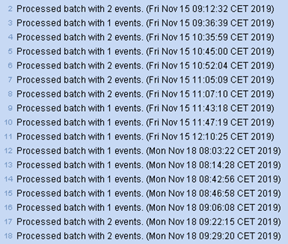
Analyze the schedules and the background processes to determine how many events are processed in each batch.
-
For example, in the following image, the number of events in a batch is 1 or 2, so the number of events to batch could be set to five (5). However, if the schedule is increased, e.g., once per 15 minutes instead of once every minute, then the number of events in a batch could be an average of 30. In that case, the 'Number of events to batch' parameter could be set to 30.
- The Days to retain events parameter is the number of days to keep events once processed. However, the value should be set to 0 since this parameter has no impact on event processors.
- The Schedule parameter can be set to run every minute, but this will have a negative impact on performance. The 'Start every minute' option should be used only in rare and necessary situations.
Analyze Asynchronous Processing
Analyze the state of asynchronous processing using the 'Sensors for external monitoring' option as follows.
- On the Start page, click the STEP System Administration button, and supply the login credentials.
- On the Monitoring tab, open the Additional Links section and click the 'Sensors for external monitoring' link to display the list of monitors.
- For each sensor with a 'Warning' or 'Critical' status, click the sensor name link to display the details of the status.
- Resolve the issue indicated in the sensor log.
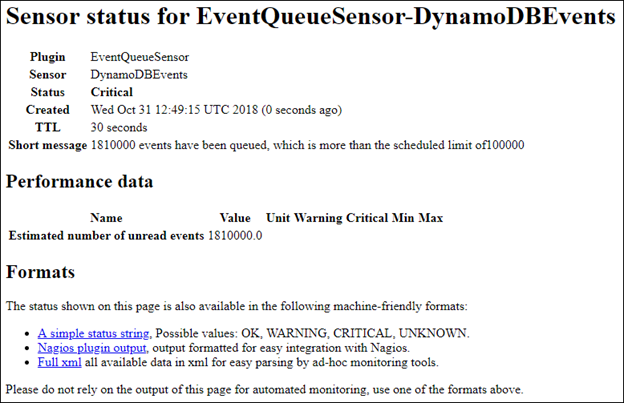
For example, the following sensor has a 'Critical' status.

The details show that event queue 'DynamoDBEvents' has too many events queued.
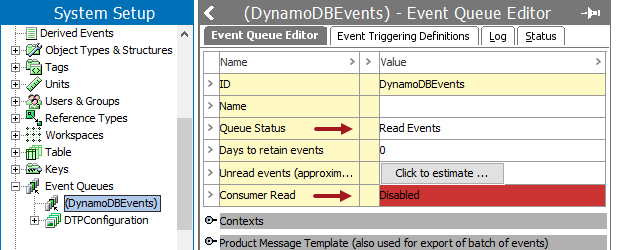
In the workbench, this event queue shows that the event queue is disabled but is still reading events. Since the latest change on this event queue is months ago, and it is on the production environment, the event queue is no longer being used and can be removed.
Queues and Queue Size
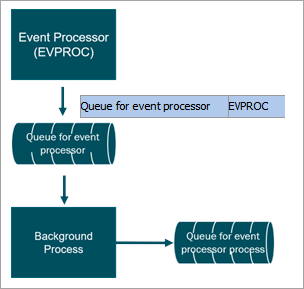
The event processor initiates a background process to handle the processing.
-
The Queue for event processor parameter stores the queue that is used by the background process to poll the event processor. The default value is EVPROC.
-
The queue for associated processes is used by the background processes to handle the actual processing. The queue is identified on the BG Processes tab: select the Event Processor BGP node to display the Process Overview tab and open the 'Process Type Information' flipper. The default value is EventProcBGP. For details on identifying and editing the queue being used, see the Modifying Background Process Queue Configuration topic in the System Setup / Super User Guide documentation here.
STEP allows you to define a separate queue for event processors to ensure only events for this process are read.
The first time you activate the event processor, a queue with the specified name is created if it does not already exist.
A background process (BGP) queue allows prioritizing system processes to ensure high- level system performance. BGP queues are named and configured to control which processes run on which server and how many can run at the same time on each server.
Note: Parallel processing is set by increasing the queue size for the event processor background processes and can improve performance, but can also cause optimistic locking issues when parallel processes attempt to view / update the same node at the same moment. A queue size of 1 means only one process can run at a time, while a queue size of 2 means two processes can run concurrently.
Recommendations
In the event processor settings, use separate queues for event processors, especially for those with long-running events.
Test parallel background processing using an increased the queue size in a test environment before increasing it in production. Increase the queue size to 2 for the event processor background process via the following case-sensitive properties in the sharedconfig.properties file:
-
BackgroundProcess.ProcessType.[process type ID].Queue=[queue]
For example:
BackgroundProcess.ProcessType.EventProcBGP.Queue=EventProcBGPQ
-
BackgroundProcess.Queue.[name].Size=[number of allowed concurrent processes]
For example:
BackgroundProcess.Queue.EventProcBGPQ.Size=2
-
Restart the application server to apply the changes to the properties file.
See the Background Processes and Queues topic (here) in the System Setup / Super User Guide documentation for examples of parallel and multi-threading properties.
Consider In-Memory for Event Processors
When the other event processor recommendations have been followed and additional performance improvement is needed, consider In-Memory since it provides faster read operations.
For more information, see the In-Memory Database Component for STEP topic in the Resource Materials section of online help here.