Considerations
This setup guide explains how to set up a Supplier Web UI, but first, a Supplier Web UI configuration and a matching workflow must exist on the system.
If allowing self service supplier solutions to alter values for Merge Golden Records, be careful to not allow editability of the attributes and reference types that are given special meaning in the Merge Golden Record Component Model.
Similarly, Clerical Review and Unmerge should be run by a user with privileges to see all records and values implicated in the merge. These workflows do not lend themselves towards self service supplier solutions
Supplier Web UI Principles
The Supplier Web UI differs from other Web UIs by allowing external data suppliers to create and maintain data. Each supplier can only see data that is created / maintained by them. This solution requires three main things to be setup on the system.
- A Supplier User Group for each supplier: the individual Supplier Users must be created below a Supplier User Group. When the Supplier User Group is created, the supplier’s classification structure is automatically created. This process is defined in the Creating a Supplier User Group section below.
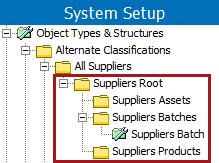
- A Classification structure for each supplier: created automatically when the Supplier User Group is created. The classifications will be used to collect the supplier’s assets, entities, and products. Only the corresponding supplier’s users can see these objects. The supplier classification structure looks like this:
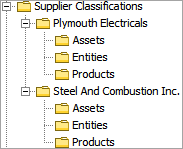
- A Product to Classification link type: used to link the supplier’s products into the supplier’s classification structure (i.e., to the products folder and the batch folders).

How it works
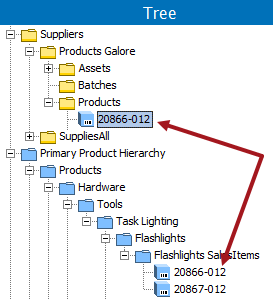
For entities and products, when a supplier user creates a new item through the Supplier Web UI, the item will be created in the blue Product Hierarchy or an appropriate Entity Hierarchy and then linked to the supplier’s classification structure. For example, the following product is created in the PPH and then linked to a classification
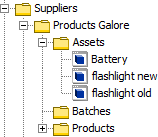
When a supplier user uploads a new asset through the Supplier Web UI, the asset will be placed in the supplier’s classification structure (the Asset folder):
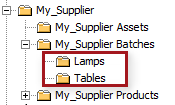
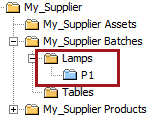
When a supplier user creates a new batch through the Supplier Web UI, a classification folder will be created, representing the new batch. These batch folders will be placed below the supplier’s Batches folder:
When a supplier user adds an item to a batch through the Supplier Web UI, the item will be linked to the corresponding batch classification folder:
Disable Batches Folder
Use of the Batches folder is optional. If it is not needed, it can be disabled manually.
- In System Setup, click the Users & Groups node.
- Navigate to the Web UI Settings flipper.
- Clear the values for the 'Batches classification object type' and 'Batch classification object type' fields.
Note: Supplier nodes can work without the batches folder, but it is required for the auto-generation of the structure as explained below. When the batches folder is displayed, both asset, entity, and product folders must exist.
Auto-generate the Supplier Classification Structure
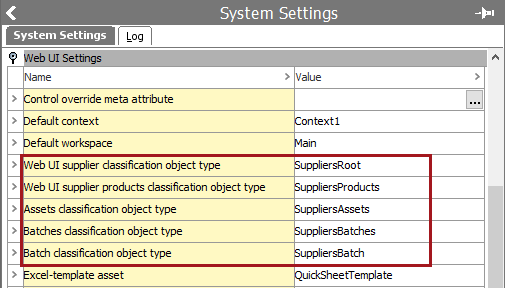
In order to have the supplier classification structure automatically created, a number of classification object types must be provided as defined below.
- In System Setup click the Users & Groups node.
- Navigate to the Web UI Settings flipper.
- Provide the object type IDs for the following parameters:
- Web UI supplier classification object type
- Web UI supplier products classification object type
- Assets classification object type
- Batches classification object type
- Batch classification object type
The standard classification object types used for this are these:
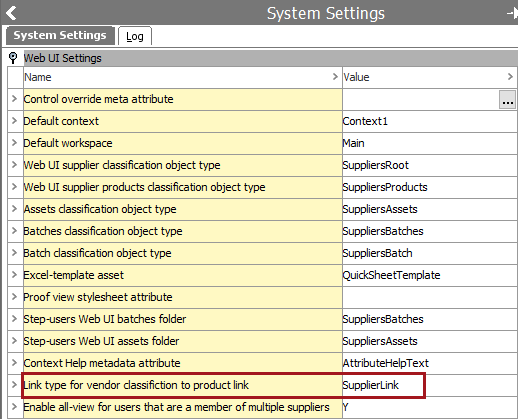
Set the Product to Classification Link Type
Products created through the Supplier Web UI automatically get linked to the supplier's classification structure. This is done by using a specified Product to Classification link type.
- In System Setup click the Users & Groups node.
- Navigate to the Web UI Settings area.
- Enter the ID of the link type in the Link type for vendor classification to product link parameter.
Setting Up Smartsheet
Smartsheet is an Excel format that can be used to initiate and maintain products via the Supplier Web UI. For more information, see the Excel Smartsheet Format section of the Data Exchange documentation here.