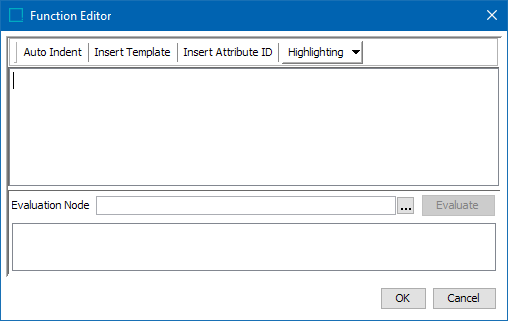
The Function Editor (displayed below) can be used to insert STEP functions, for example when adding a key formula on a Key in System Setup, or when creating a value template for a calculated attribute. In addition to writing functions manually, you can create complex functions by using one or more predefined templates.
As described below, some of the places the Function Editor can be accessed include the attribute editor, the bulk update wizard, and in some Flatplanner views. For additional access areas, see the STEP Functions topic in System Setup / Super User Guide documentation here.
Attribute Editor
- In System Setup, navigate to an attribute that has been configured as calculated.
- On the Attribute tab, under the Description flipper, locate the 'Value template' parameter.
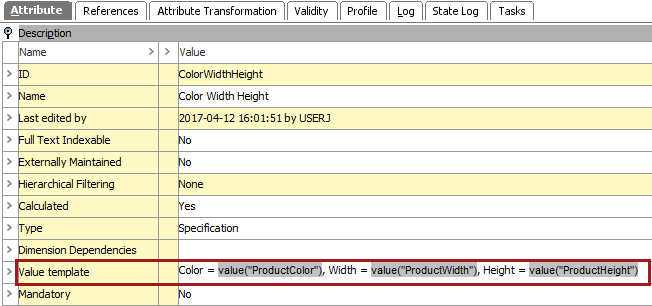
- Until a function has been defined, the Value Template parameter displays EMPTY with a gray background. This means that no calculation will be performed (and no value displayed) in the object editor for the objects where the attribute is valid.

- When a function exists, it is displayed with a gray background. This means that the calculation of the formula will be performed and displayed in the object editor for the for the objects where the attribute is valid.

- When static text has been defined, it is displayed with a white background. The text entered is displayed in the object editor for the objects where the attribute is valid. Static text can also be used in combination with functions.

Important: No calculations are performed on static text.
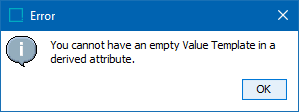
- Once an attribute is configured to be calculated, the Value Template cannot be blank. Enter either a function and/or static text to resolve the following error.
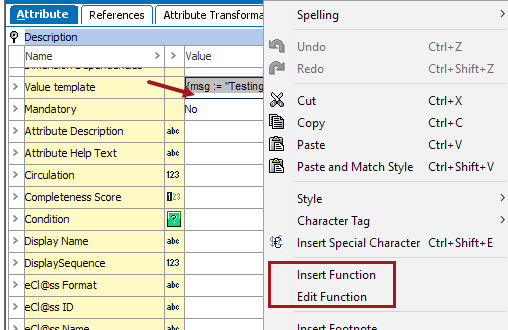
- Click the Value Template parameter value until the existing text is displayed with a white background. (Notice the white area below the text on the gray background.) Right-click to display the menu below with insert or edit function options:
- Right-clicking with a blue background (shown below) displays a menu with limited options and does not include Function options.
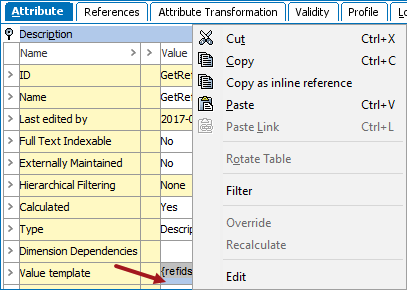
- Edit the Value Template parameter as needed:

- Click into the field and use the right-click Insert Function menu option to add a new function.
- Click on an existing function in the field and use the right-click Edit Function menu option to modify a function.
- Click before or after an existing function and type any required static text.
Bulk Update Wizard
The bulk update wizard can be accessed in a number of ways as described in the Creating a Bulk Update topic of the Bulk Updates documentation here.
- On the Operations step of the Bulk Update wizard, select the Set Value operation from the dropdown.
- Click the Function button (
 ).
). - Then click the ellipsis button (
 ) to display the Function Editor.
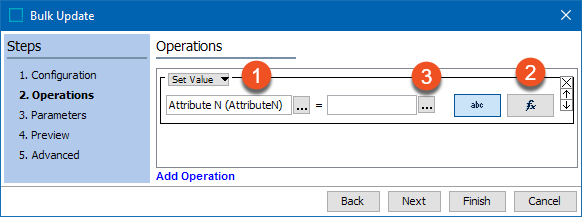
Flatplanner
When working with Flatplanner publications, you can add a calculation option to the Basket view, Financial Summary view, and/or the Sticker Book view. For more information, see the Customized Views section of the Flatplanner documentation