Summary
One new table transformation and three new text transformations have been introduced for tables. The table transformation is:
The new text transformations are:
- Sort values within cells
- Range consolidation within cells
- Remove duplicate values within cells
Notice that though these are text transformations, they are intended only for use within tables.
Details
New 'Assign Row/Column Types to Row/Column Numbers' transformation
A new 'Assign Row/Column Types to Row/Column Numbers' table transformation (renamed to 'Assign Row/Column Types to Rows/Columns' in the 10.0 release) has been introduced to allow users to assign row and/or column types to fixed row / column numbers. This new functionality is intended for use after a Pivot Transformation has been applied.
Though available for any table created in STEP, this transformation is especially useful for tables created for the PMDM for Automotive solution. These tables tend to be very structured, using a consistent number of columns with the same attributes in the same order, and have fixed column widths. The number of columns can be quite high—15 or more columns is not unusual. It is also very common that the Pivot Transformation is required in these tables.
The Pivot Transformation does not allow for the assignment of so many different column types to the 'common values' columns. This new transformation solves this issue by allowing users to assign column types to these columns after the Pivot Transformation. Further, it can define the designation of header row types instead of using the Pivot Transformation.
The following example shows a table in which this transformation will be used to apply two different column types to four different columns (columns 7, 8, 9, and 10).
Before the transformation is applied, the columns have no background shading:
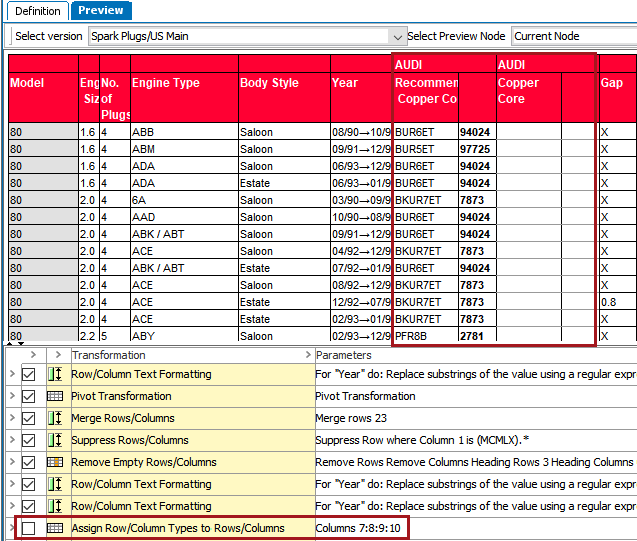
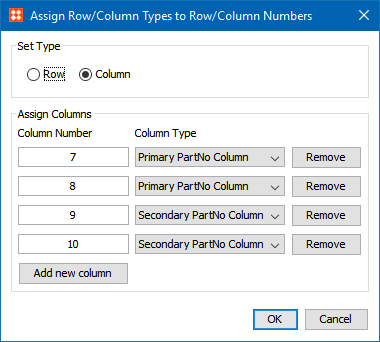
The transformation has been configured to apply the 'Primary PartNo Column' column type to columns 7 and 8 and the 'Secondary PartNo Column' column type to columns 9 and 10.
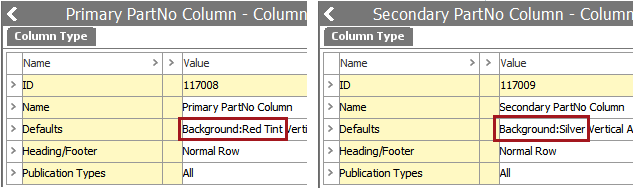
The Primary PartNo Column type has a 'Red Tint' background and the Secondary PartNo Column has a 'Silver' background.
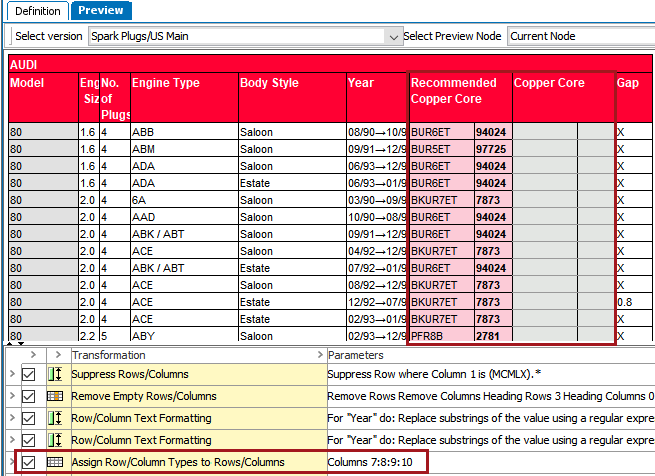
After the transformation is applied, columns, 7, 8, 9, and 10 reflect the styles of the applied column types.
For more information, see the Assign Row/Column Types to Rows/Columns topic in the Tables documentation here.
New 'Sort values within cells' text transformation
A new 'Sort values within cells' text transformation has been introduced that sorts multiple values when they are contained within a single table cell. It is available as a selection in the following locations:
- 'Row/Column Text Formatting' table transformation
- 'Attribute Formatting' table transformation
- Within attribute transformations
Entries within a cell may be sorted alphabetically, numerically, or by fractional values, and in ascending or descending order. Since the sorting affects multiple values within a single cell, a separator (value delimiter) must be placed between the values to differentiate them. If a hard return should separate the entries in a cell, the delimiter of \n should be used.
The following examples use the pipe character (|) as the delimiter:
- The value string '2002|2007|2005|2012' becomes '2002|2005|2007|2012' when sorted using the Ascending and Numeric options.
- 'A|C|H|B|G ' becomes 'A|B|C|G|H' when sorted using the Ascending and Alphabetic options.
- 'DC7|DC9|DC13|DC12|DC5|DC6' becomes 'DC5|DC6|DC7|DC9|DC12|DC13' when sorted using the Ascending and Numeric options.
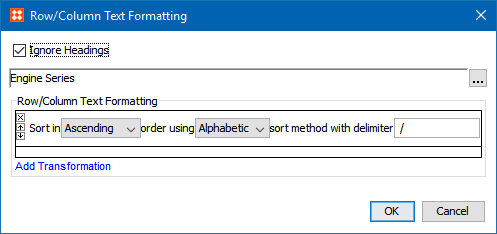
The following example shows a table in which this transformation will be applied to sort values in ascending alphabetic order using the '/ ' delimiter. As shown in the field with the ellipsis button, the transformation has been selected to apply to cells within the 'Engine Series' column.
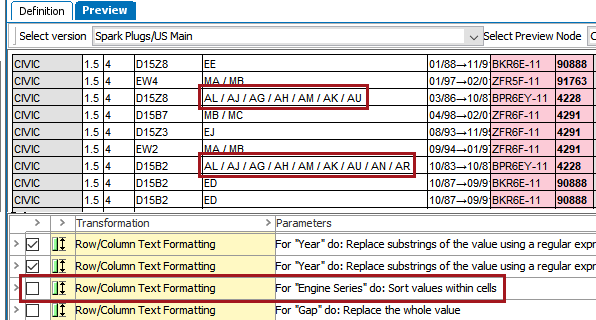
Before the transformation is applied, the values in the Engine Series column (column 5) display in non-alphabetical order, e.g., AL / AJ / AG / AH / AM / AK / AU.
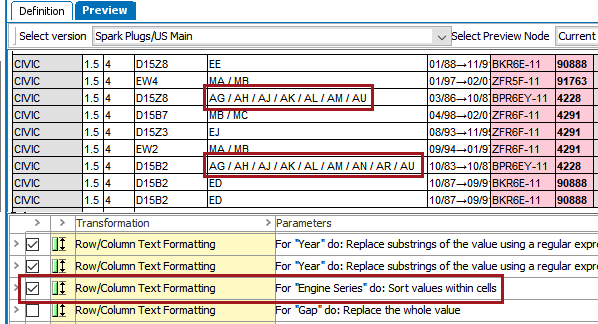
After the transformation is applied, the values display in alphabetical order, e.g, AG / AH / AJ / AK / AL / AM / AU.
For more information, see the Cell Text Formatting Transformations topic in the Tables documentation here.
New 'Remove duplicate values within cells' transformation
A new 'Remove duplicate values within cells' transformation has been introduced that removes duplicate values when they are contained within a single cell of a table. Like the 'Sort values within cells' transformation, this transformation is available as a selection in the following locations:
- 'Row/Column Text Formatting' table transformation
- 'Attribute Formatting' table transformation
- Within attribute transformations
This transformation is useful when consecutive rows in a table have been consolidated into one row. When this is done, the resultant row will often have cell entries of merged data that require some cleanup and/or consolidation.
Duplicates are removed by specifying a value delimiter. For example, using the pipe character (|) as the delimiter, the string 'DC9|DC9|DC7|DC12|DC9|DC7' becomes 'DC9|DC7|DC12'. If a hard return separates the entries in a cell, the delimiter of \n should be specified.
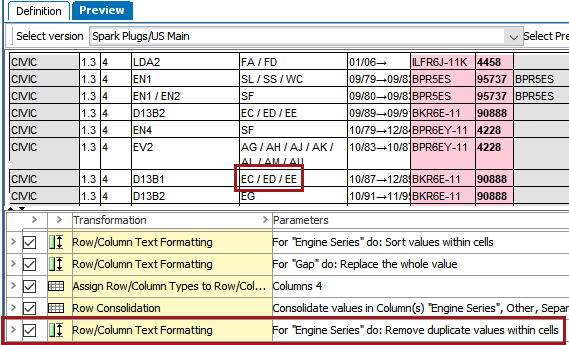
The following example shows a table in which a cell contains duplicate values after a Row Consolidation transformation has been applied. As a result, in the Engine Series column (column 5), the value 'ED' appears twice.
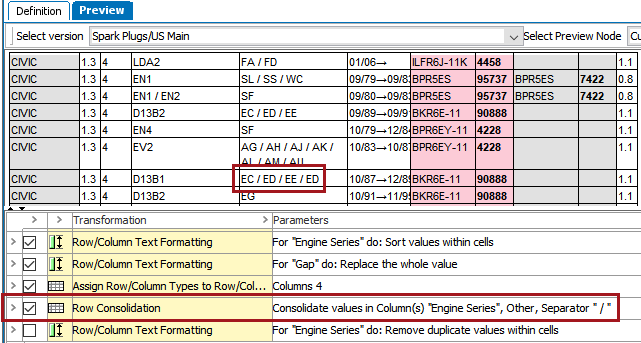
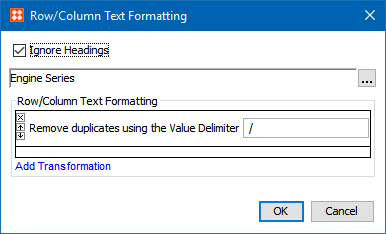
To remove this duplicate value, the 'Remove duplicate values within cells' transformation is applied as part of the Row/Column Text Formatting transformation. It is configured to remove values from the Engine Series column that are separated by the ' / ' delimiter.
After the transformation is applied, the duplicate 'ED' values are removed and consolidated into a single value.
For more information, see the Cell Text Formatting Transformations topic in the Tables documentation here.
New 'Range consolidation within cells' transformation
A new 'Range consolidation within cells' transformation has been introduced that consolidates ranges of data that might exist within a single cell of a table. Like the 'Sort values within cells' and 'Remove duplicate values within cells' transformations, this transformation is available as a selection in the following locations:
- 'Row/Column Text Formatting' table transformation
- 'Attribute Formatting' table transformation
- Within attribute transformations
As part of the consolidation process, the transformation allows users to provide delimiter characters to be used between values, as follows:
- Value Delimiter: Users may enter one or more characters to indicate the delimiter between the entries in a cell. If a hard return separates the entries in a cell, the delimiter of \n should be used.
- Range Delimiter: Users may enter one or more characters that denote the delimiter. This delimiter is used when ranges are created as the result of this operation. A range can be created that is ascending (low-to-high) or descending (high-to-low). Example: 2007-2012 or 2012-2007 if a numerical range, and A-F or F-A for an alphabetic range.
The following examples assume the value delimiter is the pipe character (|) and the range delimiter is a hyphen (-):
- The string '2002|2003|2004|2005|2006|2007' becomes '2002-2007'
- '2015|2014|2013|2012' becomes '2015-2012'
- 'A|B|C|F|G|H' becomes 'A-C|F-H'
- '2002|2003|2004|2005|2007|2008' becomes '2002-2005|2007-2008'
Note: This transformation only operates on numbers or single characters in the ASCII range 'A to Z' or 'a to z.'
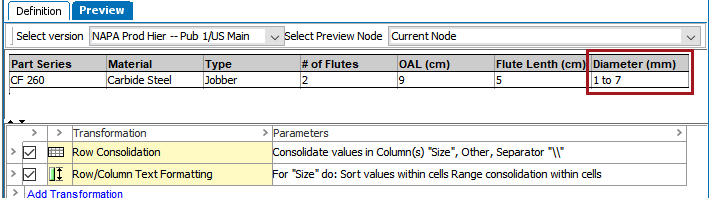
The following example shows a table in which a cell contains a range of values after a Row Consolidation transformation has been applied. The values are both unsorted and separated by '\\ ' as a delimiter.
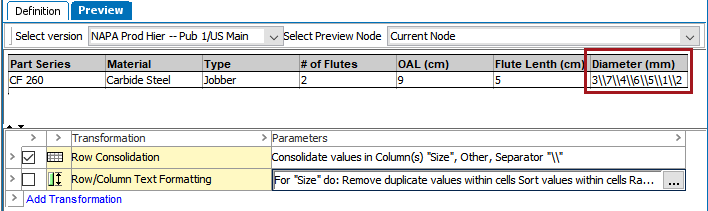
To sort these values and convert them into a range, two transformations are applied. The 'Sort values within cells' text transformation is first applied to sort the numbers in ascending numeric order. Next, 'Range consolidation within cells' is applied, which has been configured to remove the \\ value delimiters and replace them with 'to.'
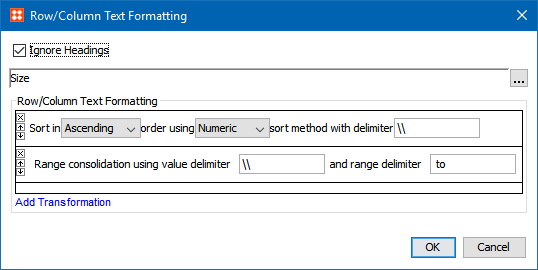
After the transformations are applied, the values are consolidated into a range.
For more information, see the Cell Text Formatting Transformations topic in the Tables documentation here.