Publications are created in the green publication hierarchy in the Tree by the same basic process whether the publication will be used for standard STEP Publisher publishing ('drag and drop'), AutoPage, or Flatplanner.
Unlike the more straightforward method of creating objects in the Product or Classification hierarchies, all publications require the linkage of two types of STEP Publisher templates: publication templates and product templates. Flatplanner publications require three template types: publication templates, product templates, and page templates. These templates must already be saved in STEP before a publication can be created.
Though publications can be imported in STEPXML or Publication Excel formats, it is recommended to create your first publication in STEP manually. Once created, this publication can be exported to produce a 'template' spreadsheet that can be used for later publication imports.
Steps to Create a Publication Manually in the Workbench
- In the Tree, open the top-level node of the publication hierarchy, then navigate to the publication group object in which you would like to create your publication.
- Right-click this publication group object and select New Publication.
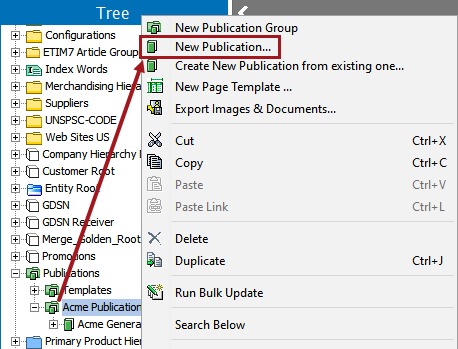
- A Create Publication dialog box displays.
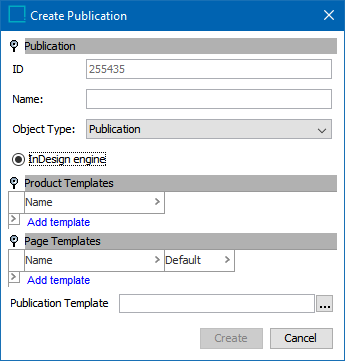
- If the STEP ID for your publication object type has not been set to autogenerate with an ID Pattern in System Setup, type an ID in the ID field. (The preceding screenshot shows an ID that has been created automatically.)
- In the Name field, type a name for the publication (a name is required for publications).
- In the Object Type list, select a publication object type (only applicable if more than one publication object type has been created in System Setup).
- Only one choice of engine is available—InDesign engine.
- Under the Product Templates flipper, click Add template.
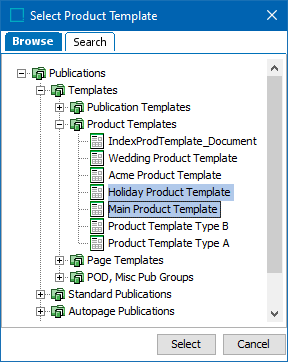
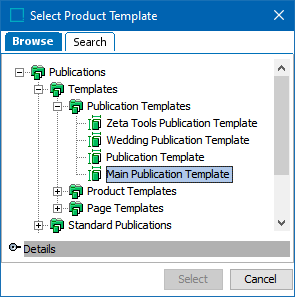
- In the Select Product Template dialog that displays, either search for or browse to the product template(s) that you would like to use in your publication. To select more than one template, hold the Ctrl or Shift key while making selections. Click Select when finished.
- (For Flatplanner publications only) Under the Page Templates flipper, click Add template. A Select Page Template dialog displays. Either search for or browse to the page template(s) that you would like to use in your publication. To select more than one template, hold the Ctrl or Shift key while making selections. Click Select when finished. (You can add page templates after creating the publication if the page templates are not already in STEP.)
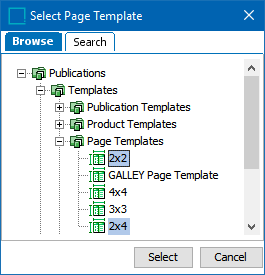
- A green check mark will appear next to the first page template to indicate that it is the default page template for the publication. To change the default template, click in the empty Default cell next to the page template that you would like to make default.
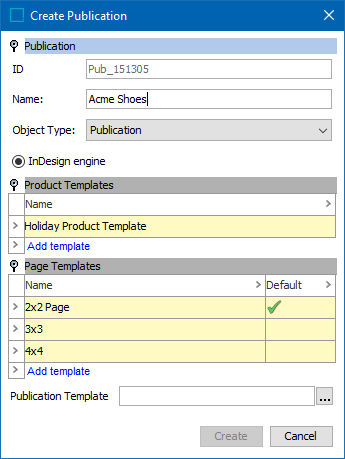
- In the Publication Template field, click the ellipsis button (
 ). A Select Publication Template dialog appears. Either search or browse for the publication template that you would like to use in your publication. Click Select when finished.
Note: Only one publication template is allowed per publication, as it is the master reference for all page sizes, paragraph styles, object styles, character styles, colors, and table rule settings in your publication.
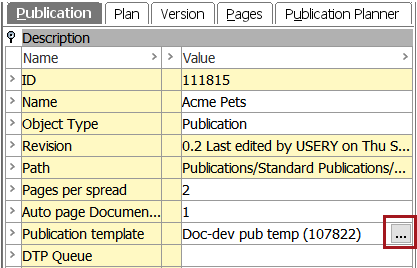
- If you need to change the publication template after you create the publication, you can do so by selecting your publication in the tree, and then click the ellipsis button () in the Publication template field on the Publication tab.
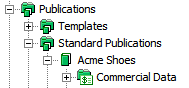
- Click Create. The publication will now be created together with a Commercial Data folder. The Commercial Data folder is created by default with every publication object. Though it cannot be deleted, it will not negatively impact the publication if it remains empty. For information on Commercial Data, see the Commercial Data section of the STEP Publisher documentation here.
- Once the publication is created, the system will automatically route to the Version tab.
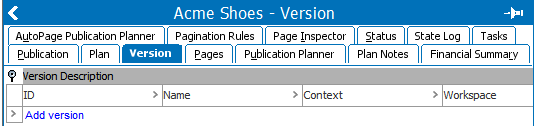
- Before proceeding further with publication creation, you must create at least one publication version. For instructions on creating a version, see the Publication Versions topic