This topic covers information specific to the Product super type that is important to know when working with products. For general object maintenance information (applicable to all object types rather than specific to products), see the Object Maintenance in Tree topic within this guide here.
In STEP terms, a product is a part number, a stock number, an order number, a catalog number, a product number, etc. In other words, any item that a company sells that can be ordered.
Product Hierarchy
The foundation for a product-centric STEP installation is the Product Hierarchy / Primary Product Hierarchy. The product hierarchy consists solely of objects of the product super type. The product hierarchy is an organized hierarchy where all products in the workbench are stored. This is also where products and product attributes are linked. Although configurable, the product hierarchy is usually a multi-level hierarchy—each level controlled by its own unique object type. Super users can control the naming convention(s) used to categorize the products at their different levels.
Inheritance of attributes and values is supported within the Product Hierarchy and the hierarchy is usually designed to take advantage of this capability, with objects classified according to similar characteristics. More information on inheritance is available in the Inheritance in the Product Hierarchy topic in this guide here.
A portion of a sample hierarchy is shown below. Categories are represented by folder icons, while discrete objects are represented by cubes.
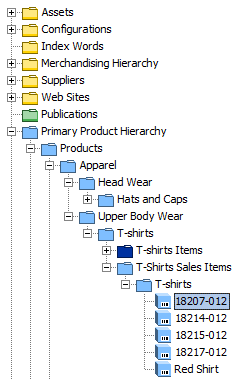
All objects of the product super type must exist in the product hierarchy, and may exist only once (e.g., each object can have only a single parent). The primary purpose of the product hierarchy is proper attribution of products. That is, in the product hierarchy, products should be grouped according to their similar properties so that inheritance of attributes, attribute values, and references can best be used. Based on this, it is evident that the Product Hierarchy is not intended to be used for modeling website hierarchies or other taxonomies (e.g., merchandising hierarchy, sales hierarchy, etc.) where an object can be represented multiple times. When a product needs to "live" in more than one location, that can be accomplished using classification hierarchies. In this case, the product continues to exist in the product hierarchy (and this is considered its true place of residence). It is then linked into one or more classification hierarchies using references.
Product Editor
The Product Editor is displayed when an object of the product super type is selected in Tree.
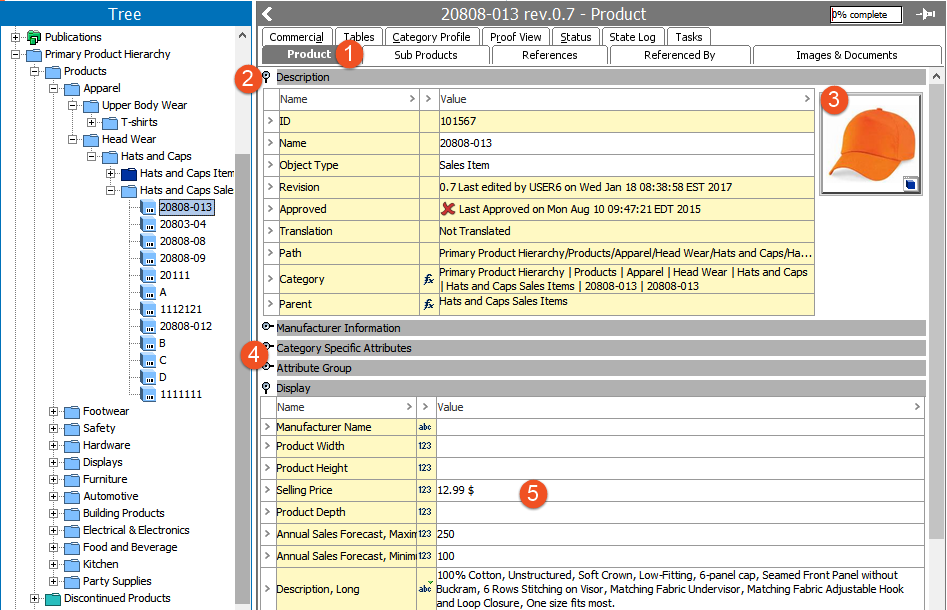
- The Product tab (known as the Product Editor) is the primary interface for working with product objects in the workbench.
- The Description flipper displays basic information about the object. Additional information about the data displayed is described in the Editing Objects in Tree topic within this guide here. Note that some information displayed is common for all implementations, while other information is specific to the data model and configuration of each system.
- If the object has a primary image referenced, a thumbnail version of it will display. The reference type to be used for the thumbnail display is controlled in System Settings (on the Users & Groups node), and additional information on this is available in the Primary Image Type topic in the System Setup / Super User guide here. Additional information on references in general is available in the Reference and Link Types topic (here) in that same guide.
- Specification attributes are displayed in flippers, with the flipper name matching the attribute group. Flippers can be expanded / collapsed by clicking the magnification icon. Note that when attribute groups have sub-groups, configuration determines whether the parent group or the child sub-group is displayed as the flipper name. This is set via the 'Product Editor, Group attributes by top group' parameter in System Settings (on the Users & Groups node), and additional information on this is available in the Product Information Manager Default Settings topic in the System Setup / Super User guide here. More information on attributes in general is available in the Attributes section (here) in that same guide.
- Attribute values can be edited by clicking into any editable field. Additional information on the various editing options is available in the Editing Objects in Tree topic within this guide here. By default, attributes are displayed in alphabetical order within each flipper. However, if an attribute display sequence has been configured, this will override the alphabetical sorting. More information on attribute display sequence is available in the Attribute Display Sequence topic in the System Setup / Super User guide here.
Additional Editors
See the additional topics listed below for information on the other editors available on products.
- Category Profile: Allows users to configure and view profiling data and dashboards for the objects under the selected node. See the Data Profiles topic (here) in the Data Profiling documentation for more information.
- Commercial: Allows users to add and edit commercial terms for the object. Commercial data / terms lists are often used to store pricing information. See the Commercial Data section of the STEP Publisher (InDesign) guide (here) for more information.
- Images & Documents: Allows users to view and edit assets referenced by the object (or inherited from parental objects). See the Images & Documents Tab topic within this guide (here) for more information.
- Product Variants: Allows the user to generate and manage a family of products, which are basically the same, only varying on the values of a small sub-set of their attributes. For example, clothing and shoes both offer good use cases for product variants as shoes or clothing items may come in multiple sizes and colors, but are otherwise identical. The product family holds all data for the item, e.g., a particular shoe, while the variants would hold only the various combinations of the color and size varieties (e.g., size 7 red, size 8 blue, etc). The Product Variants tab is only present if the system has been configured to support variants. For more information on this, see the Product Variants documentation in the System Setup / Super User guide here.
- Proof View: Allows users to preview a close representation of how a product will look when mounted onto an InDesign page based on a selected publication version and product template. For more information, see the Proof View section of the STEP Publisher documentation
- Referenced By: Allows users to view all objects referencing the current object, and add / remove / edit these references. See the Referenced By Tab topic within this guide here.
- References: Allows users to view all objects that the current object references, and add / remove / edit these references. See the References Tab topic within this guide here.
- State Log: Allows users to view the recent history of the object across all workflows in which it has been entered. See the State Log Tab topic (here) in the Workflows documentation for more information.
- Status: Allows users to view basic information about the object, including revision history, translation status, and approval status. See the Status Tab topic within this guide (here) for more information.
- Sub Products: Allows users to view and edit all child objects of the selected object in a table form. See the Sub Products Tab topic within this guide (here) for more information.
- Tables: Allows users to view and edit the tables defined for the object. Tables are generally used to present consolidated data across multiple objects, such as object name, part number, and price. For more information, see the Tables guide here.
- Tasks: Displays all active tasks across all workflows for the selected object, subject to the user's privileges (only tasks that the user has the rights to address are visible). When relevant tasks and privileges are in place, the user is able to act on the tasks from this editor, including to edit data and move tasks through the workflow. More information on the Tasks tab is available in the Moving Tasks through a Workflow in Workbench topic (here) in the Workflows guide.