With the Search from List search criteria you can search using a list of data. This data can be manually entered into the user field or pasted in from another source, such as an Excel spreadsheet or Smartsheet. Users may specify whether the entered data should be used to search for object IDs, names, key values, attributes values (with specification of the particular attribute), or other criteria. This makes Search from List an efficient and easy way to find large numbers of objects in STEP and, in combination with other available search option, suitable for highly complex and extensive searches.
- Click on the Search tab and click the Search dropdown.
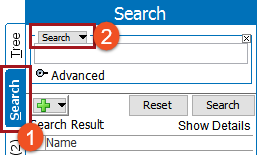
- Select Search from List from the dropdown to display a text field and dropdown with a number of options based on your system.
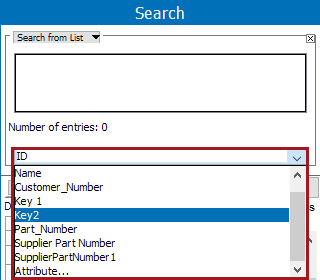
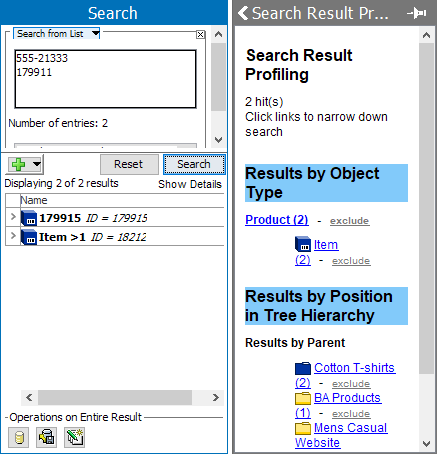
In this example, we choose Search from List: ID, which allows specifying the data list in the text field and searching by 'ID' (selected from the dropdown).
- Use one of the following methods to enter the data list you wish to search in the text box:

- Manually use the Enter key to create a line break between each value.
- Copy data from Excel or any other application where line breaks or tabs are included to separate the values. Each value must be listed on a line or be separated by a tab delimiter, without any characters (including bullet indicators and spaces) around it. See the Using a Data List from an External Application section below.
- If needed, click the green plus button (
 ) to add additional search criteria.
 - Click on Search to run the search and view results.

Each of the 'Search from List' options available from the dropdown are described and illustrated below.
Search from List: ID
Search by specifying the ID in the list text field and selecting 'ID' from the dropdown, as shown in the example above.
Search from List: Name
Search by specifying the object name in the list text field and by selecting 'Name' from the dropdown.

Enter the values to search into the text field. Click Search to run the search and view results.
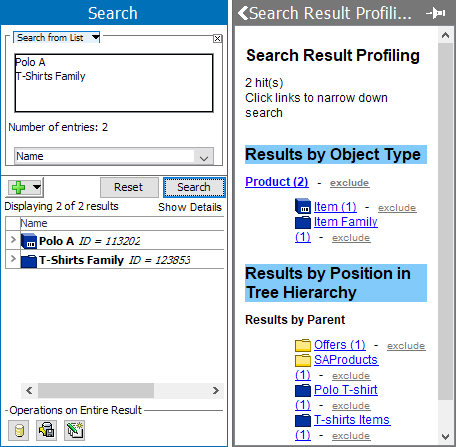
The search results display with the name of the objects specified in the data list.
Search from List: Key
Search by specifying the key values in the list text field, and by selecting the key from the dropdown.
In this example, the search results display with the Supplier Part Number that holds values specified in the data list.
It is important to keep in mind that:
- Only active keys will be available as an option in the dropdown list.
- Active Keys that have values in products can be searched.
- Searching for active keys with empty values in a data list field will NOT return search results.
For more on keys and how to activate them, see the Unique Keys documentation here.
Search from List: Attributes
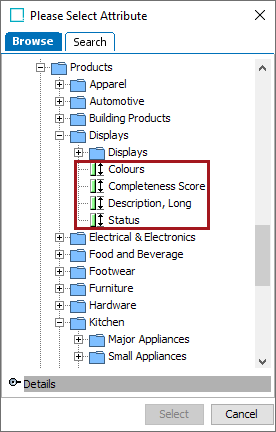
Search by specifying the attribute values in the list text field, and by selecting the option 'Attribute' from the dropdown.

Note: Description attributes are displayed under the product hierarchy node in the folders for which they are valid.
The search results display with the attributes specified, in this case it is the attribute 'Color' which holds values of 'Orange.'

It is important to keep in mind that:
- Only one attribute can be selected from the Attribute Group browse / search window to be used as search criteria.
- Inherited attribute values (hierarchical inheritance) can be specified in the data list. The result set includes the object that contains the searched value as a local value. While this object may not match an object type restriction, it points to the origination of the searched text.
- Attribute values inheriting from other contexts can be specified in the data list.
- Calculated Attribute value (description or specification attributes) when specified in data list, will NOT be displayed with any search result. (This restriction is not limited to the Search from List functionality.)
Using a Data List from an External Application
Copied data can come from Excel or any other application as long as line breaks or tabs are included to separate the values. To copy data in, each value must be listed on its own line or separated by a tab delimiter, (tab key from keyboard) without any characters (including bullet indicators and spaces) around it.
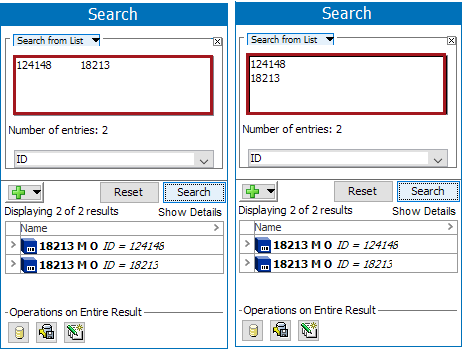
In the example below, IDs have been copied over from an external file. Data can be horizontal or vertical as long as the appropriate line breaks or tabs are in between the values.