With the Revised Objects Changed Since search criteria you can find recently edited objects in the workbench. To narrow your search, enter an exact date / time to determine how old the changes can be, or you use intervals of days, hours, or minutes. Revised Objects Changed Since criteria can be combined with any other search criteria.
- Click on the Search tab and click the Search dropdown.
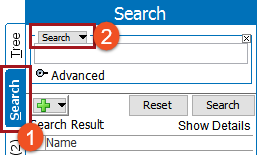
- Select Revised Objects Changed Since from the dropdown.
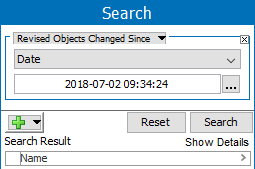
- A dropdown appears with the following options:
- Date
- Interval of Days
- Interval of Hours
- Intervals of Minutes
Note: Only number values are accepted as input for the options Interval in days, Interval in hours, Interval in minutes. When Days/day, hour/Hours/H, or minutes/Min/M is suffixed along with number, the number value is considered.
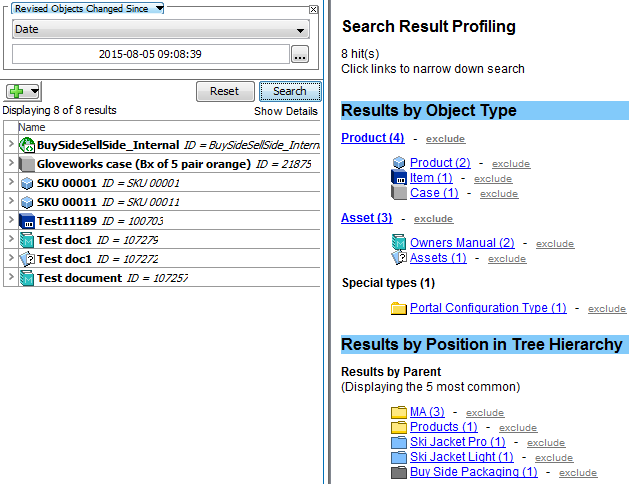
For the purpose of this example, 'Date' will be used for the 'Revised Objects Changed Since' search field. The Date option will provide a data picker, allowing for the selection of the data and time.
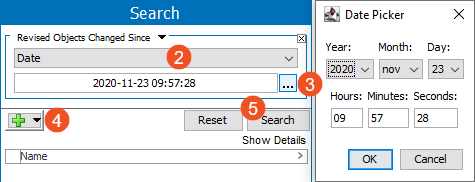
- Click the ellipsis button (
 ) and determine the date / time of the oldest objects you wish to search. Click OK.
 - If necessary, click the green plus button (
 ) to define additional search criteria.
 - Click on Search to run the search and view results.
- Interval in days – Specify the number value in the field.
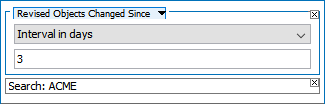
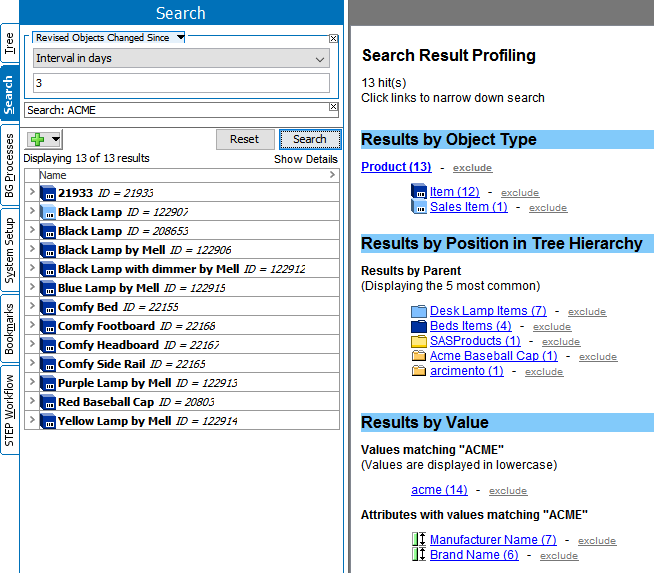
The search result is displayed as shown below with objects which are revised since last 3 days.
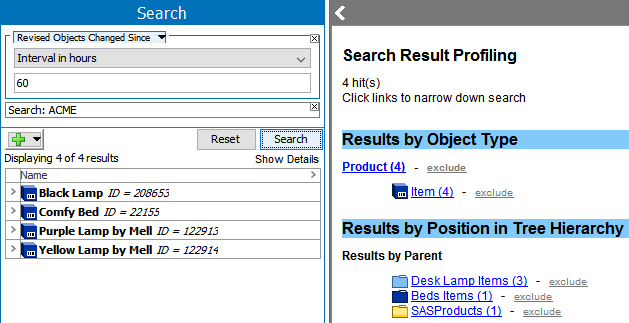
- Interval in hours –Specify the number value in the field.
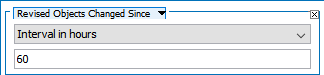
The search result is displayed as shown below with objects which are revised since last 60 hours.
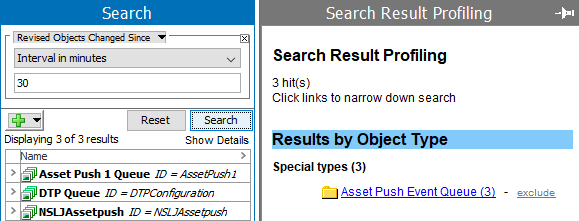
- Interval in minutes – Specify the number value in the field.
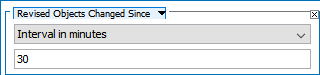
The search result is displayed as shown below with objects which are revised since last 30 minutes.