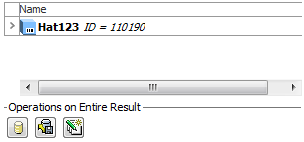
There are three operations that can be found at the bottom of the Search Tab.
Exporting a Search Result
After conducting a search it is possible to export the search result by clicking the Export Search Result button at the bottom of the Search tab.
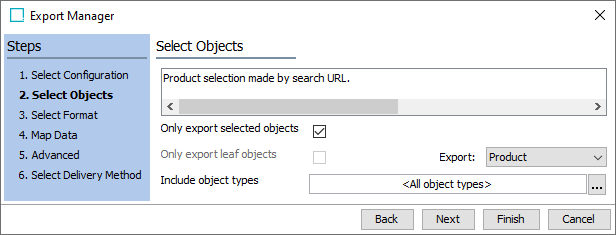
When clicking the Export Search Result button, STEP will attempt to use all the objects in the result as root objects for the Export Manager (equaling selecting the objects on the Product Selection step of the Export Manager). Which objects are exported is thus determined by the selected Export format and the selections made in the Export Manger. For more information using the Export Manager, see the Export Manager topic in the Data Exchange documentation here.
Saving a Search Result as a Collection
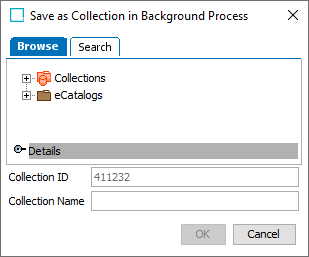
After conducting a search it is possible to save the entire search result as a Collection.
When clicking the Save as Collection button, a dialog is opened where it is possible to specify the ID, Name, and location of the new Collection. For more information on collections, see the Collection topic in the Getting Started documentation here.
Bulk Updating a Search Result
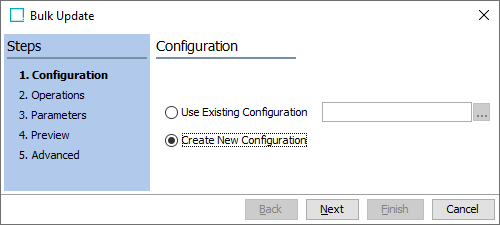
When having conducted a search it is possible to Bulk Update the entire search result.
When the Bulk Update Search Result button is clicked, the Bulk Update wizard appears with the search result selected as the dataset. For more information on bulk updates, see the Bulk Updates documentation here.
Note: If you only wish to Bulk Update some of the objects in the result, you can select or multi select in the search result and then select the Run Bulk Update option on the File menu