In 'Import Images and Documents' wizard, step ‘3. Select Context’ you to specify any dimension dependencies. This is useful when loading illustrations that are essentially the same but are, for example, language or country specific. You might also specify a context when publishing a catalog that includes illustrations with embedded texts, which requires different language versions of the illustration.
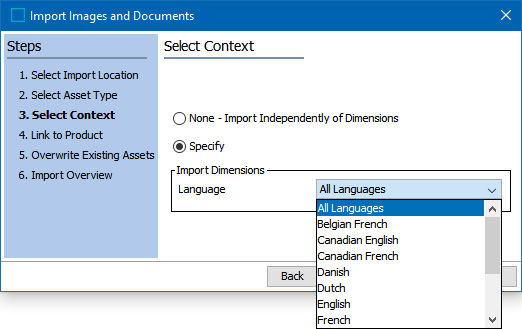
- Determine if dimensions should be considered for assets being imported:
- None - Import Independently of Dimensions means the assets are loaded in a global context.
- Specify allows you to select the one or more dimensions from the list in the Import Dimensions area.
Note: Common setup for assets is to use the language dimension. The available options are based on your system setup which may allow selection of more than one dimension.
Dimensions should be set up in the System Setup tab, so that the same is available in the dropdown list. To know more on how to set up Dimensions, see the Contexts topic in the System Setup / Super User Guide documentation here.
- Click Next to continue or click Finish to start the import process without specifying any further parameters.
Creating Context-Sensitive Assets
To load an asset which is dependent on a country dimension, for example, when your system is only set up to have the language dimension for assets, you can upload that image for a context using a specific country. From the asset's right-click menu, use the Create Local Content of Asset and then use the Replace Asset Content option. This is done on an individual basis. It keeps the image IDs the same, and all the links from modules and/or products are maintained to the appropriate version of the image.
When an asset has been replaced, a major revision will be created with the changed image. The major revision enables the option to revert to an older revision of the asset.
Using context-sensitive assets in STEP’n’design
Loading context-sensitive assets using the same asset ID allows publication swaps in STEP’n’design, for example, to swap both product data and language-relevant images.
When an asset is imported for the first time with language dependency, then the asset will be available only for the context in which it was imported. When the same asset is viewed in a different context, then the message will show which says “Asset has no content”. Similarly, the System Properties flipper in the right pane will show no attribute values which eventually means that the asset is empty.