In 'Import Images and Documents' wizard, step ‘4. Link To Product’ you can specify a link to product via a number of matching options.
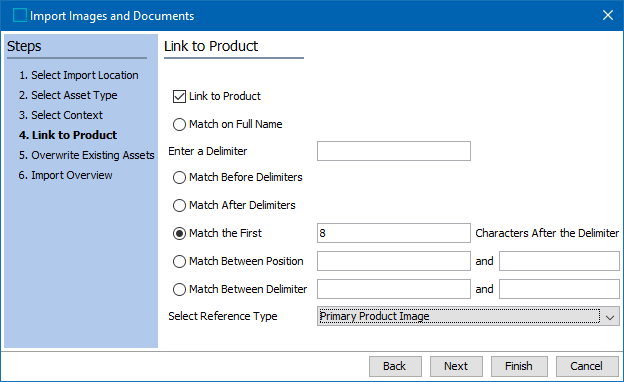
- Check Link to Product to create links and then select an option to determine the required reference / link type. All other fields of this STEP are activated only when Link to Product option is checked.
- Match on Full Name means the system attempts to match the file name of the asset (minus the extension) to a STEP ID. For all successful matches, a link is created.
- Enter a Delimiter allows you to add one or more delimiter characters in order to find a match between STEP ID and the asset file name. This field is enabled only when selecting one of the option ‘Match Before Delimiters’, ‘Match After Delimiters’ or ‘Match the First Characters After the Delimiters.'
Note: Leaving Link to Product unchecked means no references / links are created.
- Determine the how to use the delimiter by choosing one of the following options:
- Match Before Delimiters If the asset’s file name is 17268_AS-56, and the delimiter is set to the underscore character (_), then the system tries to find the product with the ID of 17268.
- Match After Delimiters If the asset’s file name is UK_177628, and the delimiter is set to the underscore character (_), then the system tries to find the product with the ID of 177628.
- Match the First Characters After the Delimiter If the asset’s file name is UK_9014514-ASH, and the delimiter is set to the underscore character (_), and the number of characters to match is set to 7, then the system tries to find the product with the ID of 9014514.
- Match Between Position Enter the start and end character positions to use for making the match to the STEP ID. If the asset’s file name is UK_447628ASP, and the starting position is set to 4 and the ending position is set to 11, then the system tries to find the product with the ID of 447628AS.
- Match Between Delimiter Enter the start and end delimiters to use for making the match to the STEP ID. If the asset’s file name is UK_44762877_EAS, and the starting delimiter is set to an underscore (_), and the ending delimiter is also set to the underscore, then the system tries to find the product with the ID of 44762877.
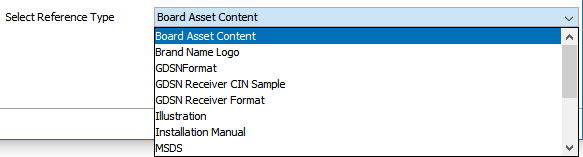
- Select Reference Type to determine a single reference type to use for the link between the asset and the object. The content of the list varies depending on the system setup. All assets loaded in this session use the same selected reference type.
For more information on creating a reference types, see the Reference and Link Types topic of the System Setup / Super User Guide documentation here.
- Click Next to continue or click Finish to start the import process without specifying any further parameters.
Creating Additional Reference Links
When more references are required, use one of the following ways to create them:
- Manually link any asset to any existing object via any existing reference type in STEP on the asset's References tab.
- Create a STEPXML file to create links between assets and products and load that file via the Data Import Manager wizard.
- Create a tab delimited or Excel file that holds the object ID and the asset ID, and create multiple reference links and load that file via the Data Import Manager wizard.
For more information on the Data Import Manager wizard, see the Creating a Data Import documentation here.