Once the desired processing is performed on the imported list, users can export the list to share the modified list with downstream teams or applications.
Saved Export Configuration for Lists
The list export feature leverages the STEP Export Manager and uses a saved export configuration to determine the data included in the exported file. For more information, see the Creating a Data Export topic (here) and the related topics shown below, which are all included in the Export Manager section of the Data Exchange documentation here.
Important: In the Export Manager wizard, only the steps and parameters listed below are considered when exporting entities. All other parameters are ignored.
Verify the export configuration for lists includes the following required elements.
-
Select Objects step, Export parameter: required to be set to Entity. For details, see the Export Manager - Select Objects topic here.
-
Select Objects step, Include Object Types parameter: only selected object types are included in the exported list. For details, see the Export Manager - Select Objects topic here.
-
Select Format step: all formats in the dropdown are supported. For details, see the Export Manager - Select Format topic here.
-
Map Data step: add supported data source mappings as required, including <Name>, <Parent ID>, and <Object Type Name>, All Attributes, Entity References (references to master data, not to other records in the list), and Insert Referenced Objects. For details, see the Outbound Map Data - Data Source topic here.
-
Advanced step: set these parameters as needed: Resolve Inline References, Include Calculated Attribute Values, and Context.
The Context parameter runs the export from the specified context, for example, so attributes names will be translated to the language of the selected context. For details, see the Export Manager - Advanced topic here.
-
Select Delivery Method step: only the File delivery method is supported, other selections are ignored when exporting list entities.
-
Click the Finish button on the Export Manager to display the Save Export Configuration dialog. Check the Save Options checkbox and set a Save to location to display it on the Export List dropdown defined in the next section. For details, see the Running a Data Export topic here.
Export a List
To export a processed list:
-
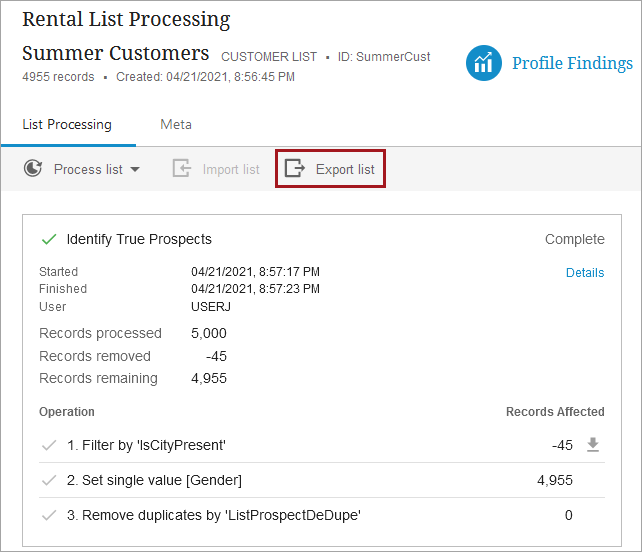
From the list processing screen, click the Export list button to display the 'Export List' dialog.
-
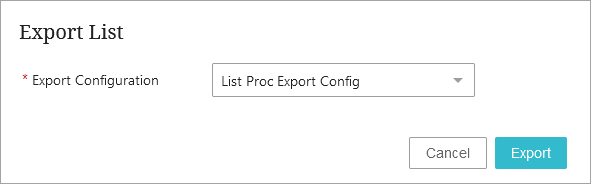
Select a saved export configuration that is compatible with the type of the processed list and an Export process card is displayed on the list processing screen.
-
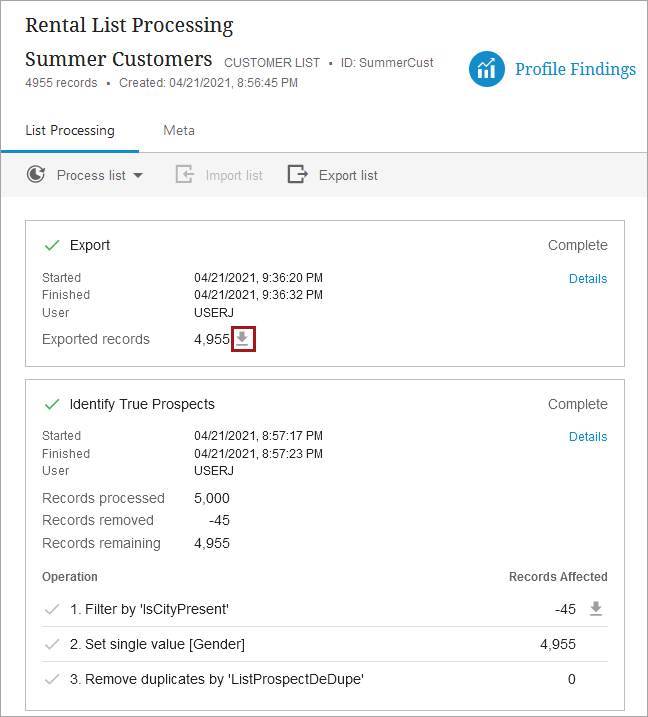
When the export process shows a status of Complete, click the download icon (
 ) to download a copy of the processed records list. Exporting list is handled by a BGP and process details can be seen in the BGP log including any errors and warnings that occurred.