The MLAC service offers a REST Direct OIEP for uploading sets of products that are already classified, or 'labeled,' using a CSV file. Uploading data requires an OIEP for a single hierarchy with the required output format to publish the data.
To upload hierarchies, perform all steps in the following sections:
- Prerequisites
- Configure a Classified Products OIEP
- Publish Classified Products Data to MLAC
File Requirements
As outlined in the Mapping steps below, the REST Direct OIEP requires a CSV file with the following headers / columns in the specified order.
- 'id' - ID of the classified product. Mandatory.
- 'description' - The description of the product. Mandatory. This must be a 'raw' source description not modified after the product was classified. Values for multiple description attributes can be supplied either by creating a calculated attribute that concatenates the values or by mapping multiple attributes to this column. More about mappings is defined below.
- 'sourceId' - Source identification, for instance a vendor ID. Optional. A column with this header must be present in the generated file even when data is not exported. Include data if the source information is available and if it has significance for the classification of the product.
- '[Hierarchy ID 1..n]' - ID of the classification (hierarchy node ID) in the hierarchy identified via the header value. Header values must correspond with the agreed upon IDs for the hierarchies.
For the primary product hierarchy case, if there are intermediate hierarchy levels between the product and the classification / hierarchy node (for example, a product family level), a calculated attribute can be used to output the appropriate hierarchy node ID for this column.
Important: The example scripts should not be used as-is without thorough testing, including updating the script to match object and link types that exist on your system. JavaScript variable names are case-sensitive.
The example below shows a function that will output either the ID of the parent or ID of the grandparent, based on whether the parent is of a specific object type.
{
  i:=path(),
  parent:=listitem(i,listlen(i)-1),
  grandparent:=listitem(i,listlen(i)-2),
  parentobjecttype:=iterate(parent, 'stepobjecttype()')
} if (exact(parentobjecttype, "Sales Item Family"), iterate(grandparent, 'stepid()'), iterate(parent, 'stepid()'))
In this example, 'stepobjecttype()' returns the object type name and not the ID. Thus, on systems with dimension dependent object type names, consider the object type for the Context of the export when making the comparison on the name.
Prerequisites
Complete the following setup to successfully configure the OIEP and publish data.
- In the 'workarea' directory shared between the application servers, edit the sharedconfig.properties file. Add the case-sensitive RestDirectDeliveryURL property to identify the hierarchy-specific URL for the MLAC service training products upload resource. The URL is used to supply values for the REST Direct Delivery Method in the OIEP.
RestDirectDeliveryURL=1= https://app.stibosystems.com/ds/mlac/v1/products
- Restart the server to implement the properties file changes.
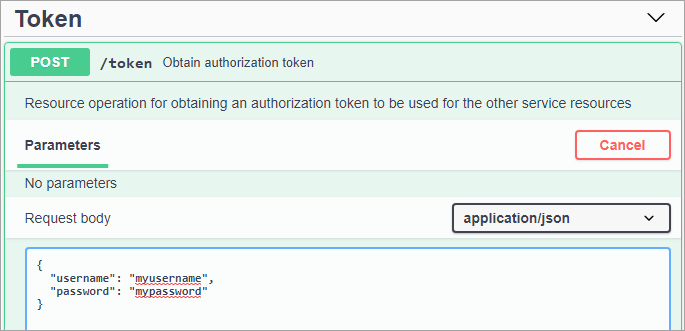
- If you do not already have a token, confirm your username and a password to get a token.
- If you do not already have a token, use the service token endpoint (https://app.stibosystems.com/ds/mlac/v1/token) to obtain a token. See the Swagger UI available at https://app.stibosystems.com/ds/mlac/v1/. By default, tokens are valid for one (1) month.
Make note of the token for use in configuring the REST Direct Delivery Method Headers.
Configure a Classified Products OIEP
Use the following steps to configure the necessary OIEP. For more general information on OIEPs, see the Outbound Integration Endpoints topic in the Data Exchange documentation here.
- Create an event-based OIEP (as defined in the Creating an Event-Based Outbound Integration Endpoint topic of the Data Exchange documentation here) with the following settings in the wizard:
- On the 'Identify Endpoint' step, set the User parameter to a user who is privileged to see all classified products and hierarchy relations.
- On the 'Configure Endpoint' step, the Contexts parameter identifies the location of the classified products to be published.
- On the 'Configure Endpoint' step, the Workspace parameter identifies the location of the classified products to be published. This is typically the 'Approved' workspace.
- Click the Finish button to complete the wizard.
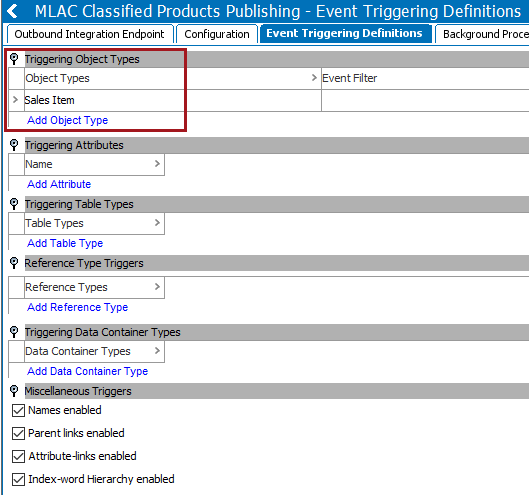
- Open the OIEP's Event Triggering Definitions tab, open the Triggering Object Types flipper, and click the Add Object Type link to add the product object type(s).
- For manual publishing leave the other settings as their default values.
- For automatic publishing as events are generated for the products, select the relevant triggering types (attributes, classification product link types, etc.) to monitor for changes that should generate an event.
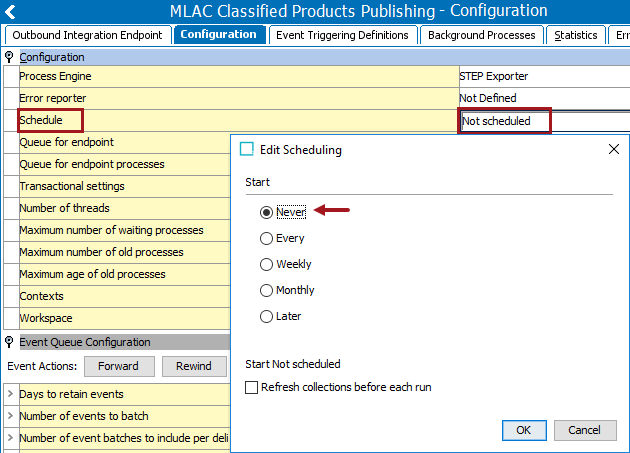
- On the Configuration tab, open the Configuration flipper and open the 'Schedule' parameter:
- For manual publishing, set to Never and click the OK button.
- For automatic publishing, set a schedule for publishing labeled products' data upon approval.
- On the Configuration tab, open the Output Templates flipper, and set the following for the Object-Eventtype column:

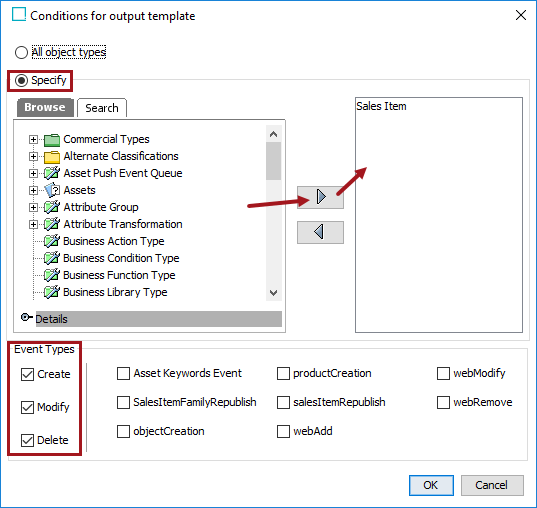
- Click the Add configuration link to display the 'Conditions for output template' dialog.
- Select the Specify radio button and add the classified product object types to be output.
- Select the Create, Modify, and Delete event types, and click the OK button.
- On the Output Templates flipper set the following for the Format column:
- Click the Format column cell to display an ellipsis button.
- Click the ellipsis button (
 ) to display the 'Select format' dialog.

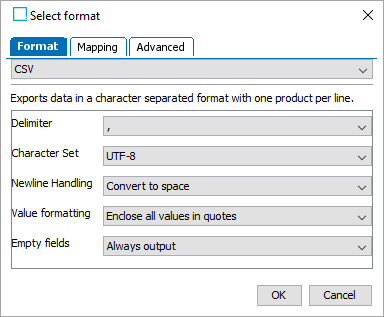
- On the 'Select format' dialog 'Format' tab (shown below), select CSV from the dropdown and set the following parameters:
- For the 'Delimiter' parameter, select the comma (,).
- For the 'Character Set' parameter, select UTF-8.
- For the 'Newline Handling' parameter, select Convert to space.
- For the 'Value formatting' parameter, select Enclose all values in quotes.
- For the 'Empty fields' parameter, select Always output.
Note: See the File Requirements section above for definitions of the mapping elements below.
- On the 'Mapping' tab:
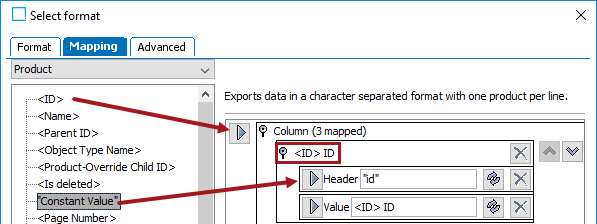
- Map the <ID> data source.
- Open the '<ID> ID' flipper and map 'Constant Value' as a Header row. On the 'Enter Value' dialog enter id (without quotes) and click the Save button.
- Click the delete button (
 ) for the original header so the Header mapping matches the image below.
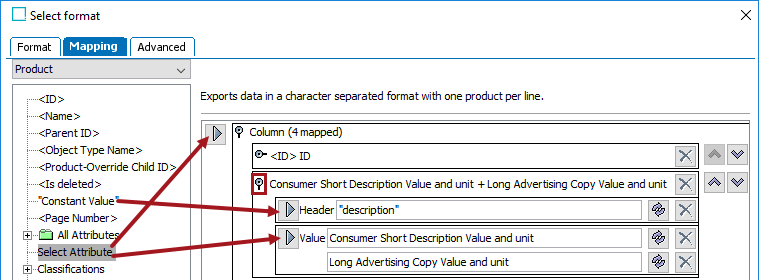
- Map the Select Attribute data source and choose the attribute that holds the description.
- Open the description attribute flipper and map 'Constant Value' as a Header row. On the 'Enter Value' dialog enter description (without quotes) and click the Save button.
- Click the delete button () for the original header so the Header mapping matches the image below.
- If multiple attributes hold description information, map them as additional value elements as have been mapped below for the 'Consumer Short Description' and the 'Long Advertising Copy Value' attributes.
- Choose a method to handle the source ID with significance for the classification:
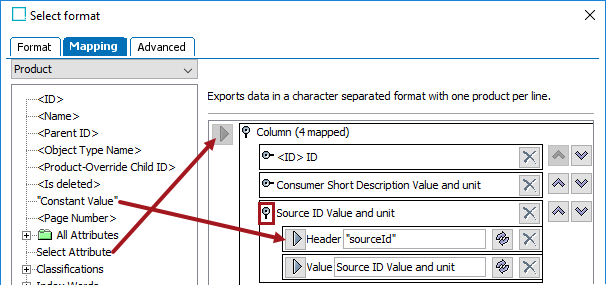
If a source ID that has significance for the classification is available in an attribute, map the Select Attribute data source and choose that attribute.
- Open the source ID attribute flipper and map 'Constant Value' as a Header row. On the 'Enter Value' dialog enter sourceId (without quotes) and click the Save button.
- Click the delete button () for the original header so the Header mapping matches the image below.
If a source ID that has significance for the classification is not available in an attribute, map the Constant Value data source.
- On the 'Enter Value' dialog, leave the 'Enter constant value' parameter blank and click the Save button.
- Open the 'Constant' flipper and map 'Constant Value' as a Header row. On the 'Enter Value' dialog enter sourceId (without quotes) and click the Save button.
- Click the delete button () for the original header so the Header mapping matches the image below.
- For the Value row, click the transform button (
 ), delete the 'Constant' text from the Source parameter, and click the Save button.
The final Header and Value mapping should match the image below.

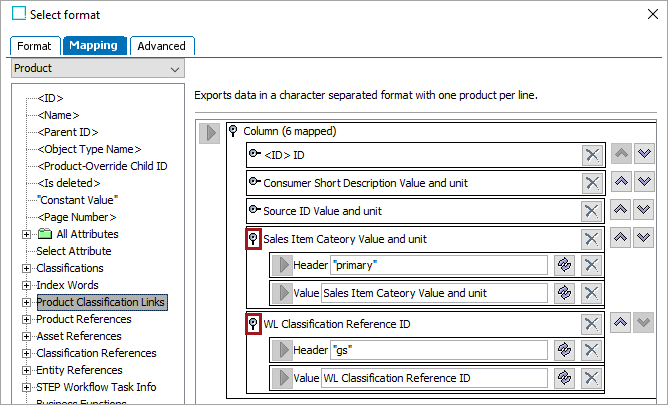
- Choose a method to map a column for each hierarchy; in each instance replace the header with the hierarchy ID:
- For a primary product hierarchy where there are no intermediate levels between the product and the hierarchy node, use <Parent ID> for the value.
- For intermediate level hierarchies, map a calculated attribute that holds the appropriate hierarchy node ID.
- For classification hierarchies, use 'Product Classification Links' data source to map the appropriate link type.
For example, in the screenshot below, two hierarchy columns have been mapped: one by mapping a calculated attribute, and one by mapping a link type.
- On the 'Advanced' tab:
- Check the Only Export Selected Objects checkbox.
- Check the Include Calculated Attribute Values checkbox. A mapped calculated attribute is required for this box to become active (able to be checked).
- Click the OK button.
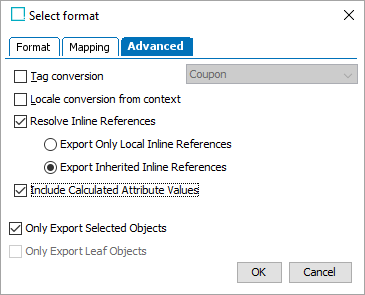
- The final state of the Output Templates flipper fields are displayed.

- On the Delivery Method flipper, click the Edit Delivery link to open the 'Edit Delivery Configuration' dialog.
Note: To validate the configuration, instead of setting the REST Direct method, first use the 'Copy to directory' or 'Email' delivery method and check the generated CSV file. See the OIEP Delivery Methods topic (here) in the Data Exchange documentation for details.
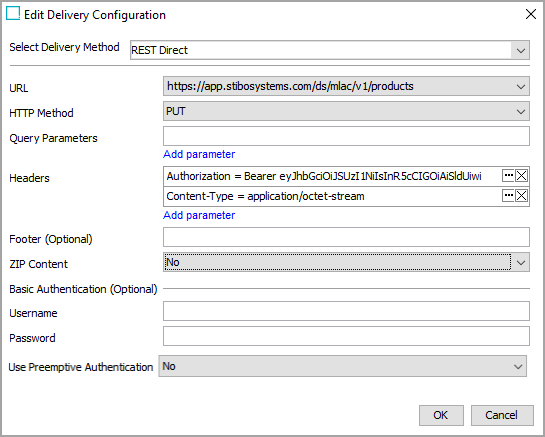
- For the Select Delivery Method parameter, select REST Direct from the dropdown.
- For the URL parameter, select the URL in the dropdown.
- For the HTTP Method parameter, select PUT.
- For the Headers parameter, click the Add parameter link to display the 'Add Parameter' dialog. Set the Key parameter to Content-Type, the Value parameter to application/octet-stream, and click OK.
- For the Headers parameter, click the Add parameter link again to display the 'Add Parameter' dialog. Set the Key parameter to Authorization, the Value parameter to the response from the token endpoint, and click OK.
- For the ZIP Content parameter, select No.
- Leave other parameters blank.
- Click OK on the Edit Delivery Configuration dialog.
Publish Classified Products Data to MLAC
Publishing hierarchy data to the MLAC service requires invoking an OIEP with unread events. For details about these steps, see the Running an Outbound Integration Endpoint topic (here) and the Event-Based OIEP Forward, Rewind, Purge, and Republish topic (here), both in the Data Exchange documentation.
Important: Before publishing data to the MLAC service, it can be useful to first validate the configuration by using either the 'Copy to directory' or 'Email' delivery method and checking the generated CSV file. See the OIEP Delivery Methods topic (here) in the Data Exchange documentation for details.
Use the following steps to publish hierarchy data to the MLAC service.
- On System Setup, right-click the configured OIEP and click the Enable Integration Endpoint option.
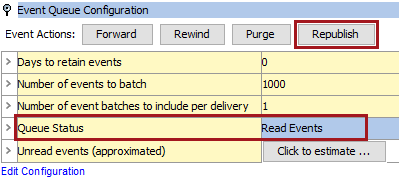
- On the OIEP's Configuration tab, open the Event Queue Configuration flipper and set the Queue Status parameter to Read Events.
- Click the Republish button to display the Republish dialog.
- On the Republish dialog:
- Click the Add Node link and add a root node that holds the products to publish.
- Check the Include Child Nodes checkbox.
- For the Process Description parameter, type a description. 'Generate events for sales items' is the description in the following image.
- Click the Start Republish button.
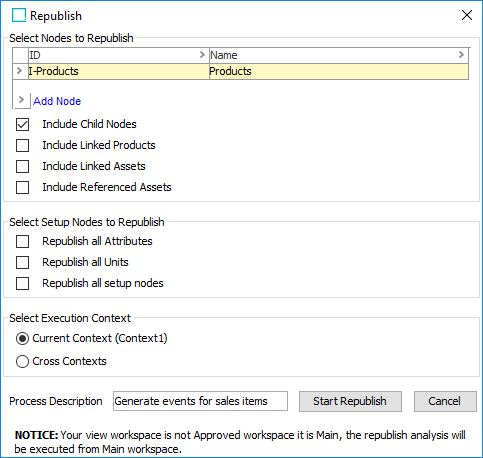
- Verify that the republish background process finishes successfully.
- Right-click the OIEP and click the Invoke option to manually publish the hierarchy data.
- Right-click the OIEP and click the Disable Integration Endpoint option.
- On the OIEP's Configuration tab, open the Event Queue Configuration flipper and set the Queue Status parameter to Discard Events.
Important: A model must be trained by Stibo Systems and the model made available before predictions can be generated for uploaded data.