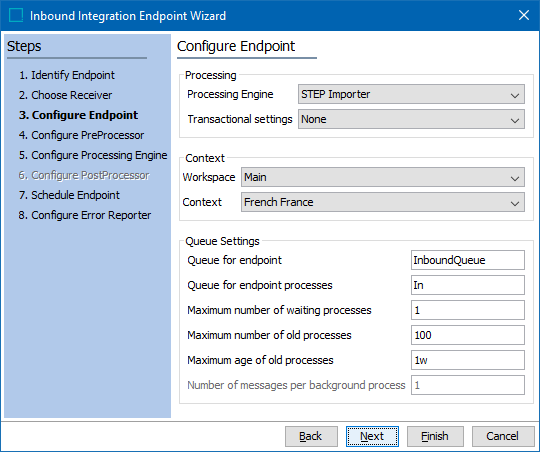
- For Processing Engine on a standard STEP system, select an available option:
- STEP Importer - enables you to use the same import functionality as in the STEP Import Manager. Additional setup is required on the upcoming Configure Processing Engine step.
- Asset Importer - allows you to use the same import functionality as Asset Importer. Additional setup is required on the upcoming Configure Processing Engine step.
- Business Rule Based Message Processor - available when the 'business-action-processor' component is activated. Additional setup is required on the upcoming Configure Processing Engine step.
- FAB-DIS Importer - available when the 'fabdis' component is activated. Additional setup is required on the upcoming Configure Processing Engine step.
- GDSN Inbound message processor - available when the GDSN solution is implemented.
- GDSN Receiver Inbound message processor - available when the GDSN solution is implemented.
- Product Data Exchange - available when the 'productdatasyndication-integration' component is activated. No further configuration is required. For information, see the Product Data Exchange topic here.
- STEP Match and Merge Importer - available when the Matching and Merging deduplication solution is implemented, and requires additional configuration.
Note: If this IIEP will be used with the Web UI File Loading Widget, see the File Loading Widget topic in the Web User Interfaces documentation here.
-
For Transactional Settings specify if the processes will be chain, strict, or none. For details on the effects of each option, see Integration Endpoint Transactional Settings documentation here.
Note: When configuring the IIEP for the GDSN Receiver, it is recommended to set Transaction Settings to 'Strict.'
- The queue size of a background process with strict or chain transactional setting must be 1. Only a transactional setting of None allows multiple background processes to work in parallel / concurrently. For more information, see Integration Endpoint Transactional Settings documentation here.
- For the Context options, select the Workspace and Context that will receive the imported data. Common setup is to use Main since it allows objects that require approval to be displayed in the Main workspace before being approved and moved to the Approved workspace. For externally maintained attributes or global maintained objects, importing to the Main workspace also adds the data to the Approved workspace, just as it does when adding data manually.
- The selected context and workspace affects import formats where an import context and workspace is not included in the import file.
- If the endpoint imports STEPXML files, the context and workspace specified in the STEPXML file override the context and workspace selected in this option.
- For Queue Settings, set up the background processes to be used for the endpoint.
- For Queue for endpoint, enter a name for the queue that is used by the IIEP Background Process to poll the endpoint. The first time you activate the endpoint, a queue with the specified name is created if it does not already exist. If in doubt about how to populate this parameter, create a new queue for the IIEP, for example with a name that includes the IIEP ID.
- For Queue for endpoint processes, enter a name for the queue that is used by the Background Processes started by the endpoint to handle the actual import. The queue is automatically created on the system if it does not already exist. High priority integrations or integrations with long-running processes should typically have their own queue, for example with a name that includes the IIEP ID.
- For Maximum number of waiting processes, specify how many background processes the endpoint is allowed to start. A background process can be in the state "waiting" or "active." This field is disabled if the 'Transactional settings' parameter (discussed above) is Strict.
- For Maximum number of old processes, specify the maximum number of ended background processes the system is allowed to retain. When the set limitation has been exceeded, this auto-cleanup function deletes succeeded and ended background processes that were started when the IIEP was invoked. The oldest processes are deleted first. The default for this setting is 100. All background processes, regardless of their ending state (CompletedWithErrors, Aborted, Failed, Succeeded), are subject to the auto-delete functionality. Those that are in a 'Suspended' state are exempt.
- For Maximum age of old processes, specify the maximum age of ended background processes the system is allowed to retain. To populate this value, the following case-sensitive notations should be used: y = years, M = months, w = weeks, d = days, h=hours, m = minutes, and s = seconds. The default for this setting is 1wk. All background processes, regardless of their ending state (CompletedWithErrors, Aborted, Failed, Succeeded), are subject to the auto-delete functionality. Those that are in a 'Suspended' state are exempt.
- For Number of messages per background process, specify the number of messages that will be handled in one background process before a new background process is generated. This is useful if the endpoint handles many small messages that would otherwise generate a large number of background processes. Common setup is to let several messages / files be handled per background process. This field is only enabled if the transactional setting is strict.
Note: When configuring the IIEP for the GDSN Receiver, it is recommended to set the number of messages per background processes to a minimum of 100.