Once a gateway integration endpoint has been created and the external system (Amazon S3 Blob Storage, Microsoft Azure Blob Storage, or REST) has been selected, the configuration settings allow you to identify the server housing the required data.
The following steps are for REST configuration.
- On the Gateway Integration Endpoint Configuration dialog, use the following parameters to specify which external system the gateway integration endpoint will access.
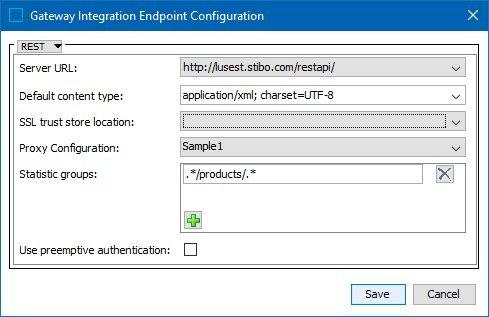
- Server URL - The URL of the server to be accessed. The available URLs are system dependent and must be configured in the sharedconfig.properties file using the RESTGateway.ServerURL property. If necessary, use a comma to separate multiple URLs. The following is an example of a complete property entry for two systems named 'qa' and 'stage,' as well as their URLs 'http://step-qa' and 'http://step-stage':
RESTGateway.ServerURL=qa=http://step-qa,stage=http://step-stage
- Default content type - Data format or content type to be used for the endpoint. Type your own or select from the dropdown list of the most commonly used options.
- SSL trust store location - The trust store holds certificates that verify that the system can be trusted. To display a trust store in the dropdown, first update the 'RESTGateway.SSLTrustStoreLocation' property in the sharedconfig.properties file. Contact Stibo Systems technical support for assistance in adding a trust store to your system.
If no trust store locations are selected, the gateway connection is not configured to use SSL encryption and the connection will be established using a certificate signed by a recognized CA such as Verisign or Thawte.
- Proxy Configuration - Select from this dropdown if the gateway connection must first pass through a proxy server with its own login requirement. The configurations that appear in this dropdown are populated from properties added into the sharedconfig.properties file using the dynamic property 'RESTGateway.ProxyConfiguration.' See the Proxy Configuration Setup section below for details.
- Statistic groups - Optional. Regular expression can be used to group executed REST methods on the endpoint's Statistics tab. The regular expression must match the entire URL, for example, .*/products/.*. Use the regular expression syntax available in Java in java.util.regex.Pattern class. For more information, see the Gateway Integration Endpoint Statistics section here or the Regular Expression topic in the Resource Materials online help here.
- Click Save to complete the configuration.
- Create a business action to access the gateway endpoint. For details, see Gateway Integration Endpoint Bind in the Resource Materials online help here.
Authentication
The gateway integration endpoint REST plugin supports both basic authentication and token-based authentication.
Basic Authentication
With preemptive authentication enabled, the basic authentication value for the Authorization header will be sent with the first request to the external service instead of only sending the value after having received a basic authentication challenge from the service.
Token-Based Authentication
With the token-based authentication option, the responsibility for producing any required request headers is delegated to a business function. The business function must be configured to not expect any input and must produce a Map<String, String>, each map entry being a header to be sent with the request to the service.
The screenshot below shows the editor for a compatible business function that retrieves a token using the OAuth 2.0 client credentials flow and passes back to the gateway integration endpoint REST plugin as a value for the Authorization header.
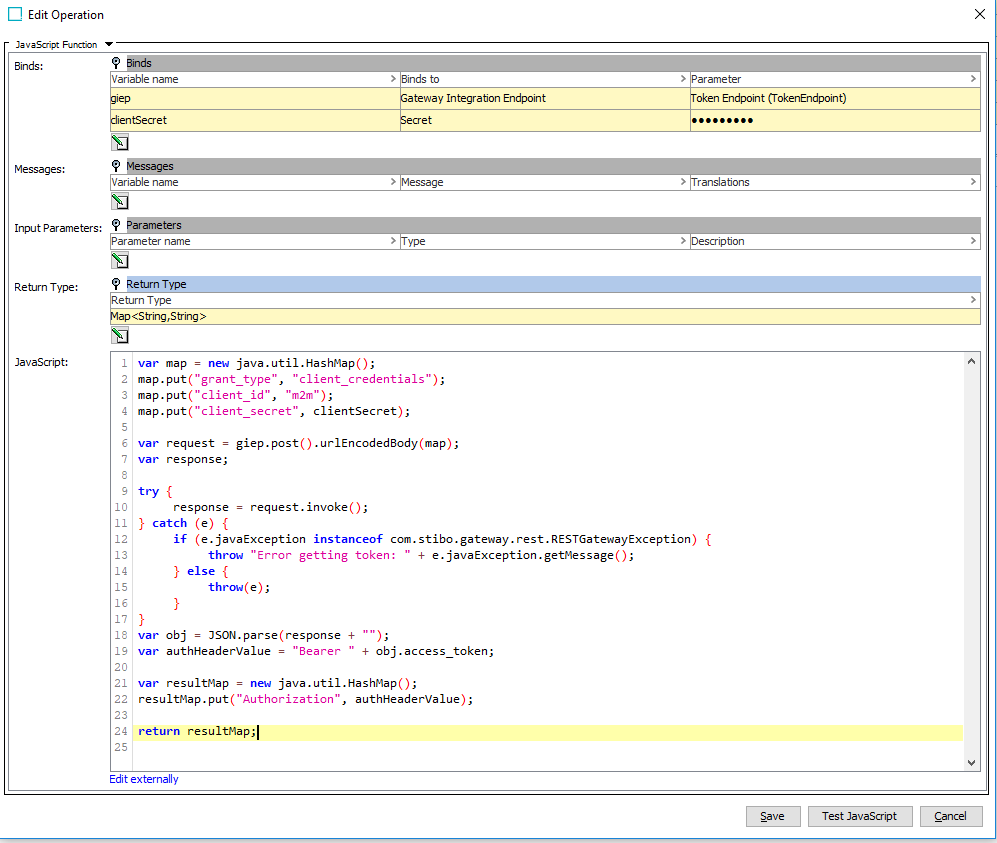
The parameter for selecting the business function is the 'Auth Header Value Function.' The REST plugin will automatically call the business function when a new token is required.
Note: It is strongly discouraged to configure both basic authentication and token-based authentication and this configuration is not supported.
Proxy Configuration Setup
The following are two examples of how the dynamic RESTGateway.ProxyConfiguration property can be configured:
RESTGateway.ProxyConfiguration.1=ProxyConfig1,10.64.8.253,808,username,password
RESTGateway.ProxyConfiguration.2=ProxyConfig2,10.64.9.253,64,user10,password1
To break the first of these two properties into its component parts (each element separated by commas), refer to the screenshot and the numbered list below:

- Required text to enable the REST Gateway Proxy configuration property
- The name of the configuration. This is what will appear in the dropdown as a selectable option, like so:

- The IP of the proxy server being accessed
- The port of the proxy server being accessed
- The username for the proxy server being accessed (optional)
- The password for the proxy server being accessed (optional)