Views and Mappings for Workflows
While not strictly necessary, if users are going to work with workflows in the STEP Workbench, it is generally recommended to create views and mappings for the workflow. This ensures that users have access to the right information to complete their tasks and streamlines the work process. However, users can also use the standard editors available on objects in the Tree if desired, using the Workflow navigator only to submit tasks rather than to review and edit data.
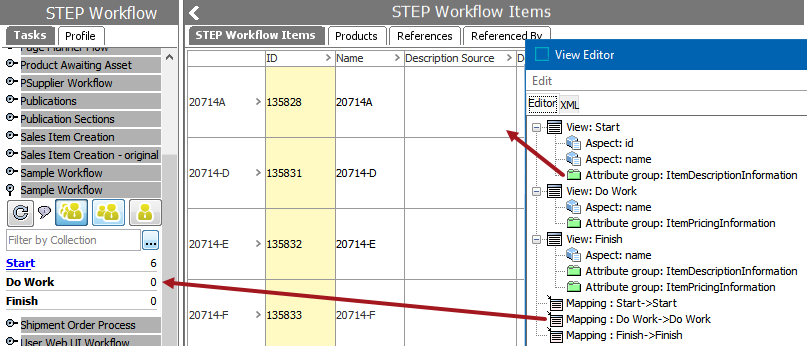
When a workflow state is selected in the STEP Workflow navigator tab, the information that displays is called a view. The act of applying that view to a particular state in a workflow is called mapping. When configuring a workflow it is important to decide what data is visible for objects (views), and define which states to display (mappings). Without views and mappings configured, all states in the workflow are displayed on the STEP Workflow navigator tab (including parallels, clusters, and final states). Additionally, just the ID of the objects in the selected state display in the STEP Workflow Items editor or the Task tab on the object.
Upon mapping views to states, only the states for which a mapping exists will be displayed in the STEP Workflow navigator tab. The configured views will be used in the STEP Workflow Items editor and on the object's Tasks tab. This allows for customization, so if a user wanted to show only human-related tasks, they can leave out mappings for any states, parallels, or clusters that are not human tasks. Additionally, the sequencing of mappings determines the order in which the tasks are displayed in the STEP Workflow tab.
Note that while views and mappings can be applied to a blank workflow canvas, it does not generally make sense to do so. Therefore, it is expected that a workflow has been created prior to any views or mappings being applied. See the Creating a Workflow topic
Before creating views or mappings, it is important to be aware of the following points:
- The views and mappings configured in the STEP Workflow Designer only apply to workbench and not Web UI. Views in Web UI are defined by the configuration of the screen. If users will not be interacting with workflows in the workbench, it is not necessary to configure workbench views. Instead, see the Workflows in Web UI section
- A view can contain both object and workflow-specific data. This means that a view can contain attributes, attribute groups, and aspects information specific to the object (such as name, ID, approval status, etc) as well as elements like workflow assignee, deadline, workflow variables, and workflow attachments.
- A view can be mapped to multiple states. For example, if a state is assigned to a particular user or group early on in the workflow to edit data, and again later in the workflow to review data, it is possible that the same data points should be available to them in each state. In this case, the view only needs to be configured once, and that view can then be mapped to each applicable state.
- Once a view or mapping has been started for a workflow, even if they are then deleted to be completed at another time, no states will show in the STEP Workflow tab until views and mapping are completed.
The details for configuring views and mappings are covered in the subsequent topics, Configuring Views for Workflows