Custom Reference Target Search
Reference editors in the Web UI normally determine which target objects the user is allowed to select based on the object type validity configured on the reference type. To enable a more focused search for reference target objects, a custom reference target search can be configured and applied to each reference editor in the Web UI. A custom reference target search can focus the user's attention on only those targets that are relevant to the user.
Customizing the References component target search, involves creating a business function that returns 'Query Specification' in the workbench and assigning the business function for a reference target search in the References component in Web UI.
Setting up a Reference Target Search
A Reference Target Search requires configuration in both workbench and Web UI as defined in the following sections.
Workbench Configuration
Create a reference target search as a business function in JavaScript using the Query API to provide the user with only the reference targets that are valid on the reference. In workbench, create a business function as defined below. General instructions for creating business functions can be found in the Business Functions section of the Business Rules documentation here.
-
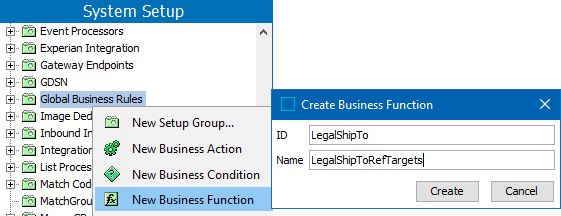
On the System Setup tab, select a node that is valid for business functions, right-click and choose the New Business Function option.
-
On the Create Business Function dialog, type an ID and Name and click the Create button.
-
On the Business Function editor, click the Edit Business Function link and click the edit button (
 ) for the JavaScript Function.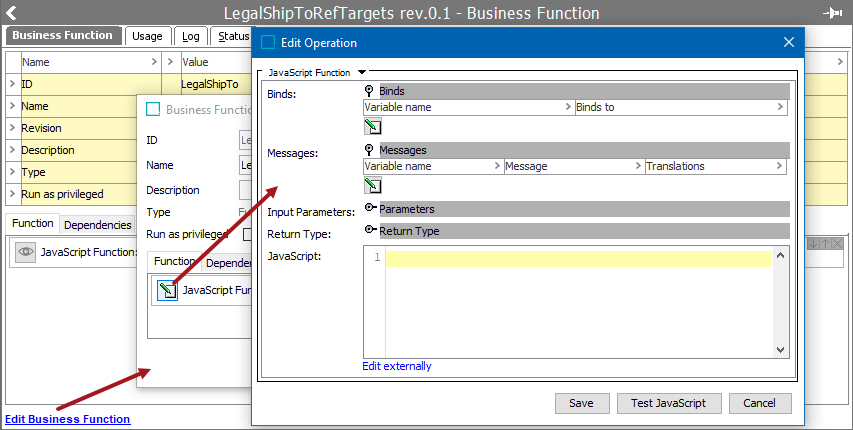
-
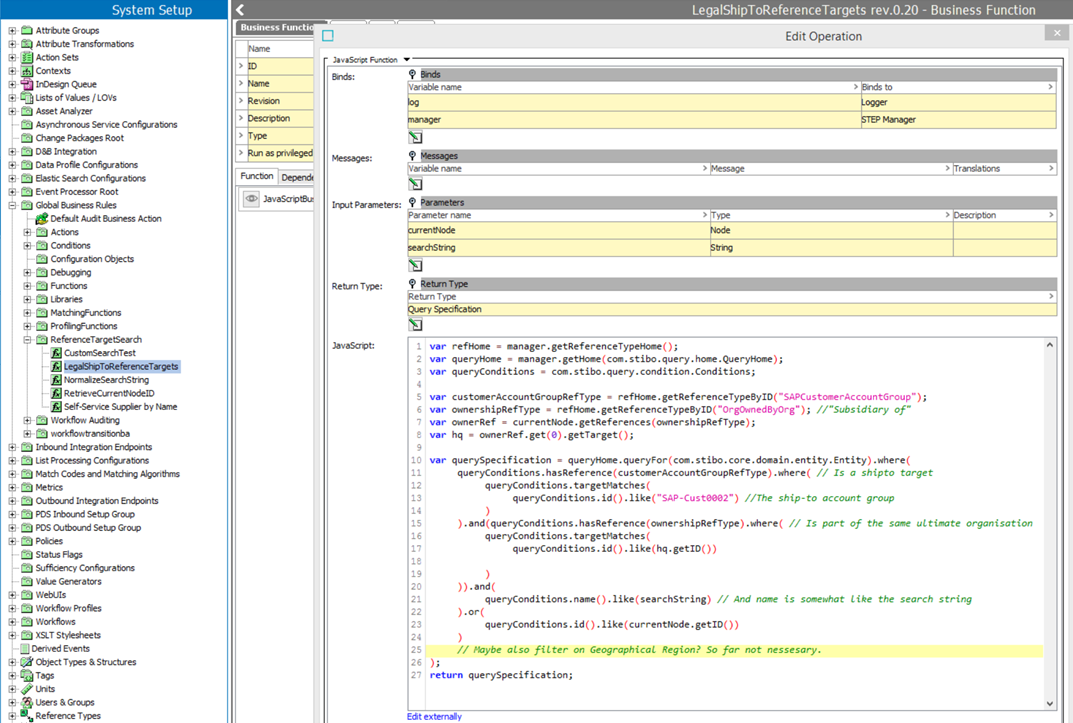
For Input Parameters, consider that the Web UI will attempt to populate these input parameters for a custom reference target search (as illustrated in the example below):
- String: Populated with the search string the user has entered. Most cases require a String input.
- Node: Populated with any node selected. When creating a reference, this will be the source node of the reference. Most cases require a Node input.
- Data Container Object: If the user is within a data container editor, the source of the reference will be a data container instance, and this source will be available to the business function as a Data Container Object.
-
For Return Type, as shown below, the business function must return a 'Query Specification.' Otherwise, the business function cannot be selected in the Web UI for Target Search Function in the Search Table Tab Properties (for the References component Node Picker Dialog) as described later in this topic.
-
For JavaScript, the search code must properly handle null situations for Data Container Object if you use the same function both in Data Container reference editors and in editors on Node Details. See the last section of this topic for more Query API JavaScript examples.
Note: The business function will be completely responsible for the search. There is no further object type validity or similar performed on top of the search. A good suggestion is to include an object type criteria or similar in the business function's conditions.
-
Click the Save button on each of the dialogs to close and save the business function.
The following is an example of a ship-to reference search, only allowing the user to select ship-to targets that are actual ship-to accounts and part of the same organization hierarchy as the currently selected node.
Web UI Configuration
Set up the Web UI Reference Component by editing the References Web UI component for Node Editor screens in which you want to add this functionality. To add a business function for the target reference search, users must access and configure the Node Picker on the References component. For detailed instructions on setting up the Node Picker, see the Node Picker Dialog in the Web User Interfaces / Web UI Getting Started documentation here.
-
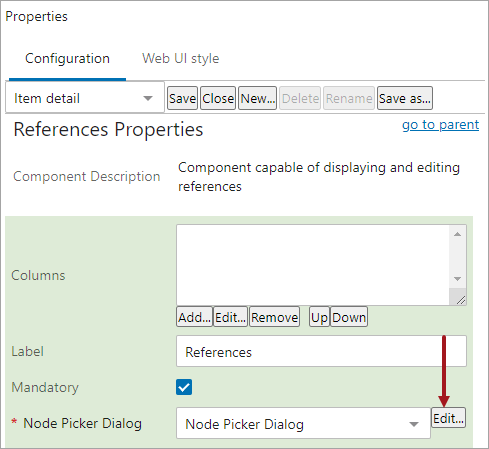
In the Web UI designer, on Reference Properties click the 'Edit' button to the right of the field on the 'Node Picker Dialog' parameter.
- On the 'Node Picker Dialog Properties' window click the 'Add...' button and add a 'Search Table Tab.' Alternatively, you can edit an existing Search Table.
- On the 'Search Table Tab Properties' dialog, click the ellipsis button (
 ) and select your business function from the hierarchy. Click the OK button.
Note: When a Target Search Function is set, the 'Search Plugins' and 'Use Search Plugins For Typeahead' parameters are ignored.
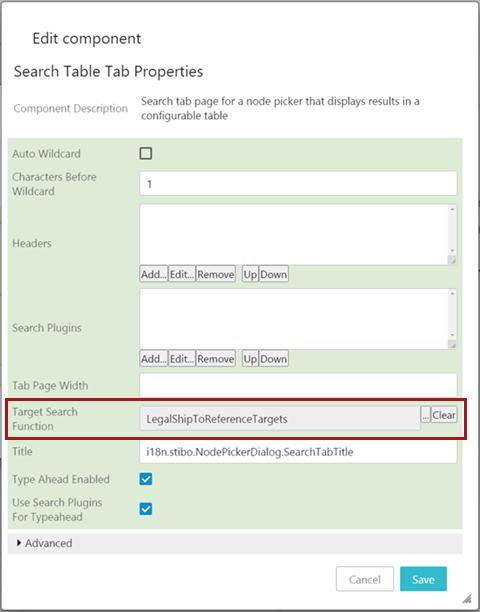
- Save all edits to each component and the screen before exiting out of the designer.
Query API JavaScript Examples
The following are examples of Query API JavaScript to be used with business functions that power the Custom Reference Target Search functionality.
Search Attribute in Data Container
The query below finds all entities where the Main Address data container has a zip equal to the zip variable.
var querySpecification = queryHome.queryFor(com.stibo.core.domain.entity.Entity).where(
queryConditions.hasDataContainer(mainAddressDcType).where(
queryConditions.valueOf(zipAttr).eq(zip)
)
); Nesting AND and OR
The query below finds valid ship-to targets for a reference.
A textual statement of the below query could be: The ship-to target of supermarket must either be a warehouse in the supermarket chain, or the supermarket itself.
We could also state this as:
- Either
- Entity is of the Ship-to account group type
- AND the owner is the same as the current object
- AND name OR id match the search string
- OR
- entity is the Current Object
Important: The sequence in which the logical operator methods are executed determines the logic, not the standard Java logical operator precedence. Following this, the condition X.or(Y).and(Z) will match objects for which X or Y is true and for which Z is also true.
var refHome = manager.getReferenceTypeHome();
var queryHome = manager.getHome(com.stibo.query.home.QueryHome);
var queryConditions = com.stibo.query.condition.Conditions;
var customerAccountGroupRefType = refHome.getReferenceTypeByID("SAPCustomerAccountGroup");
var ownershipRefType = refHome.getReferenceTypeByID("OrgOwnedByOrg"); //"Subsidiary of"
var ownerRef = currentNode.getReferences(ownershipRefType);
var hq = ownerRef.get(0).getTarget();
var querySpecification = queryHome.queryFor(com.stibo.core.domain.entity.Entity).where(
queryConditions.name().like(searchString) // And name is somewhat like the search string
.or(
queryConditions.id().like(searchString)
).and(
queryConditions.hasReference(customerAccountGroupRefType).where( // Is a shipto target
queryConditions.targetMatches(
queryConditions.id().like("SAP-Cust0002") //The ship-to account group
)
)
).and(
queryConditions.hasReference(ownershipRefType).where( // Is part of the same ultimate organisation
queryConditions.targetMatches(
queryConditions.id().like(hq.getID())
)
)
).or(
queryConditions.id().like(currentNode.getID())
)
);
return querySpecification;