Thumbnail Header
The Thumbnail Header can be added to a Node List screen to display a referenced image in the table.
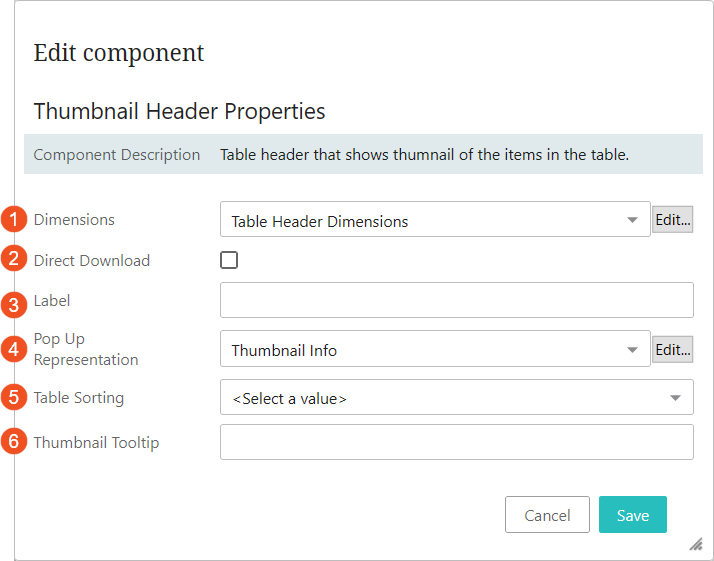
Described below are the six parameters that enable users to configure a Thumbnail Header component:
- Dimensions: Specify the height and width of the header cell. These dimensions will only be applied when the header is used within the Multi Edit Display Mode.
- Direct Download: When the box is checked, users can click the thumbnail image to download the image. When checked, the download process overrides any handling specified in the 'Pop Up Representation' parameter.
- Label: In this parameter, enter the label that will display as the column header. If no value is entered, the label defaults to 'Thumbnail.'
- Pop Up Representation: In this parameter, specify how to present the image representing the current asset by selecting a sub-component from the dropdown. This sub-component displays in a pop-up window when the asset thumbnail is clicked.
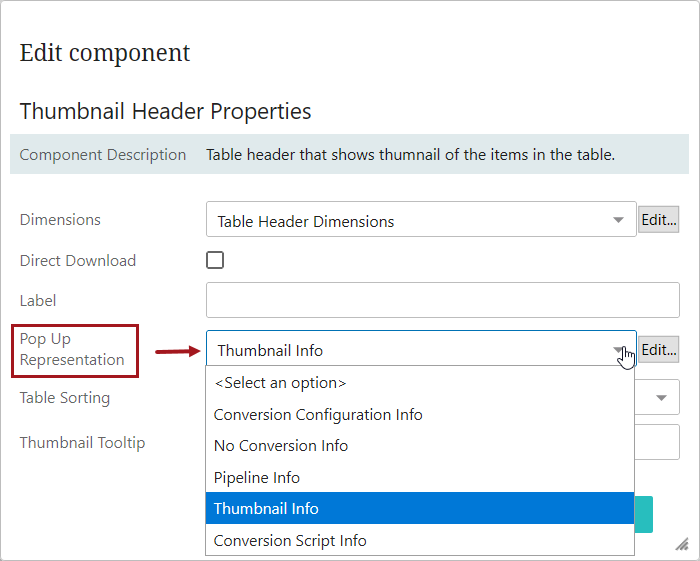
Valid sub-components include: 'ConversionConfigurationInfo,' 'ConversionScriptInfo,' 'NoConversionInfo,' 'PipelineInfo,' and 'ThumbnailInfo' which are all described below in further detail.
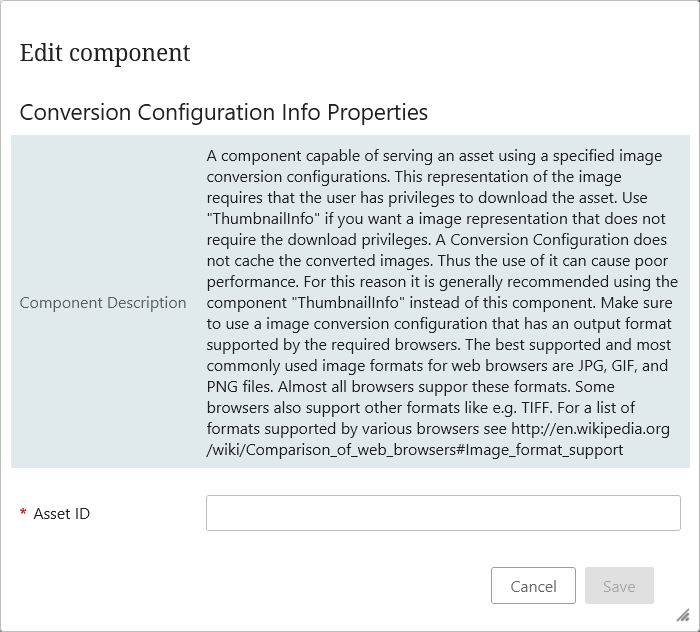
- Conversion Configuration Info: Selecting this component shows the image with the predefined conversion configurations in a pop up window. For example, if there is a need to view the selected asset in grayscale view / less resolution view / in any converted format, this pop up representation can be used.
To enable this, the user should have created an Image conversion configuration, and the ID of the Image Conversion configuration should be known. For more information, see the Image Conversion Configuration topic in the Digital Assets documentation here.
This representation of the image also requires that the user has privileges to download the asset. A Conversion Configuration does not cache the converted images. Thus the use of it can cause poor performance. For this reason it is generally recommended using the component 'Thumbnail Info' instead of this component.
- Asset ID: (Mandatory) ID of the required Image conversion configuration.
- No Conversion Info Properties: Selecting this component will let the user view the image in a pop up window with no conversions or changes to the asset (i.e., no conversion / pipeline / scripts used). No configuration is necessary.
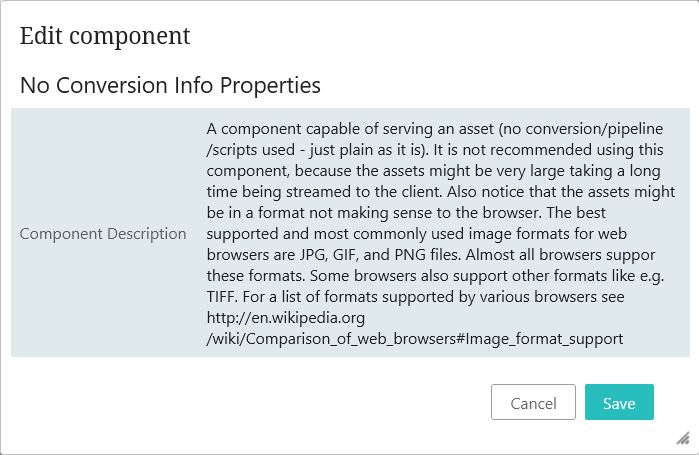
It is not recommended to use this component, because if the asset is very large it can take a long time to render. Further, the assets might be in a format incompatible with the browser being used.
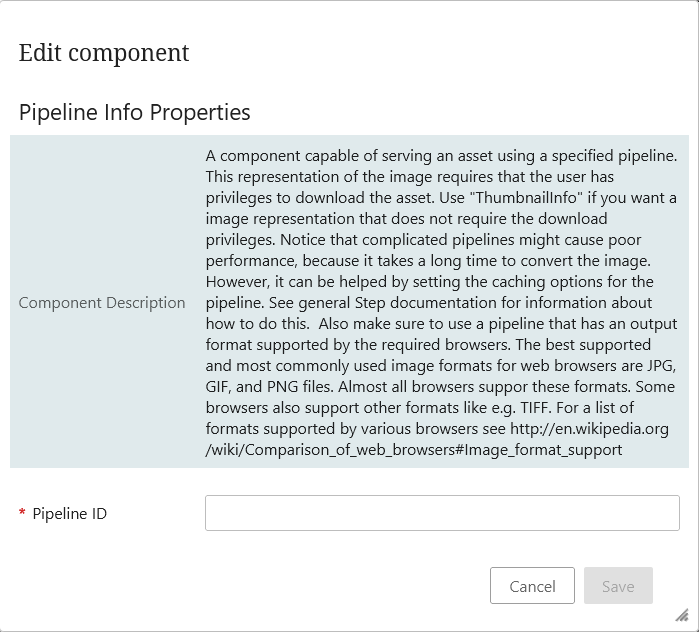
- Pipeline Info: A component capable of serving an asset using a specified pipeline. This representation of the image requires that the user has privileges to download the asset. Use 'ThumbnailInfo' if you want an image representation that does not require the download privileges.
Notice that complicated pipelines might cause poor performance, because of the system resources required to convert the image. However, this delay can be shortened by setting the caching options for the pipeline. See general STEP documentation for information about how to best complete this task. Make sure to use a pipeline that has an output format supported by the required browsers.
In the designer, 'Pipeline ID' is the only field that needs to be set.
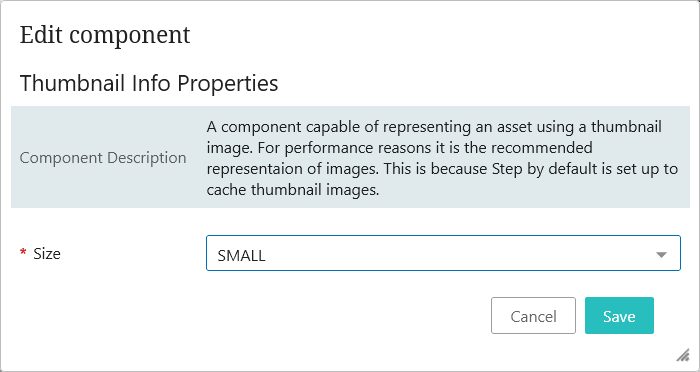
- Thumbnail Info: Selecting this component will let the user view the image in a pop up window using a thumbnail image. For performance reasons, this is the recommended representation of images. This is because the default is set up to cache thumbnail images.
The 'Size' field is the only mandatory field for configuration. The user can choose the size of the thumbnail as either SMALL, MEDIUM, or FULL. Note that while using the FULL option, the images are not cached in this version, and requires users to have download privileges.
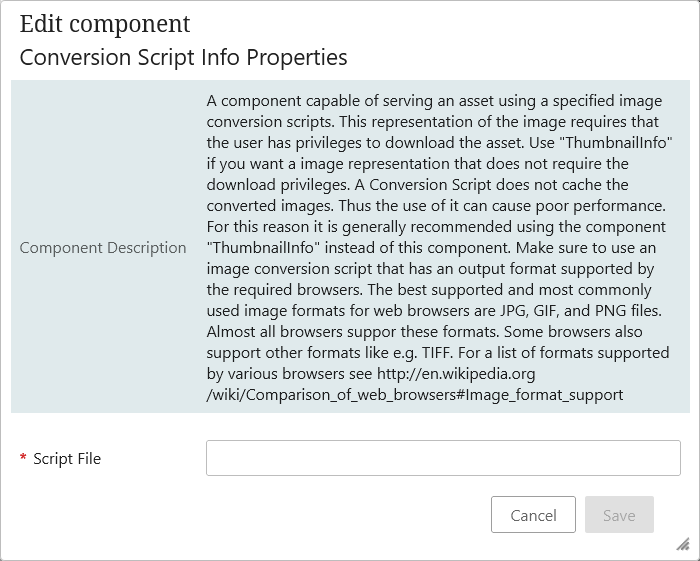
- Conversion Script Info: A component capable of serving an asset using a specified image conversion scripts. This representation of the image requires that the user has privileges to download the asset. Use 'ThumbnailInfo' if you want an image representation that does not require the download privileges. A Conversion Script does not cache the converted images, thus the use of it can cause poor performance. For this reason it is generally recommended using the component 'ThumbnailInfo' instead of this component. Make sure to use an image conversion script that has an output format supported by the required browsers.
The only mandatory field for configuration is the 'Script file.'
- Table Sorting: If no other sorting is applied on any other header, the table will be sorted by the selected sort option. None, Ascending, and Descending are the available sort options.
- Thumbnail Tooltip: In this parameter, enter the help text that will display when the user hovers the cursor over the thumbnail. If no value is entered, the name of the referenced object will display.