Pivot Transformation Step 9 Settings
In Step 9, you define some general settings.
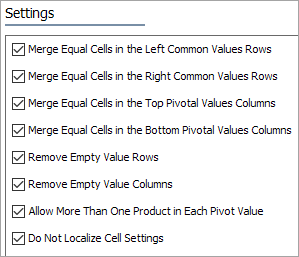
A number of these options can be explained by referring to the Table Guide:
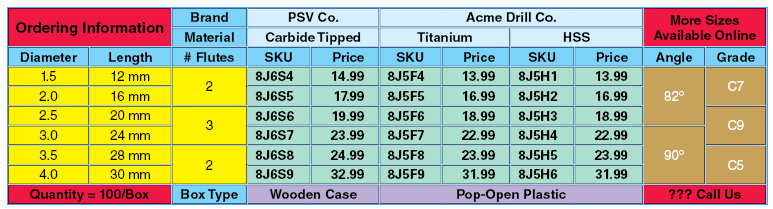
These options are explained as follows:
- Merge Equal Cells in the Left Common Values Rows: The Table Guide shows the effect of this setting. The values in the '# Flutes' column have been merged when consecutive cells have an equal value.
- Merge Equal Cells in the Right Common Values Rows: The Table Guide shows the effect of this setting. The values in the cells of the 'Angle' and 'Grade' columns have been merged when consecutive cells have equal values
- Merge Equal Cells in the Top Pivotal Values Columns: The Table Guide shows the effect of this setting. The attribute value 'Acme Drill Co.' was merged since consecutive cells had the same value.
- Merge Equal Cells in the Bottom Pivotal Values Columns: The Table Guide shows the effect of this setting. The attribute value 'Pop-Open Plastic' was merged since consecutive cells had the same value.
- Remove Empty Value Rows: Removes any row in the Compacted Area where all the cells have empty values. This would only take effect if you had deselected the 'Horizontal Values' checkbox in Step 3.
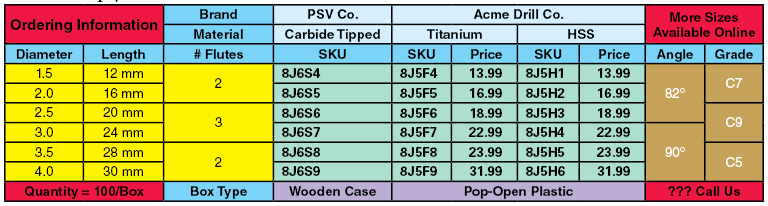
- Remove Empty Value Columns: Removes any column in the Compacted Area where all the cells have empty values. This would only take effect if you had deselected the 'Horizontal Values' checkbox in Step 3. So referring to the Table Guide, if in the Compacted Values Area all the Prices were missing for the PSV Co. products, that column would be removed. Thus:
- Allow More Than One Value in Cells in the Compacted Values Area: Consider the following table—
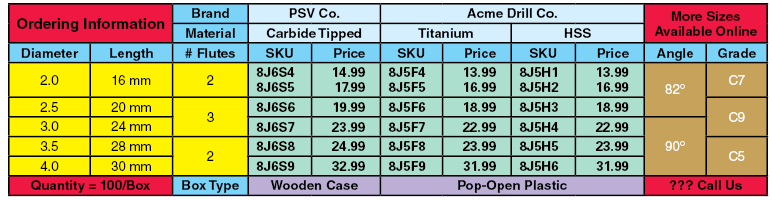
Notice that in the first 'body' row there are cells with two part numbers and prices. However, there is no data in that row or column that distinguishes one product from the other. In other words the reader cannot see any difference between part number 8J6S4 and 8J6S5. The price is different, but there is no supporting data to differentiate between the two products. So all that a reader would see is that part numbers 8J6S4 and 8J6S5 have identical specifications, but one is more expensive than the other. Thus any normal customer would always order the less expensive item. Or they would have to investigate by some other method the difference between the products.
This situation usually occurs when either a) the Table Definition is missing an attribute that would indicate the difference in the products, or b) the data that does distinguish the two products is present in the Table Definition but has not been accounted for in the Pivot Transformation, or c) the actual data is incorrect.
If you were to disable the checkbox 'Allow More Than One Value in the Compacted Area' then only the first entry would be displayed (i.e., 8J6S4). But, if the checkbox is selected, (i.e., it is OK to allow more than one product or value in a cell), then the system will place a Return code between each entry in the cell.
- Do Not Localize Cell Settings: Enable if you want the pivot table to build without localized cell-specific formatting, providing a 'blank canvas' to apply cell settings after the transformation.
When disabled, the behavior of the Pivot Transformation is to rebuild tables cell by cell, applying localized cell properties in the process. Applying another row or column type transformation after a Pivot Transformation (such as 'Assign Row/Column Types to Rows/Columns') does not override all local cell settings, which can make it more challenging to change or remove the formatting that is being inherited from the table rows / columns setup.