Creating a New Empty Table
Instead of using the Create Table wizard, an alternate method of creating a new table is to create an empty table. This method allows you to create a table without necessarily having to know beforehand what attributes and/or products will be used, other than the product on which the table will be built. As with tables that are built with the Create Table wizard, an empty table will also need additional configurations once created, such as the addition of plain text or images, dynamic content definitions, and transformations. For information on how to add these more advanced features, see the Content Definitions section of this guide
This topic assumes the following:
- A table type has already been created and linked to the product, classification, or product-override where you will be building the table
- The table type has at least one legal column type and one legal row type
- You have determined the location in the product hierarchy where the table will be built. The creation point is important because tables are inherited downwards in the hierarchy, unless overridden by a local variation of the table. For more information on table inheritance, see the Table Inheritance topic in this guide here.
To Create an Empty Table
- In the Tree, select the product, classification, or product-override object on which the table will be built.
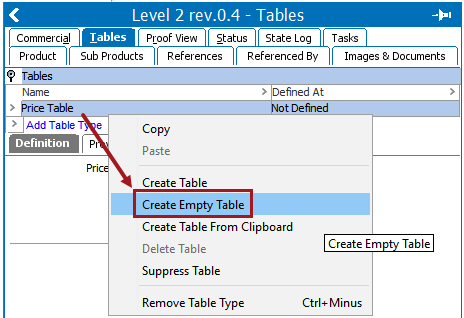
- Go to the Tables tab, then select the relevant 'Not Defined' table type.
- Right-click the table type and choose Create Empty Table.
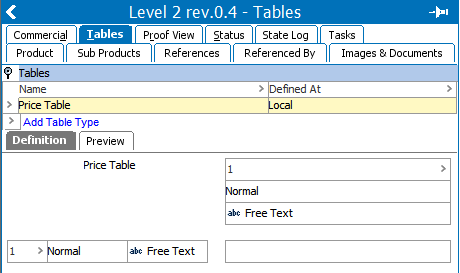
- An empty table grid with one free text cell is created. The cell is composed of one row and one column. The row type and column type used are the ones chosen as default row / column types when the table type was created in System Setup.
- Next, define the column and row Content Definitions of the table. For instructions, see the Adding and Removing Content Definitions section of this guide here.