Comparing Revisions
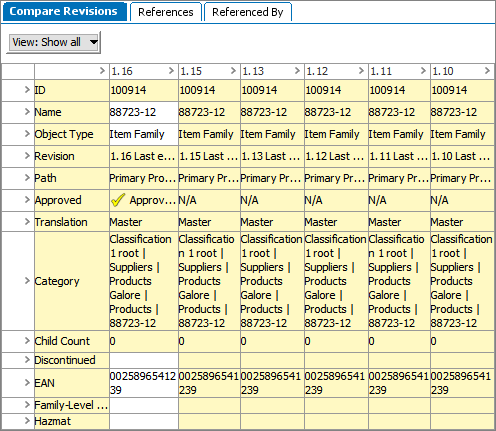
Users may compare revisions on an object within the Revision view. For instance, if a user needs to see how an attribute on a object has changed over the course of five revisions, the five relevant product revisions can be viewed at once on the same screen.
Revision history can also be displayed in Web UI. To learn more, see the Multi Revision Screen topic in the Web User Interfaces documentation here.
To enable revision comparing in workbench:
- With the object selected, click the Revision mode button from the workbench menu bar. The two most recent revisions for that object are displayed.
- To view additional revisions, select 'View' from the toolbar, and then select 'Target'.
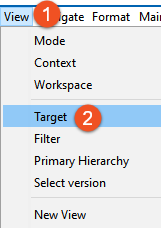
Note: Target cannot be selected unless the object is being viewed in an appropriate mode, like Revision mode.
- In the dropdown, select a revision from the eight most recent revisions listed or the 'Other' option. A check marks indicates a revision being displayed.
- To add a single additional revision, click any unchecked revision.
- To remove a revision, uncheck the revision.
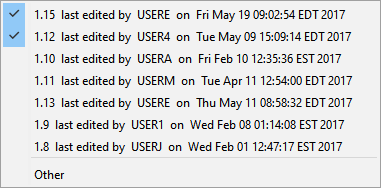
- To add or remove multiple revisions, click the 'Other' option to display a list of all revisions. Select all required revisions and click the OK button to display them in the comparison view.
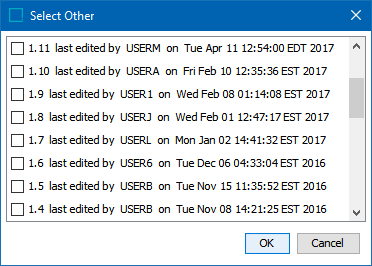
Note: When more revisions are added than can be displayed on the screen, a scroll bar displays allowing access to all revisions.
- Review the displayed revisions on the Compare Revisions tab.