PDS Channel Metric
The PDS (Product Data Syndication) Channel Metric gives users the ability to measure the quality and completeness of a product's data compared to the data standard of a retail channel in PDS. By obtaining this information, users are able to determine whether the product is ready to be syndicated to the retail channel before actually submitting the product for syndication.
To view the data produced by the PDS Channel Metric in the sufficiency panel in the Web UI, the add-on component 'pds-sufficiency-link' must be installed on your system. Instructions for installing components can be found in the SPOT Program topic in the System Administration documentation here.
To use the PDS Channel Metric, the following PDS license must also be enabled.
- X.Adapter.ProductDataSyndication
Contact your account manager to enable the license for your system.
Important: Metrics are used in conjunction with sufficiencies to determine the quality and completeness of a product's data. While this topic covers the functionality and configuration of the PDS Channel Metric, it is important that users are also familiar with sufficiencies and how they are combined with metrics; information regarding sufficiencies can be found in the Sufficiency Configuration Type topic here.
Prerequisites
Before metrics can be created, a Setup Group must be configured. For information on configuring a Setup Group for metrics, see the Initial Setup for Metrics topic in the Metrics documentation here. For information on creating a metric, see the Creating and Editing Metrics topic in the Metrics documentation here.
Prior to configuring a PDS Channel Metric, a PDS Outbound Integration Endpoint (OIEP) must be configured. The relation between the PDS Channel Metric and the PDS OIEP is explained in further detail in step 5 of this topic. For information on configuring a PDS OIEP, see the PDS Outbound Integration Endpoint Configuration topic in the Product Data Syndication documentation here.
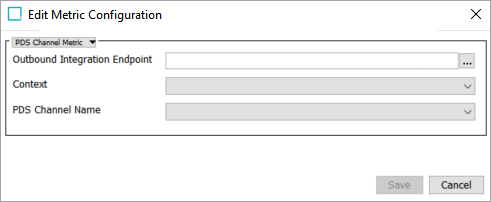
PDS Channel Metric configuration
- From the Edit Metric Configuration wizard, select 'PDS Channel Metric.'
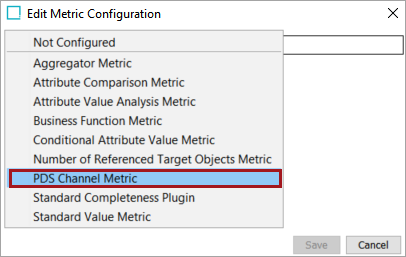
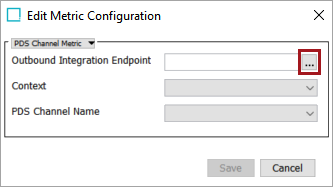
- With the PDS Channel Metric selected, click the ellipsis button (
 ) located next to the Outbound Integration Endpoint.
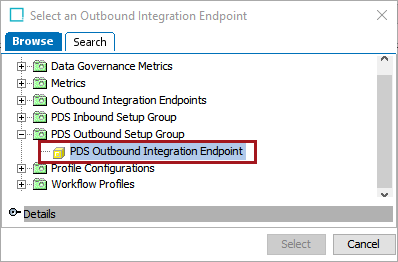
- Select the PDS Outbound Integration Endpoint you would like to use for this metric and click 'Select.' In this example, 'PDS Outbound Integration Endpoint' has been selected.
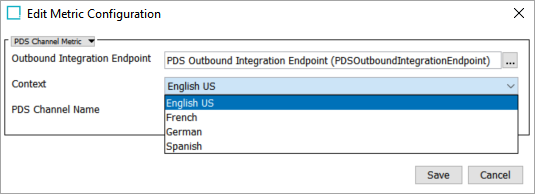
- From the Context dropdown list, select the context that you would like to use for the metric. In the example below, the user has selected 'English US.'
- From the PDS Channel Name dropdown list, select the PDS channel name that you would like to use for the metric. In the example below, the user has selected the '1WorldSync PreProd' channel.
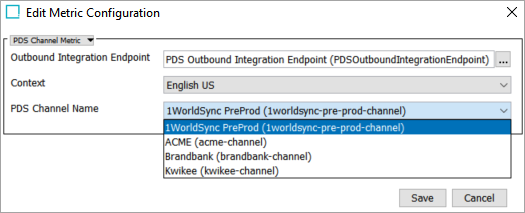
Note: Available context options are dependent on the 'Contexts' setting in the PDS OIEP configuration. Available PDS channels are determined within the PDS system, e.g., any channels available in the PDS system will be included in the 'PDS Channel Name' dropdown menu as a selectable option. For more information on configuring the PDS Outbound Integration Endpoint, see the PDS Outbound Integration Endpoint Configuration topic in the Product Data Syndication documentation here. For more information regarding channel options within PDS, contact your PDS representative.
- Click 'Save' to close the Edit Metric Configuration wizard.
The PDS Channel Metric is saved.
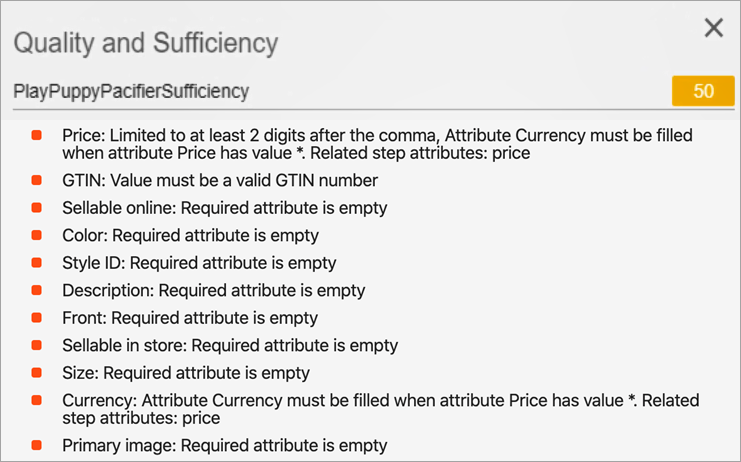
Once the metric is run within a sufficiency, the results can be seen in the sufficiency panel within the Web UI. In the example below, the PDS Channel Metric has returned details regarding several attributes that are missing mandatory values, have incorrect formatting of values, etc., based on the requirements of the selected channel. With this information, users can provide values for the mandatory attributes and run the sufficiency again to re-assess the metric results.