Maintaining a Unit
Units can be created and deleted as necessary. Each maintenance option is defined below.
Creating a Unit
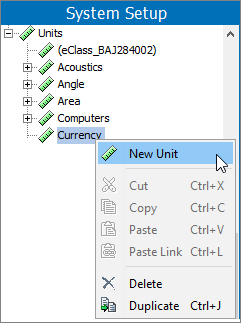
- Go to System Setup, open the Units node and click the relevant Unit Group. Right-click the relevant Unit Group and click the New Unit option.
Note: To create a new unit group, see the Maintaining a Unit Group topic in this guide here.
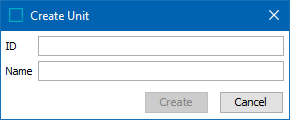
- In the Create Unit dialog:
- Enter an ID for the new unit.
- Enter a Name for the new unit.
- Click the Create button.
The newly created unit displays within a unit group. The unit can now be selected for attributes.
Deleting a Unit
A unit group that contains a unit cannot be deleted. All units must be removed from the group before the unit group can be deleted. A unit that is used in an attribute cannot be deleted. The unit must be removed from the attribute before the unit can be deleted.
- In System Setup, click the Units node, click the units group, and then click the unit to be deleted.
- On the units editor, click the References tab to display the 'Valid for Attributes' flipper.

- For each attribute displayed, use the following steps to remove the unit from the assigned attributes:
- In the unit editor, click the attribute link in the Name column (as shown above) to display the attribute editor.
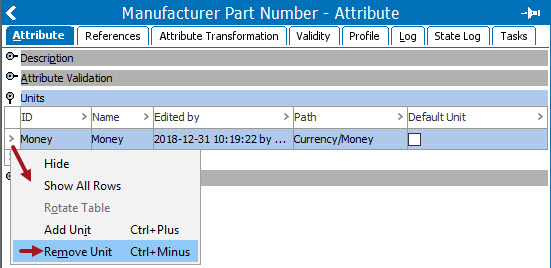
- On the Attribute tab, open the Units flipper.
- Right-click the row of the unit to be deleted and click the 'Remove Unit' option.
- In the unit editor, when no attributes are displayed on the References tab for the 'Valid for Attributes' flipper, right-click the unit node and click the Delete option.
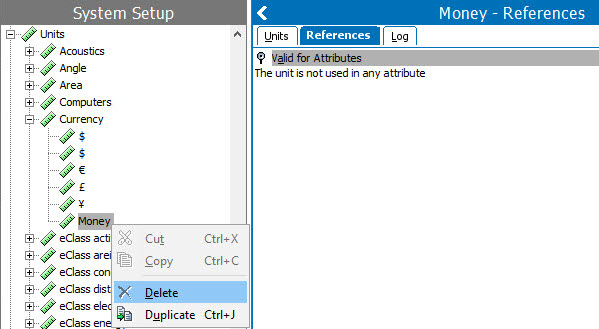
- On the Delete warning dialog, choose an action:
- Click the Delete button to delete the unit.
- Click the Cancel button to return to the unit editor.
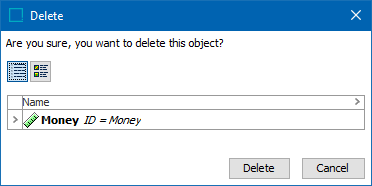
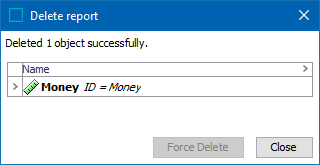
If the unit was deleted, the confirmation dialog is displayed.