Analyze Background Processes
This is one of the technical infrastructure data gathering methodologies and performance recommendations for server hygiene. The full list is defined in the Server Hygiene topic here.
When a process ends in either 'failed' or 'completed with errors' state, by design, old background process log information is not deleted automatically. The retained information can be used for manual processing, which allows the background process owner to address the errors before deleting the background process log information manually.
However, keeping many background processes can slow down the system, because each background process creates a sub-directory on the file system, which over time, can overload the system. If the number of background processes are excessive, such as hundreds of thousands, then these background processes should be deleted.
Note: The number of background processes in the database and on the application server file system may differ. This typically happens when background processes are not removed properly from the application server.
Check the number of background processes in the database and on the application server as follows:
- On the application server, go to the DB ToolBox, which is typically saved in the '/opt/stibo/step/admin/app-server-toolbox/' folder.
- Start the ToolBox using one of these commands:
- ./db-toolbox.pl
- perl db-toolbox.pl
- Execute DB ToolBox number 38: 'Show background process information.'
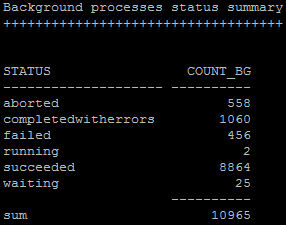
- On the application server file system, determine the number of files in directory 'background-processarea' recursively, based on your server type:
- On a Linux server, run the command:
find background-processarea/ -type f | wc -l

Optionally, analyze the sub-directories as well. Use the following command to see the files created last:
ls -lat
And this command to see the largest files:
du -hsx * | sort -rh | head -10
- On a Windows server, open the Windows File Explorer, go to the 'background-processarea' directory, right-click and select the Properties option.
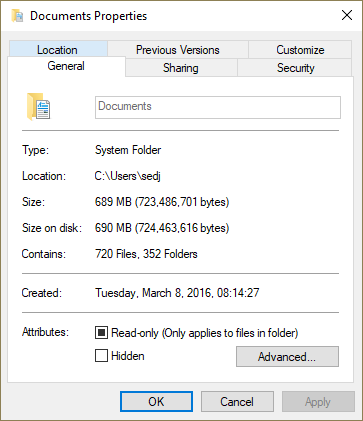
Once you determine that there is an excessive number of background processes in the database and/or on the application server file system, the recommendation is to create a maintenance plan to ensure the number will be controlled and clean up the existing background processes. For more information, see the Create a Background Processes Maintenance Plan in this guide here.