Infrastructure Checks
The following tools can be used to verify that infrastructure requirements are met.
Network Latency Measurements and Tools
Use the appropriate option below to measure latency and ensure the results meet the Network Latency Requirements defined in the Server-to-Server Connections topic here.
Measure latency on Linux using ping
Run the following commands from application server to database server (results are in microseconds (ms)):
ping -c20 <db-host> |grep rtt
ping -c20 –s8000 <db-host> |grep rtt
ping -c20 –s32000 <db-host> |grep rtt
Measure latency on Windows using 'hrping'
Download the tool using SPOT:
spot --baseurl=updates:/install/software --download=hrping/windows/hrpingv506.
zip --output=L:/install-software
Run the following commands from the application server to database server (results are in microseconds (ms)):
hrping -l 64 -n 20 <database-host>
hrping -l 8000 -n 20 <database-host>
hrping -l 32000 -n 20 <database-host>
Measure latency using ‘benchnet5.sql’ script in Linux
Executed from the application server against the database, with different package-sizes, to measure any network influence (latency). Results are in seconds (sec).
- From a Linux server, log on to the application server as 'stibosw'.
- Copy the following SQL script using the file name 'benchnet5.sql' to /home/stibosw on the application server.
set timing on

set autotrace traceonly statistics
set arrays 5000
set pages 1000
select null from dual connect by rownum < 100000;
prompt Small without network influence
select null from dual connect by rownum < 100000;
set arrays 10
prompt Small with network influence
select null from dual connect by rownum < 100000;

set arrays 5000
prompt Medium without network influence
select '012345678901234567890123456789012345678901234567890123456789012345678901'||rownum from dual connect by rownum < 1000000;
set arrays 100
prompt Medium with network influence
select '012345678901234567890123456789012345678901234567890123456789012345678901'||rownum from dual connect by rownum < 1000000;

set arrays 5000
prompt Large without network influence
select '01234567890123456789012345678901234567890123456789012345678901234567890123456789012345678901234567890123456789012345678901234567890123456789012345678901234567890123456789012345678901234567890123456789012345678901234567890123456789012345678901234567890123456789012345678901234567890123456789'||rownum from dual connect by rownum < 1000000;
set arrays 100
prompt Large with network influence
select '01234567890123456789012345678901234567890123456789012345678901234567890123456789012345678901234567890123456789012345678901234567890123456789012345678901234567890123456789012345678901234567890123456789012345678901234567890123456789012345678901234567890123456789012345678901234567890123456789'||rownum from dual connect by rownum < 1000000;
- Run the script on the application server:
sqlplus stepsys/stepsys
@/home/stibosw/benchnet5.sql
- Collect all output and attach it to a Jira issue.
The following table shows the Stibo Systems recommended limits for network influence. The script outputs in msek, limits are seen in sek (seconds).
|
Size |
Including Network Influence |
Maximum Recommended Limit |
|---|---|---|
|
Small |
No |
00:00:00.15 |
|
Small |
Yes |
00:00:02.00 |
|
Medium |
No |
00:00:08.00 |
|
Medium |
Yes |
00:00:12.00 |
|
Large |
No |
00:00:24.00 |
|
Large |
Yes |
00:00:30.00 |
CPU and Storage
Use the appropriate option below to measure read, write, and CPU performance, and to ensure the results meet the requirements defined in the Storage Performance Requirements topic here.
Measure read, write and CPU performance using 'stibo-ts-load-test.pl' script
On a Linux application server, run the following commands (script outputs in msek, limits are in sek (seconds)):
- Log on to the database server as 'oracle'.
- Locate db-server-toolbox, for example: /opt/stibo/step/admin/db-server-toolbox/
- Run this command:
/opt/stibo/step/admin/db-server-toolbox/stibo-ts-load-test.pl -stepsys-schema stepsys -stepsysdata-tbs stepsysdata
- Run this command to report results:
/opt/stibo/step/admin/db-server-toolbox/stibo-ts-load-test.pl -stepsys-schema stepsys -stepsysdata-tbs stepsysdata -report
Storage Limits
|
I/O for reads / writes |
Classification |
|---|---|
|
< 5 s |
very good |
|
< 10s |
good |
|
< 20s |
moderate |
CPU Limits
For CPU, Stibo Systems defines 60 sek (seconds) as the 'standard' level.
Measure IOPS on Storage Devices
Performance on storage devices can be evaluated using 'fio' with results in iops.
Windows
- Downoad the tool using spot:
spot --baseurl=updates:/install/software --download=fio/windows/fio-2.2.10-x64.zip --output=L:/install-software
spot --baseurl=updates:/install/software --download=fio/windows/fio-examples.zip --output=L:/install-software
- Configure fio by editing settings.fio for your server type.
- Execute fio:
L:\install-software\fio\windows\fio-examples\windows\fio_test.bat
Linux
- Downoad the tool using spot:
spot --baseurl=updates:/install/software --download=fio/linux/fio-2.1.7-1.el7.rf.x86_64.rpm --output=/workarea/install-software
spot --baseurl=updates:/install/software --download=fio/linux/fio-examples.zip --output=/workarea/install-software
- Log in as a user with admin privilege (root) and install fio using this command:
yum install /workarea/install-software/fio/linux/fio-2.1.10-1.el7.rf.x86_64.rpm
- Configure fio by editing settings.fio for your server type.
- Execute fio:
/workarea/install-software/fio/linux/fio-examples/linux/fio_test.sh
Example
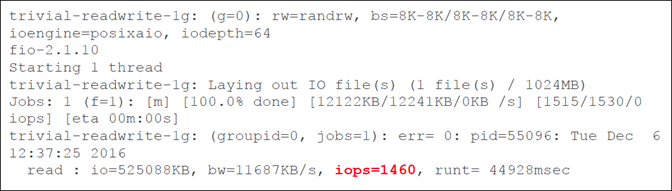
This example is the output from fio, executed with 8k block size: