Text Frame Parameters
This topic explains the individual parameters available when configuring text frames using the STEP Template Frame panel in InDesign.
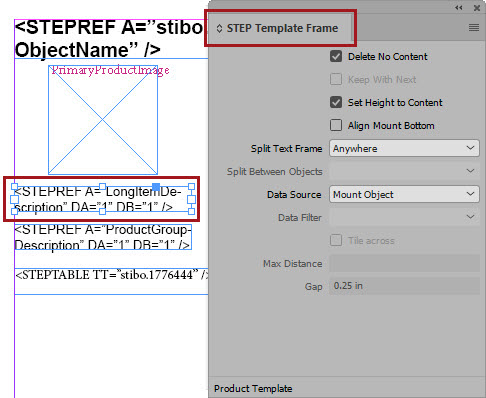
- Delete No Content: This option can be best understood as 'Delete IF No Content.' Check this box to ensure that empty frames do not mount on pages if there is no content in STEP available to populate the text of the attribute(s) linked to the text frames. This setting ignores static text within the frame. If this box is left unchecked, the frame will be mounted, either as empty or with the XML references appearing, depending on the settings placed in 'Delete Before' and 'Delete After' (details on these settings are explained further down in this list).
- Keep With Next: When this option is selected, the selected frame will always remain with the frame directly below it. This setting prevents situations where, for example, the name of a product would be separated from its image if the product mounts at the bottom of the page, and there is only enough room to mount the frame containing the product name. With this box checked, both frames will mount on the following page in order to keep the two frames together. A frame with Keep With Next set cannot have a Split setting of Anywhere or Within Spread and vice versa.
- Set Height to Content: Check this box if you want STEP’n’design to automatically adjust the height of your text frame if the text or table content is too lengthy to fit in the frame at its original size.
- Align mount bottom: Select this to ensure that a text frame will always mount at the bottom of the page. In Flatplanner, the frame will align to the bottom of the Flatplan frame. If more than one frame is designated to align mount bottom, the lowermost frame will align to the bottom and the other frame(s) will mount above it, separated by the same gap amount as on the product template.
- Split Text Frame: This option applies to both individual and repeating (tiling) text frames. Three split options are available: Never, Anywhere, and Within Spread.
Note: The Split Text frame parameter is not available for grouped frames.
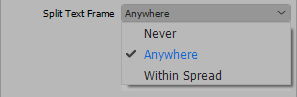
For individual text frames, these settings control the behavior of frames that are too lengthy to fit entirely in a column or on a page. This is typically caused by frames that contain lengthy tables, though very large blocks of text can also cause tall frames. The options behave as follows:
- Select Never to prevent the text box from ever splitting across a column or a page.
- Select Anywhere to allow the text box to split across columns and pages even if the split results in the creation of a new spread. I.e., the text box will be permitted to split from a right-hand page onto a left-hand page.
- Select Within Spread to limit the split to within a spread only, i.e., only permit the text frame to split from a left-hand page to a right-hand page, disabling the ability to create a new spread.
Note: A text frame with a Split Text Frame setting of Anywhere or Within Spread cannot have Keep With Next set on the frame, and vice versa.
- Split Between Objects: This parameter applies to repeating frames and is activated when a Data Source other than 'Current Object' is selected; e.g., either Mount Children or a reference type (asset, product, classification, or entity). The split options are the same as those for Split Text Frame: Never, Anywhere, and Within Spread.
Note: Unlike the Split Text frame parameter, the Split Between Objects parameter is available for grouped frames.
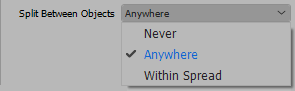
These settings control the behavior of frames that have tiled to a point where they no longer can fit entirely in a column or on a page. This would be caused in instances where, for example, textual information from numerous child objects are mounted in repeated frames, and there are too many to fit in a column or page. The options behave as follows:
- Select Never to prevent the series of repeating frames from splitting across a column or page if there are too many frames to fit in one column or on one page.
- Select Anywhere to allow the series of repeated frames to split across a column or onto another page, even if the split continues from a right-hand page to a left-hand page, creating a new spread.
- Checking Within Spread to limit the repeated frames to continue from a left-hand page to a right-hand page only, disabling the ability to create a new spread.
Because the Split Text Frame and Split Between Objects settings work in tandem with each other, certain combinations of split settings are disabled. For example, you cannot have 'Split Text Frame' set to 'Anywhere' and 'Split Between Objects' set to 'Never.' To further ensure that the settings work together, choosing a selection on one split option may automatically update the other. For example:
- If you set 'Split Text Frame' to 'Within Spread' and the current 'Split Between Objects' setting is 'Never,' the setting for 'Split Between Objects' will be automatically changed to 'Within Spread.'
- If you set 'Split Text Frame' to 'Anywhere' and the current 'Split Between Objects' setting is 'Never' or 'Within Spread,' the setting for 'Split Between Objects' will be automatically changed to 'Anywhere.'
- Data source: This controls whether the frame should mount content from the object that is being mounted (Mount Object; most common), from children of the mounted object (Mount Children), or from an asset or product linked to the mounted object by a reference type. By default, the data source is Mount Object, which extracts values from the mounted object only.
Select Mount Children or an asset / product reference type when the text frame is intended to repeat on the page. The text frame repeats in instances where information is available from multiple child objects or from multiple referenced products or assets. When Mount Children or an asset / product reference type is selected, the following options are activated in the STEP Template Frame panel: Tile across, Max Distance, and Gap. If Mount Children is selected, the Data Filter option is also activated.
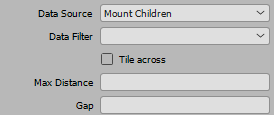
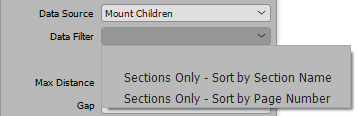
- Data Filter: Only activated when Data Source is 'Mount Children.' Used when mounting publication or section objects to pull information (such as metadata attribute values or section names) from child sections / subsections. Available options are Sections Only - Sort by Section Name and Sections Only - Sort by Page Number. This functionality is typically used in AutoPage publications to create tables of contents / section indexes. See the Creating a Table of Contents Product Template topic
- Tile across: Check this box if repeated frames should be tiled horizontally across the page instead of stacking vertically beneath one another.
- Max Distance: The maximum distance that horizontally tiled frames should repeat across the page (L-R) before stopping and wrapping back around to begin a new row of repeated frames underneath.
- Gap: The amount of space to place between repeated frames when tiled.
Text Frame Parameters for InDesign-created Page Templates
The below screenshot shows the available text frame parameters for InDesign-created page templates, which are only applicable for Flatplanner publications and typically are Galley templates. The options are Frame Type and Frame ID.
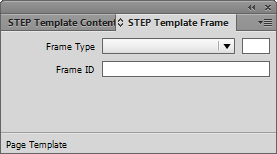
For information on how to use these options, see the Galley Templates section of the Flatplanner documentation
Text Frame Parameters for Publication Templates
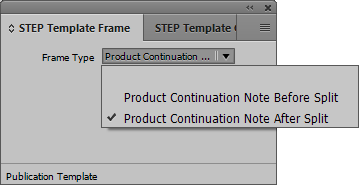
A 'Frame Type' dropdown list is available for text frames when working with publication templates. These two options (Product Continuation Note Before Split and Product Continuation Note After Split) only apply to publication templates that will be used in AutoPage publications. See AutoPage Pagination Rule Actions in the AutoPage documentation here for more information.