Monitoring Asset Push
It may be necessary to monitor the activity of asset pushes, which can be especially important in the event that an asset conversion or extraction fails. Listed below are methods of monitoring the status of asset pushes within STEP Workbench. If additional monitoring is required, it is recommended to use standard system monitoring tools (e.g., designated external monitoring system). Additionally, the STEP System Administration page can be used.
Within STEP, the monitoring functionality includes viewing push status for asset push queues, viewing push statistics, refreshing and resetting counters, finding unpushed and failed pushes, and receiving email for failed pushes.
'Unpushed or Failed Assets' search criterion
Assets that have not been pushed, or have failed to push, can be found by using the 'Unpushed or Failed Assets' search criterion.
An asset push configuration can be set up to send an email when any assets fail attempted extraction and/or conversion. See the Creating and Maintaining Asset Push Configurations section of the Asset Push documentation for more information
For information on configuring email from STEP, see the Email from STEP topic in the Resource Materials of online help here.
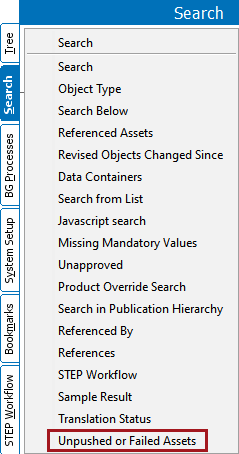
See the Search: Unpushed or Failed Assets topic within the Navigation and Searches section of the Getting Started / User Guide documentation for more information
Asset Push Configuration Statistics
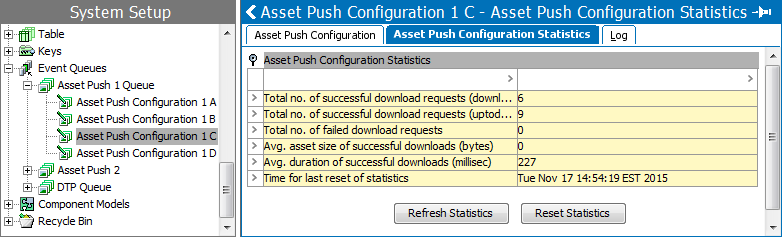
Statistics regarding each asset push can be viewed on the Asset Push Configuration Statistics tab.
- 'Refresh Statistics' button can be used to refresh and get the updated information.
- 'Reset Statistics' button can be used to reset the counters and last timestamp of last reset can be found in value field of ‘Time for last reset of statistics’.
The status of each individual asset relative to all asset push configurations can be viewed on the Status tab of the asset, under the Asset Push Status flipper.
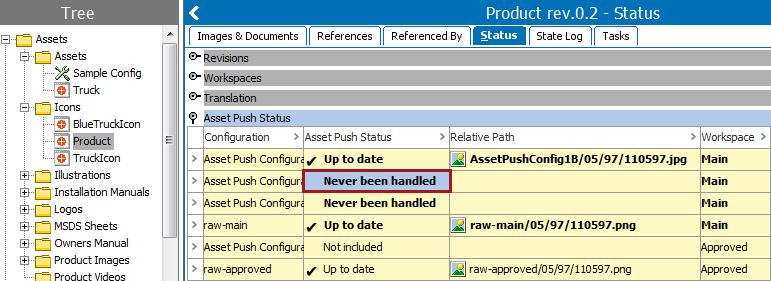
The available statuses are:
- Asset not in workspace: The configuration pushes only from the approved workspace, and the selected asset has never been approved.
- Downloaded: An initial push of the asset has been carried out
- Never been handled: The asset has never been pushed with the indicated configuration. This may be because the configuration is not applicable for the selected asset or because the configuration has not had an initial push carried out.
- Up to date: The asset has been modified since initial push, and the updated image has been pushed.
Monitoring and Handling Asset Push Errors
STEP will monitor failed asset pushes. Two reasons for these failures are:
- Improper asset file in the Asset hierarchy
- File system on Application server is out of space
Higher level of monitoring data can be attained by polling a STEP ‘Sensor’ for the Asset Push Queue. To poll this sensor, you must use the following URL:
URL: http://<step-app-server> /admin/monitoring/Sidecar-assetpushqueue-AssetPushQueue/
The sensor can present information in a number of formats:
- User readable overview
- Simple status response
- Nagios format
- XML
The problem can be resolved by either correcting the error in STEP, or increasing system storage space on the application server.
Once the problem has been resolved, the Asset Push may be attempted again. This may be done by forcing a new push, or by waiting for the asset push queue to automatically push assets that are changed and approved in the future.
Note: A full push may be very demanding and require a large amount of system resources.
If the Asset Push Sidecar stops working due to patching or an issue in the system, the application server must be restarted. Rebooting the server will re-enable the Asset Push Sidecar.
STEP will not monitor the following processes once STEP has delivered assets to the application server filesystem:
- Transport of files from STEP application server file system to eCommerce Server.
- Import of assets in the eCommerce application for display on the web.