CSV Format
The comma-separated values (CSV) file format is available for inbound and outbound data exchanges. Using CSV requires creating a data map between STEP and the data being processed, and may also include data transformations.
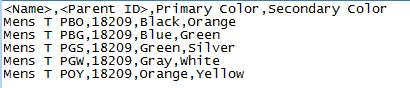
The following sample CSV data import file shows that the first row is a header, and the remaining data is delimited by a comma. Exported CSV files always include a header row, though this is optional for imports.
Keep the following points in mind when working with STEP data using CSV format:
- The following node types / super types can be imported and exported via CSV format: products, classifications, entities, assets (objects, not content), and attributes.
- A CSV import or export file will include data in the same arrangement as relational database tables. This means that each object is displayed as a single row in the file and each object property item is displayed as a single column.
- Imports and exports are context and workspace specific. By default, data is imported to or extracted from the context and workspace in use when the process is started.
- When planning to import data back into STEP, include STEP ID in the export.
Format Availability
CSV is available for selection in:
- IIEP - see Creating an Inbound Integration Endpoint here
- Import Manager - see Creating a Data Import here
- Export Manager - see Creating a Data Export here
- OIEP - see Creating an Outbound Integration Endpoint here
Mapping
This format requires creating a data map between STEP and the data being processed, and may also include data transformations. For details, see Data Mapping here.
Inbound Data
CSV import allows creation of and updates to products, classifications, entities, attributes, and references. However, system setup objects (for example: LOVs, users, reference types, and so on), cannot be created or modified via import.
Because the Map Data process allows selection of only a single node type, only one node type / super type (products, entities, etc.) can be imported at a time. When multiple super types exist in the same import file, a separate import is required to successfully import each type of object, starting with classification data, then product data, and finally, entity data. When the inbound file includes data for node types other than the one selected, two things may happen: 1) assuming none of the data prevents the import, new objects are created using the supplied information and the selected super type, 2) the execution report details the skipped records when included data, like parent ID, is not found in the selected super type hierarchy. Alternately, split the inbound data file by super type and process accordingly.
For information on parallel imports involving multiple references on object types, see Reference Target Lock Policy on Object Types
Deleting Values During Import
When importing comma and tab delimited files, the values are imported exactly as provided in the file per the mapped data. This means that when a blank value is imported, an attribute that previously had a value is overwritten as blank. If the value being deleted was inherited, the result is not a blank field, but the inherited value is restored.
This functionality is the same as when importing STEPXML files, but differs from imports of Excel.
Inbound Parameters
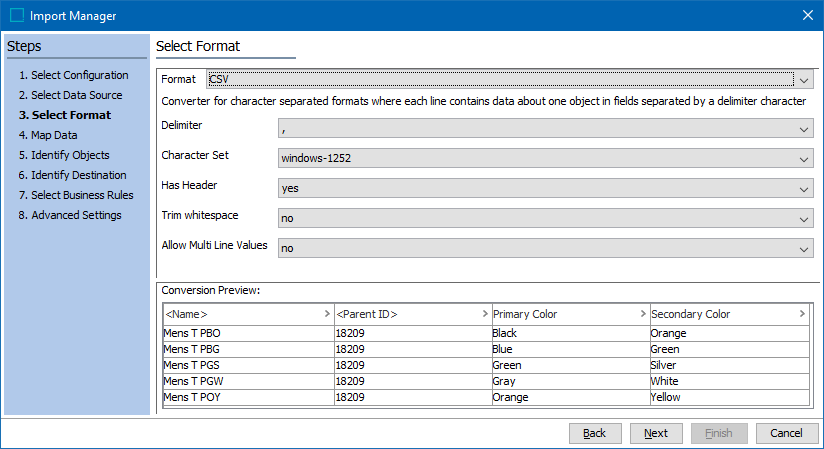
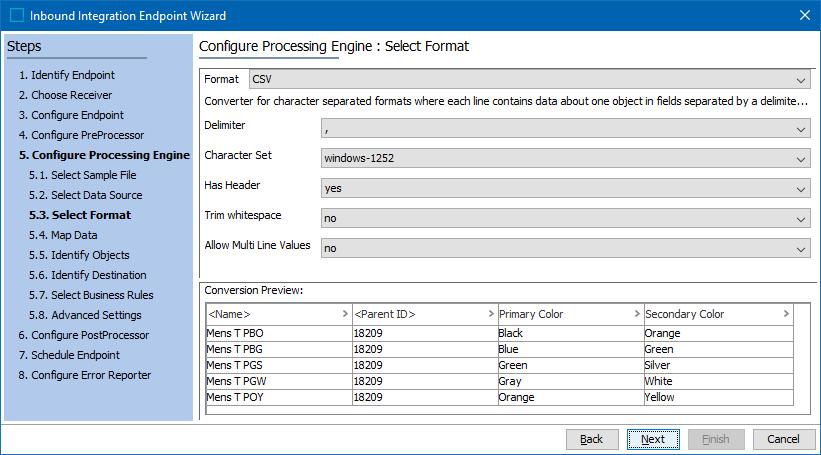
The following parameters are available in both Import Manager and IIEP.
- Delimiter - determines the character used to delimit the exported data. Options are semi-colon (;), comma (,), the tab character, the pipe symbol (|), or colon (:).
- Tab is recommended to avoid splitting the data on printable characters that may occur within the values.
- Only the delimiters in the dropdown are allowed. If the file uses a different delimiter, before importing, first update the file outside of STEP to use a delimiter allowed by STEP.
- Character Set - determines the characters that can be successfully imported. Options include Windows-1252, ISO-8859-1 (also known as the Latin-1 character set), UTF-8, or UTF-16.
- UTF-8 is recommended unless you have a reason to do otherwise.
- UTF-8 or UTF-16 (a Unicode character set) is required to correctly import special symbols, like a trademark symbol.
- Shift-JIS character set used for the Japanese language.
- Has Header - indicates if the file has a header row.
- Yes indicates that the first line (row) of the CSV file has header information, such as attribute names that match STEP, the Auto Map feature is available to map the columns of data to the appropriate object in STEP.
- No indicates that the first line (row) of the CSV file has actual data and no labels are included to identify data. Although a header row is not required, without it the user must be able to identify the data for manual mapping.
- Trim whitespace - determines how blank spaces before or after the value are handled.
- Yes removes leading and trailing spaces in imported values.
- No leaves leading and trailing spaces in imported values.
- Allow Multi Line Values - determines how new lines (return codes) are handled in the file, indicated by data with double quoted values that split over several lines. Typically, the newline character is interpreted as the end of data, delimiting a data record. However, sometimes data spans more than one line–that is, includes newline characters. In such cases, values must be quoted with the double quote character (") to be imported correctly.
- Yes values with new lines are quoted with the double quote character (").
- No new line characters are interpreted as the end of data, delimiting a data record.
- Conversion Preview - displays a sample of the first few lines of the file to allow verification that the selected options are correct.
Import Manager
IIEP
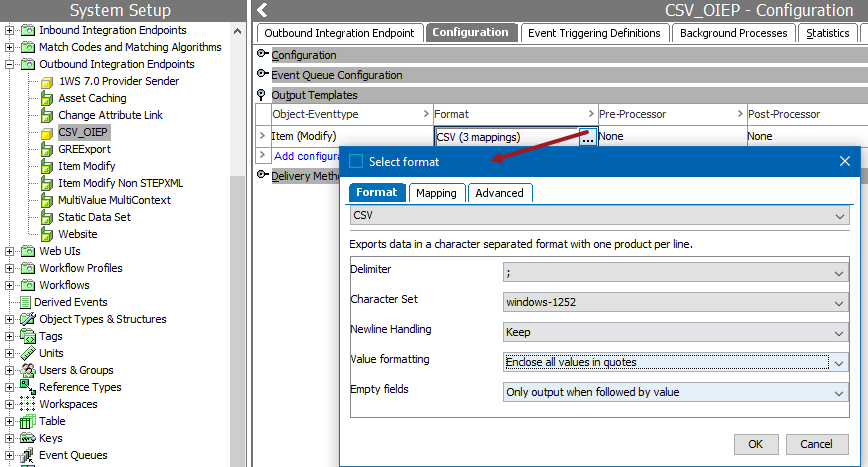
Outbound Data
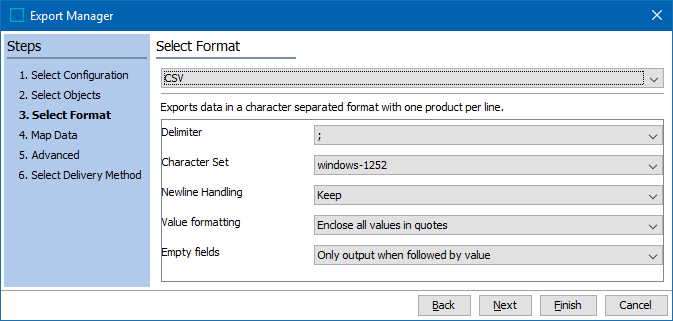
When data leaves STEP via CSV format, several options are available to customize the output.
Note: When using the JDBC delivery method users must select 'CSV' as the format. For more information on how to configure the CSV format for the JDBC delivery method, see the Exporting Data via JDBC with CSV Format topic in this guide here.
Outbound Parameters
The following parameters are available in both Export Manager and OIEP.
- Delimiter - determines the character used to delimit the exported data. Options are semi-colon (;), comma (,), the tab character, the pipe symbol (|), or colon (:).
- Tab is recommended to avoid splitting the data on printable characters that may occur within the values.
- Only the delimiters in the dropdown are allowed. If a different delimiter is required, after exporting, update the file outside of STEP.
- Character Set - determines the characters that can be exported. Options include Windows-1252, ISO-8859-1 (also known as the Latin-1 character set), UTF-8, or UTF-16.
- UTF-8 is recommended unless you have a reason to do otherwise.
- UTF-8 or UTF-16 (a Unicode character set) is required to correctly export special symbols, like a trademark symbol.
- Shift-JIS character set used for the Japanese language.
- Newline Handling - determines how new lines (return codes) are handled when they occur in the data being exported.
- Convert to Space (recommended) when new lines exist in the data being exported, to prevent data integrity issues caused by character-separated files having new lines within a record.
- Keep allows new lines to be included and can be used when the file recipient can handle them within a record.
- Value formatting - determines how values are displayed in the exported file.
- Enclose all values in quotes takes STEP values and adds quotes during export.
- Export without quotes unless value contains delimiter character(s) exports STEP values without modification unless a delimiter is found.
- Empty fields - determines how fields without values are exported.
- Only output when followed by value exports only fields that include a value.
- Always output exports all fields, regardless of the presence of a value, and is required when splitting multivalued fields. Attribute groups cannot be used in conjunction with this option.
Important: If exporting attribute groups, empty attributes will not be exported. The specific attributes to be exported need to be mapped manually.
Export Manager
OIEP