Integration Endpoint Plugins
The plugin suite for VCS integrations consists of four plugins:
- Outbound Integration Endpoint 'STEPXML Splitter' Post-processor Plugin
- Outbound Integration Endpoint 'Git Delivery' Plugin
- Inbound Integration Endpoint 'STEPXML Joiner' Pre-processor Plugin
- Inbound Integration Endpoint 'Invoke OIEP' Post-processor Plugin
Each is described in their own section below.
Additionally, within this topic, you will also find information regarding an editable business rule format. JavaScript-based business rules can be created, maintained, and (unit) tested outside STEP. This allows customers and partners to govern the lifecycle of business rules in a standard source code control system such as GIT, and from there, be able to deploy appropriate versions of the business rules to the various STEP systems that are part of a Development, Testing, Acceptance and Production (DTAP) environment.
Outbound Integration Endpoint 'STEPXML Splitter' Post-processor Plugin
The 'STEPXML Splitter' post-processor can take any STEPXML file produced by the 'STEP Exporter' processing engine as input and will split the file into multiple valid STEPXML files / editable business rule format files that are then passed to the configured delivery plugin. Generally, the splitter produces one file per STEP object and further normalizes the content so that elements for which the sequence has no significance in STEP are output in the same order every time. Non-object configurations (e.g., derived events) and system settings are output in a single file.
The reasoning behind splitting and normalizing is that it makes it easier to compare configurations outside of STEP in a VCS like Git. Further, it makes it easy to selectively choose specific configuration items to be imported on another system.
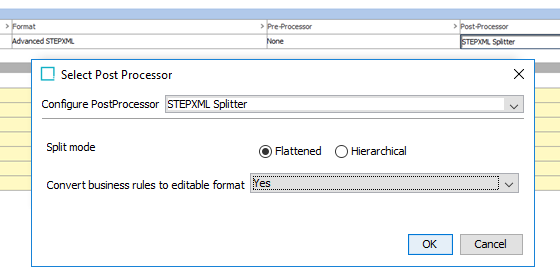
The ‘STEPXML Splitter’ plugin has two configuration options explained below.
Split mode
Split mode, that defaults to ‘Flattened’, with the other option being hierarchical, affects how STEP objects that normally are exported in a nested fashion are represented in the produced split files.
To illustrate the difference, in the example shown below, the classification hierarchy is being exported.
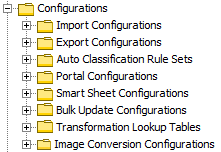
In both modes, one file will be created per classification object, but in ‘Hierarchical’ mode each of the leaf classifications, like e.g., 'Import Configurations', will be nested inside the element representing the 'Configurations' classification (this element will be stripped of all but ID, object type ID, and parent ID information) as shown below.
(…)
<Classifications>
  <Classification ID=‘ConfigurationsRoot’ UserTypeID=‘ConfigurationsRoot’ ParentID=‘Classification 1 root’>
    <Classification ID=‘stibo.IMConfigFolder’ UserTypeID=‘ImportConfigurationsRoot’>
      <Name>Import Configurations</Name>
      <MetaData>
        <Value AttributeID=‘Purpose’ QualifierID=‘en-US’>Storage for import configurations</Value>
      </MetaData>
    </Classification>
  </Classification>
</Classifications>
(…)
In 'Flattened' mode, upper levels will be omitted, and each file will contain exactly one 'Classification' element with parent identifier information as shown below.
(…)
<Classifications>
  <Classification ID=‘stibo.IMConfigFolder’ UserTypeID=‘ImportConfigurationsRoot’ ParentID=‘ConfigurationsRoot’>
    <Name>Import Configurations</Name>
    <MetaData>
      <Value AttributeID=‘Purpose’ QualifierID=‘en-US’>Storage for import configurations</Value>
    </MetaData>
  </Classification>
</Classifications>
(…)
Generally, it is recommended to use the default 'Flattened' mode while the 'Hierarchical' mode only should be used if the full hierarchy path must be present in each file. Obviously, the 'Hierarchical' example from above can be imported on a system where the classification with ID 'ConfigurationsRoot' is not present (it will be created during import). Importing the 'Flattened' example on such a system will, on the other hand, result in an error.
Convert business rules to editable format
This option determines how business rules (conditions, actions, functions and libraries) are exported. If set to ‘No’, the business rules are exported as STEPXML files. If set to ‘Yes’, the rules are exported in the editable *.js format described in this topic.
When exporting editable business rules, the parameter 'Convert business rules to editable format' option should be set to 'Yes.' The business rules in the STEPXML that are fed to the post-processor will be converted to the editable format and represented in a single *.js file instead of being represented in a STEPXML file. For details, see the Editable Business Rules Format topic here.
Outbound Integration Endpoint ‘Git Delivery’ Plugin
The 'Git Delivery' plugin delivers files produced by the outbound integration endpoint processing engine / a configured post-processor to a branch in a remote Git repository via a local directory on the application server or a directory accessible from all application servers within a clustered setup (see
- Git fetch
- Git checkout (of configured branch)
- Git hard reset
- Git pull (if branch exists in remote)
If the local directory is not Git enabled, the following operations are performed:
- Git clone
- Git checkout (of configured branch)
Note: The remote repository cannot be empty. At least one branch with one file must exist.
After this, the locally checked-out branch will be in sync with the remote branch, and the following operations are performed:
- Files produced by the outbound integration endpoint are written to the local directory
- Files in local directory but not in delivery are deleted
- Git stage
- Git commit
- Git push
If the configured branch does not exist in the remote repository in advance, it will be created.
It is important to understand the implications of this functionality, namely that:
- The outbound integration endpoint must with each invocation produce files for all the configuration objects / settings to be represented in the configured Git branch. Exporting only a file for a single object will cause all other files in the Git branch to be deleted. See the Outbound Endpoint Configuration topic for more information on how to configure an outbound integration endpoint using this delivery plugin here.
- Only STEP should make changes in the configured Git branch. All other changes will be overwritten with the next STEP delivery.
The 'Git Delivery' plugin has the following parameters:
Local git repository URI
URI for the local directory via which configuration files will be synchronized. Possible values for this parameter are read from 'GitDelivery.LocalRepoUri.[integer]' configuration property entries.
Having, for example, the following entries in sharedconfig.properties:
GitDelivery.LocalRepoUri.1=/workarea/conf-attributes
GitDelivery.LocalRepoUri.2=/workarea/conf-all
will make it possible to select between the values '/workarea/conf-attributes' and '/workarea/conf-all' for the parameter in the workbench.
Note: For this property and the ones mentioned below, the sequence of the variable integers in the property names must be complete. E.g., 1, 2, 3. Property values will not be read correctly if the sequence is, for instance 1, 3, 4.
Remote git repository URI
URI for the remote repository. As with the 'Local git repository URI' values that can be selected in the workbench are read from 'GitDelivery.RemoteRepoUri.[integer]' configuration property entries.
Examples:
GitDelivery.RemoteRepoUri.1=https://bitbucket.org/john-smith/step-conf.git
GitDelivery.RemoteRepoUri.2=ssh://gituser@192.168.56.102/home/gituser/git/repo.git
Git branch
Name of the branch to which the delivery is published. Values for this parameter are read from 'GitDelivery.Branch.[integer]' configuration property entries. Examples:
GitDelivery.Branch.1=step-dev-1
GitDelivery.Branch.1=step-qa
Author name
Author name for the Git commit. Values for this parameter are read from 'GitDelivery.AuthorName.[integer]' configuration property entries. Example:
GitDelivery.AuthorName.1=John Smith - STEP Dev1
Author email
Author email for the Git commit. Values for this parameter are read from 'GitDelivery.AuthorEmail.[integer]' configuration property entries. Example:
GitDelivery.AuthorEmail.1=john.smith@gmail.com
Repository username
The remote repository username. Values for this parameter are read from 'GitDelivery. RemoteRepoUsername.[integer]' configuration property entries. Example:
GitDelivery.RemoteRepoUsername.1=john.smith@gmail.com
Repository user password
The remote repository password. Password must be entered directly when configuring the plugin.
Remote Setup Example
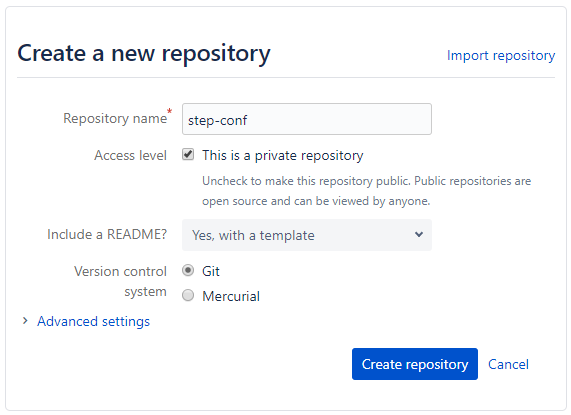
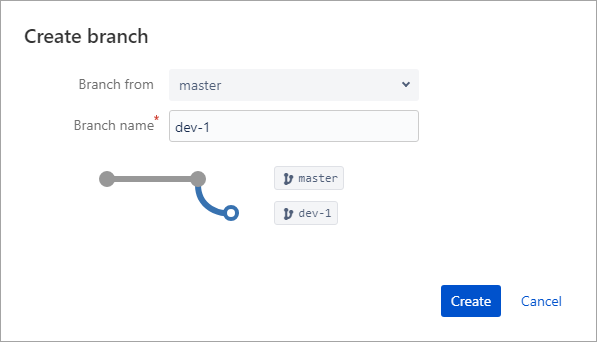
This section contains an example of how a remote Git repository using Bitbucket (https://bitbucket.org) can be configured from scratch to work with the Git delivery plugin.
- Create a new repository with a 'README' file via the Bitbucket web interface.
- Create a system specific branch in the repository.
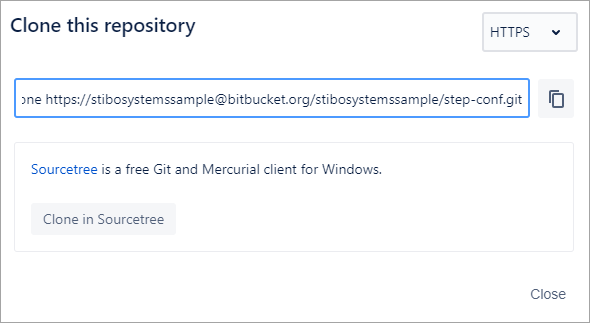
- Get the 'Remote git repository URI' from, for example, the Bitbucket 'Clone' option.
Inbound Integration Endpoint 'STEPXML Joiner' Pre-processor Plugin
The 'STEPXML Joiner' inbound pre-processor plugin has been designed to be used for getting configurations and settings exported via the outbound functionality, described above, imported on a system. The outbound functionality produces STEPXML files and potentially*.js files representing business rules. The 'STEPXML Joiner' plugin can take a .ZIP file containing any number of such files as input and will then combine these to a single STEPXML file with objects and settings appearing in the most sensible order and pass the combined file to the inbound integration endpoint processing engine.
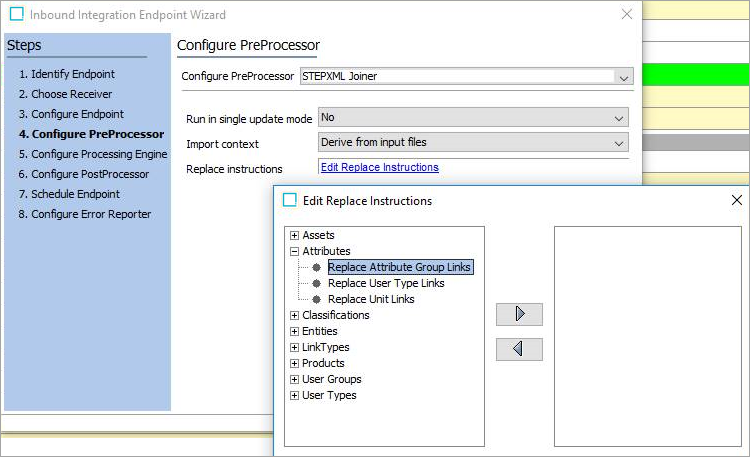
The pre-processor plugin can add various processing instructions to the combined STEPXML file, and there are two options for specifying these instructions. Users can either use the UI to configure the processing instructions (see screenshot below) or users can include a template STEPXML file in the .ZIP file fed to the endpoint.
To configure the UI:
- Make a single update mode selection.
- Make an import context selection. This is the context that will receive the imported data
- For 'list properties' (multiple instances of the same XML element at the same level) such as 'Value' elements inside the 'Values' element for a product or 'TargetUserTypeLink' elements for a reference type definition, this means that special processing instructions must be used to express that properties not present in the import file must be removed from the system as part of the import. Add these replacement instructions by clicking 'Edit Replace Instructions'.
- Within the 'Edit Replace Instructions' dialog, build the rules by selecting options on the left and using the arrow to move the rule over to the right box. Save changes before moving to the next step within the Inbound Integration Endpoint Wizard.
If a template file is provided in the .ZIP, the settings from this file overrule any UI configurations made in the UI. The template file must be named 'ProcessingInstructions.xml' and should, inside the STEP-ProductInformation element, only include the ReplacementRules element.
For more information regarding ReplacementRules, see the ReplacementRules Tag in STEPXML topic in the STEPXML Tags and Examples section of the Data Exchange documentation here.
Inbound Integration Endpoint 'Invoke OIEP' Post-processor Plugin
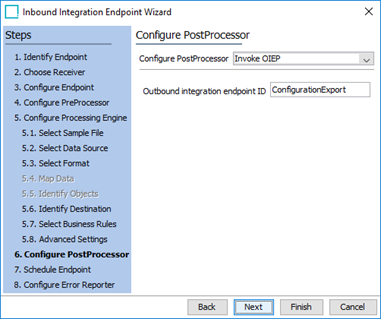
The 'Invoke OIEP' post-processor plugin allows for an outbound integration endpoint to be invoked once the inbound import process has completed. This makes it possible to update the representation of the system configuration in a remote Git branch immediately after the configuration has been imported. As can be seen below, the plugin only has a single configuration parameter: the ID of the outbound integration endpoint to invoke.
For more information, see these topics in the Version Control System Integration section: